
 Advertisement
How to Sign in to Gmail with a Different AccountToday many people have more than one email account. Many people use one Gmail account for personal discussions, another for business, and occasionally even a distinct account for education or online services. Fortunately, Gmail makes it easy to switch between accounts without losing access to your emails or checking out every time.
If you are wondering how to sign in with a different account on Gmail, this post will lead you through the full procedure. Whether you’re using an Android phone, iPhone or computer, the procedures are easy to follow and will only take a few minutes to finish.
By the end of this tutorial, you will know how to add another Gmail account, switch between accounts fast, fix frequent login problems, and keep all of your accounts secure.
Read More: How to Remove a Virus From Your Phone
“Sign In With a Different Account” Mean on Gmail?
If Gmail says “Sign in with a different account” it just means you can add another Google account to your device or browser without deleting the account you are currently signed into.
This can be very useful if you just have a few email addresses for example: – Personal gmail for friends and family – Work gmail for work – School gmail for homework and school work
Gmail enables you to be signed into multiple accounts at the same time, so you don’t have to log out and back into each account every time you want to check a different inbox. You can toggle between accounts in a few taps or clicks.
The best part? Each account stays totally separate. Your emails, contacts, files and settings are all kept organized and private.
How to Sign in With a Different Account on Gmail on Android
Adding another account to Gmail on an Android phone is easy.
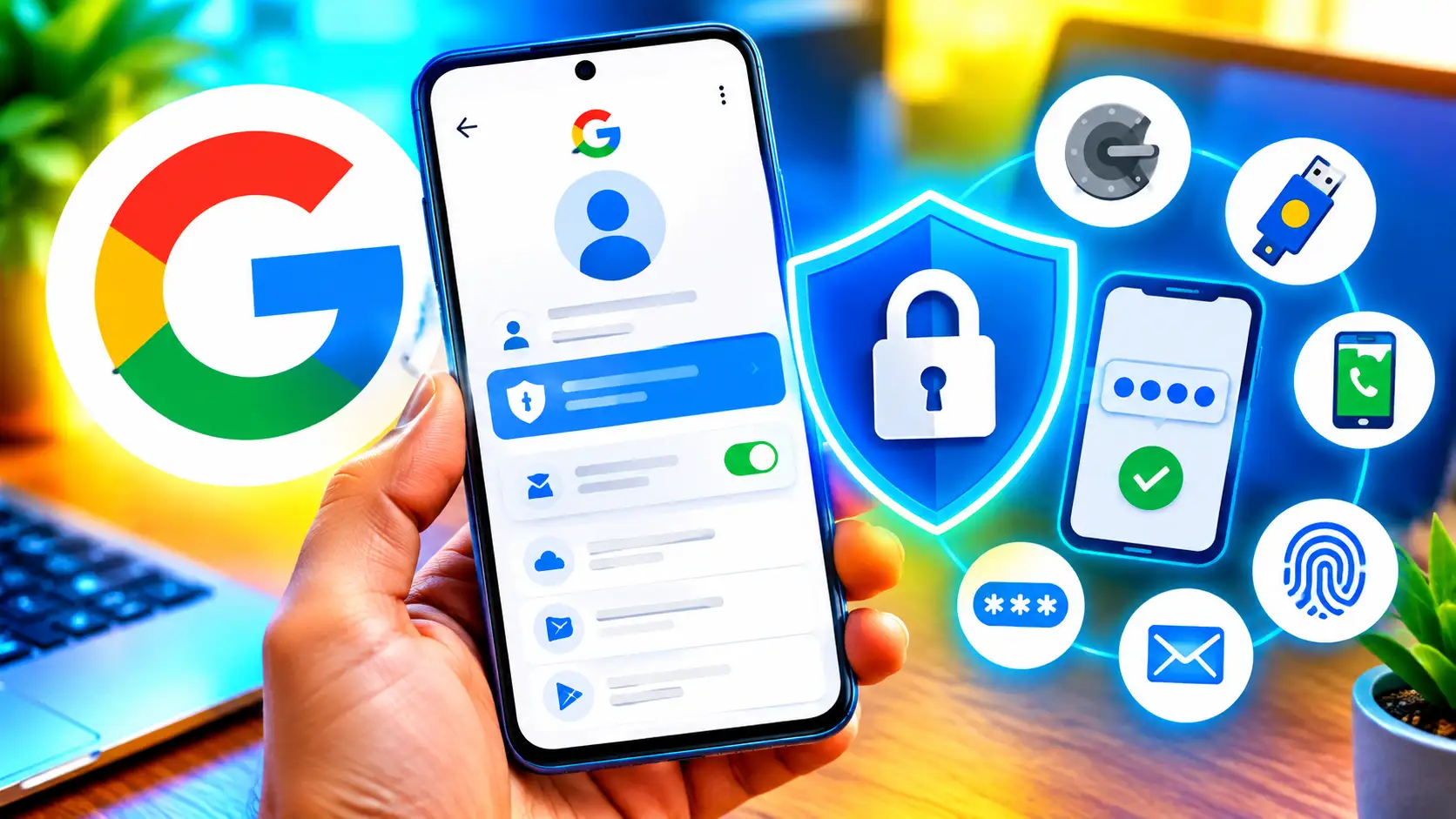
Just open the Gmail app on your phone. In the top-right corner, tap your profile image or account icon. A tiny menu will display showing your current Gmail account and any other accounts already connected to the device.
Now, tap Add another account. Gmail will then ask you what type of account you want to add. Select Google and move forward.
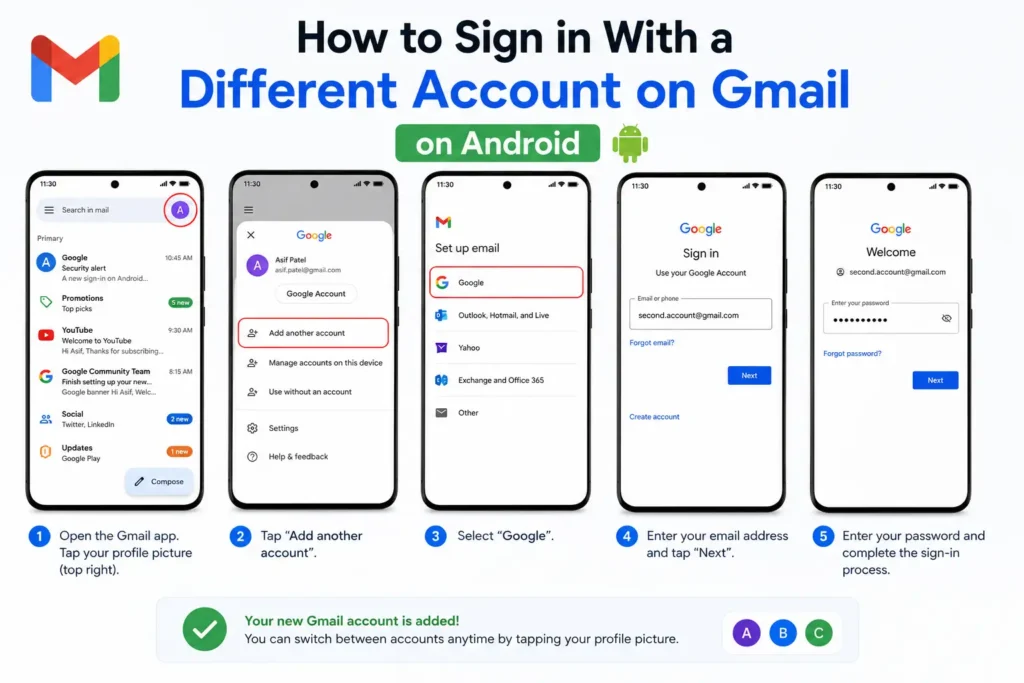
At this point the Google sign-in screen will be presented to you. Enter the email address of the account you want to add and hit Next. Enter your password and complete any security verification Google asks for.
When you sign in, your new Gmail account will appear next to your previous one. To toggle between these two accounts, tap your profile picture and select the account you want to see.
Your original account will remain signed in, so you won’t lose access to your emails or preferences.
How to Sign In With a Different Account on Gmail on iPhone
Adding another Gmail account on an iPhone works almost the same way.
Open the Gmail app and tap your profile image in the upper-right area of the screen. Choose Add another account from the options.
Choose Google for the account type and enter the email address you want to add. Type in your password and follow the on-screen instructions to complete signing in.
If you’re using the Safari browser to get to Gmail, the process is just as simple. Head to Gmail, click your profile icon, and choose Add another account. Enter your details and sign in.
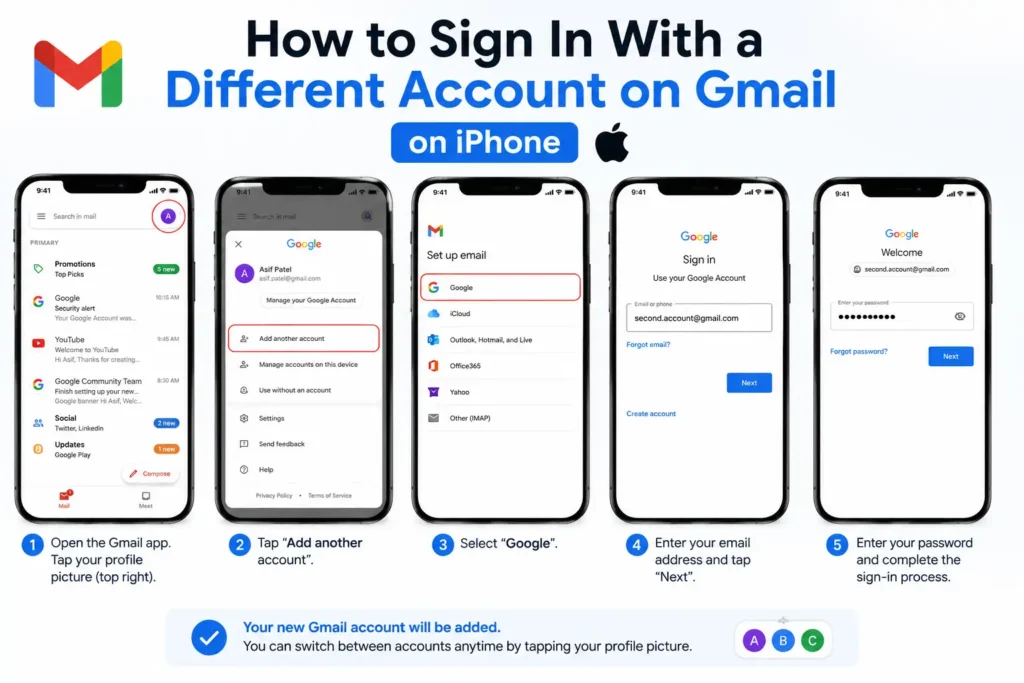
Once finished, you will have two accounts active. You can switch between accounts any time you want without logging out of either account.
That’s particularly useful if you separate your business and personal email but want quick access to either throughout the day.
How to Sign In With a Different Gmail Account on a Computer
Many people maintain numerous Gmail accounts on various PCs, especially for business and personal tasks.
To add another account, open Gmail on your web browser and look in the top-right corner of the screen. Click your profile image.
A small menu will open displaying your current account. Click Add another account.
Google will redirect you to the sign-in page. Type in the address of the Gmail account you want to use, and then click Next. Type in your password. If you have two-step verification set up, you’ll need to complete the verification process on your phone, or type in a backup code.

Once you sign in, the new account will be added to your browser. You can switch between accounts by clicking your profile picture and choosing the account you want to open. If you often use multiple Gmail accounts, you might want to set up multiple browser profiles, too. This will keep bookmarks, passwords, and browsing history separate for each account.
How to Switch Between Multiple Gmail Accounts to one accounts
On your mobile device, open Gmail and tap your profile picture. A list of your connected accounts will appear. Simply tap the account you want to use, and Gmail will switch to that inbox immediately.
On a computer, click your profile icon and choose another account from the list.
This process does not sign you out of any account. Instead, Gmail leaves each account running in the background, so you can jump between inboxes in seconds. This feature is a real time-saver and increases productivity for people managing business emails, online stores, YouTube channels or school accounts. Why can’t I log into a different Gmail account? Sometimes users have problems trying to log into a different Gmail account. Fortunately, most of the issues are simple to resolve.
One very common reason is entering the wrong password. If you are on a computer, double check your password and make sure that the caps lock is off.
Another issue that can come up is two-step verification. If Google asks you for a verification code, make sure that your phone is nearby or use your backup codes to get logged in.
Browser cache and cookies can also cause problems when signing in. Many times, clearing your browser cache or opening Gmail in an Incognito window will solve these issues.
Google may also block sign-ins that it considers suspicious. If this happens, follow the verification steps Google provides to prove who you are.
Keeping your recovery email address and phone number up to date can make account recovery much easier in these situations.
How to Remove an Old Gmail Account
If you no longer want to use your Gmail account, you don’t have to delete it permanently. You can simply remove it from your device.
To delete your Gmail account from a device:
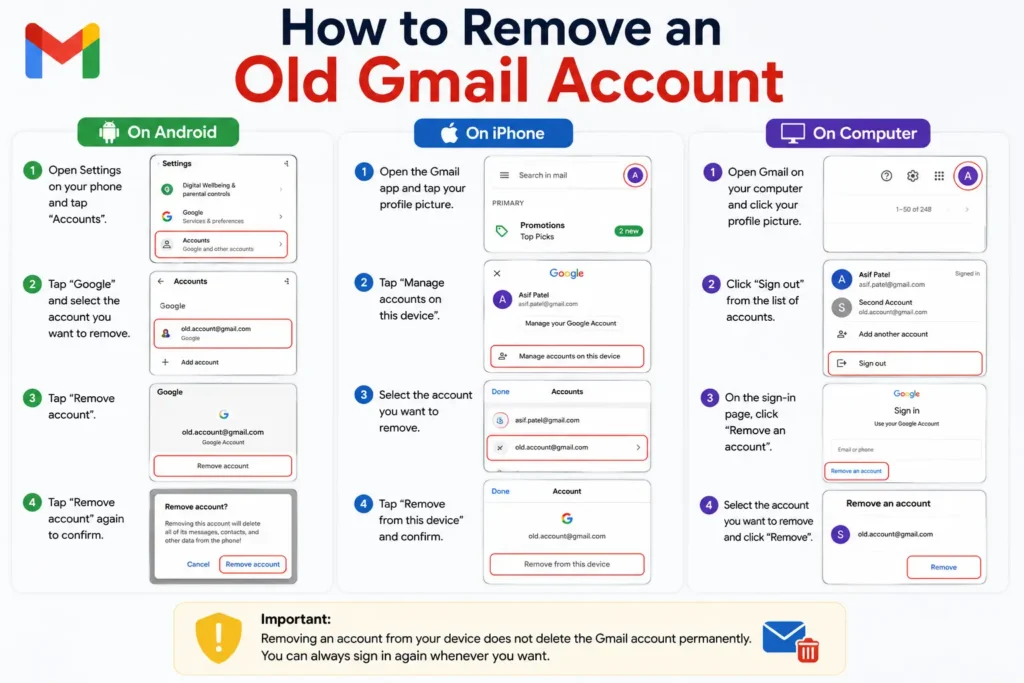
Android: Go to Settings > Accounts > Tap the Google account you want to delete > Tap Remove Account.
On iPhone: Open the Gmail app > Tap your profile picture > Tap Manage accounts on this device > Delete the account you no longer need.
On computer: Click your profile picture on Gmail > Sign out > Delete the saved account from the sign-in page.
Deleting an account from a device won’t delete the Gmail account. You can always sign in later if you need to.
Is it Safe to Use Multiple Gmail Accounts?
Yes, it is safe to use multiple Gmail accounts if you take the necessary security precautions.
Many users have separate accounts for work, personal correspondence, and side projects to stay organized.
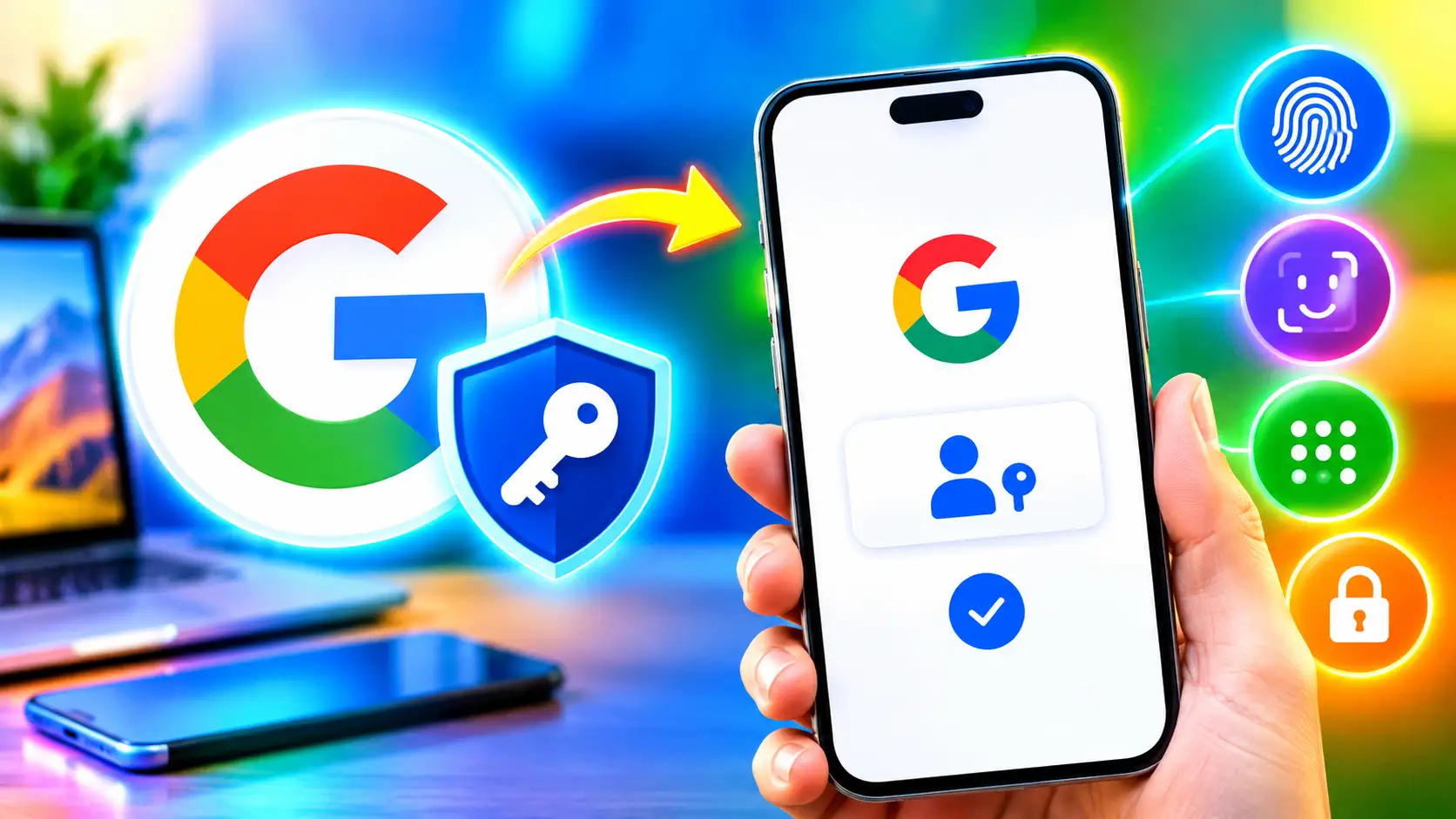
When opening new accounts, be sure to turn on two-factor authentication when available. Use complex, unique passwords for each of your accounts, and don’t log into your accounts from public computers or unsecured networks.
Review and update your recovery options regularly so you can regain access if you forget your password.
With proper security practices, managing multiple Gmail accounts is safe and easy.
Conclusion
Learning how to sign in with a different account on Gmail is easier than most people think. Gmail allows you to add multiple accounts on Android phones, iPhones, and computers without deleting your existing account.
After you connect the accounts, toggling between them is quick, it takes only a few seconds. This way you can use one device to handle personal, professional, and school emails.
If you encounter sign-in problems, verifying your password, clearing your browser cache, or going through Google’s security check typically resolves the issue quickly.
Adopt the steps in this tutorial and good security practices, and you’ll benefit from the convenience of multiple Gmail accounts without risking your data’s security and organization.
FAQ
Head to Gmail, click or tap your profile image, and sign in with a different account. Choose to Add another account, enter your password and email address, and follow any security verification prompts. Adding the new account won’t remove your current one.
Yes, you can use Multiple Gmail Accounts on Desktops, Android Devices, and iPhones at the same time. You don’t have to get logged out of any of your accounts to switch between them quickly.
No, you don’t have to sign out. You can add another account to your existing Gmail account by clicking Add another account to sign in.
Yes, provided you use strong passwords, have two-factor authentication, and keep your recovery information current.
You may be unable to sign in due to an incorrect password, two-step verification, browser cache, or Google security issues. If you still can’t log in, check your login credentials and try clearing your browser cache.







Incredible a lot of useful information.