Android phone owners can factory reset their mobile by going into the settings app on their mobile. Smartphones are prone to several software faults. Moreover, the saved cache and other bottlenecks could slow down your Android handset if accumulated over a long time of usage. If the issues are ongoing and the temporary fixes stop working over time, then you have to execute a factory reset on your Android phone. On top of that, you still have to factory reset your smartphone before selling it to wipe out all personal data and other identifiable information. There are two simple methods for factory resetting an Android smartphone. They can either boot their phone into recovery mode and reboot their phone, or they can start the process from the Settings menu.
If you are wondering how to factory reset your Android smartphone for any of the above-mentioned reasons, we have come up with a step-by-step guide to help you do the same. But first, you’ll want to back up all your contacts and any other data saved locally to your Google account or an external hard drive.
Read More: 60Hz 90Hz or 120Hz which refresh rate display phone is best
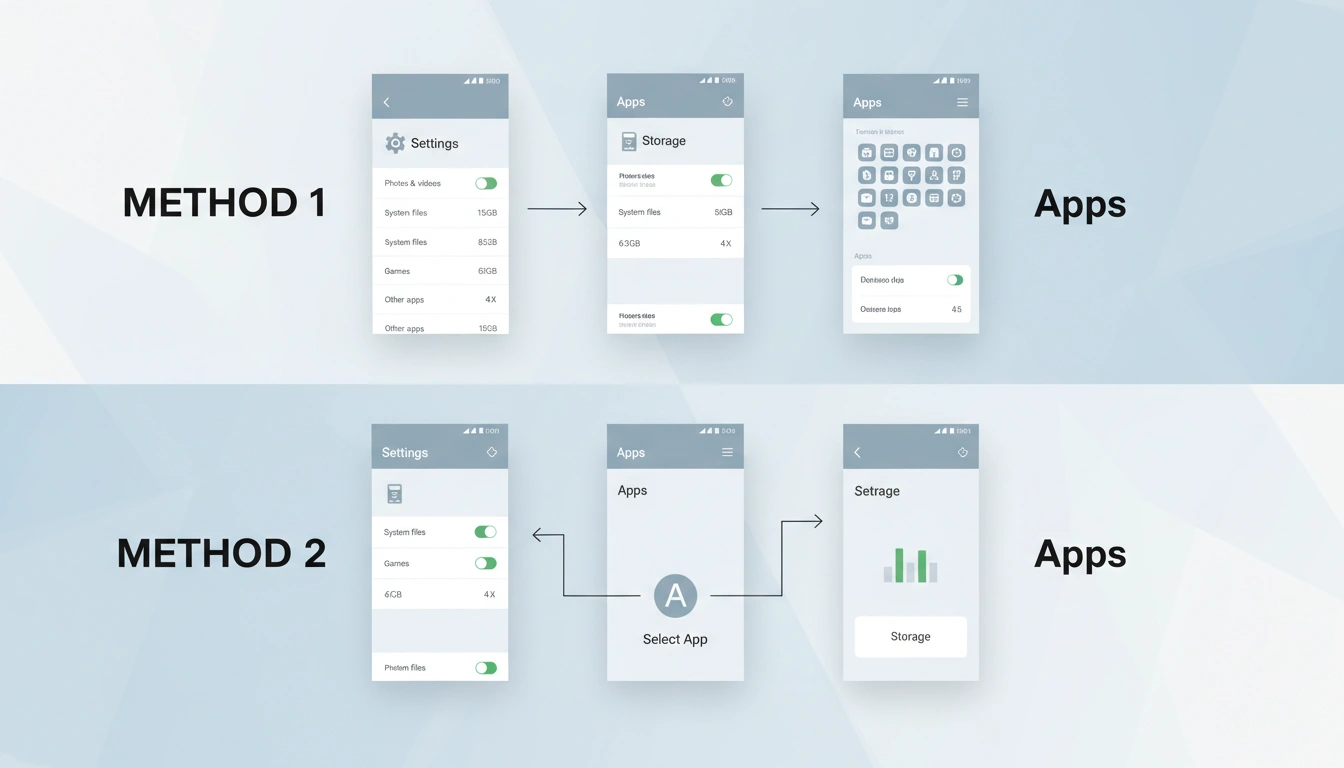
How to Factory Reset an Android Phone from Settings
- Turn on your Android phone.
- Touch Settings.
- Navigate to the System settings menu.
- Then, click the Reset options button at the bottom of the screen.
- Here you have to click on the button Erase all data (factory reset).
- Select the Erase all data button in the bottom right corner of the screen.
- You will be asked to enter your phone’s PIN to confirm that you want to factory reset your mobile.
- Your Android phone will reboot in a few seconds and start wiping all data.
How to Factory Reset an Android Phone through Recovery Mode
- Turn off your Android phone.
- Now for recovery mode, press the power and volume down keys for 5 seconds till the fastboot menu comes.
- Use the Volume Up and Down keys to pick the Recovery Mode option.
- Tap on the power button to confirm your choices.
- Wait for the new screen that says “No command”. Here, press and hold the power button, then quickly press and release the volume up button. That combination should take you to the recovery menu.
- Now press and hold the power button again while pressing and releasing the volume up button.
- Then you need to use the volume buttons to find the Wipe data or Factory reset option > press the Power button to select it.
- Wait for a few seconds, and your Android phone will restart and factory reset.
FAQ
After you reset your Android phone to factory settings, all apps, locally stored files, system settings, photos, videos and messages will be deleted.
Yes, you need to back up all the files, mail and other saved data before you factory reset your Android phone, or else you may lose it.
You can factory reset your Android phone by either accessing the settings menu or by turning off your mobile and going into recovery mode.