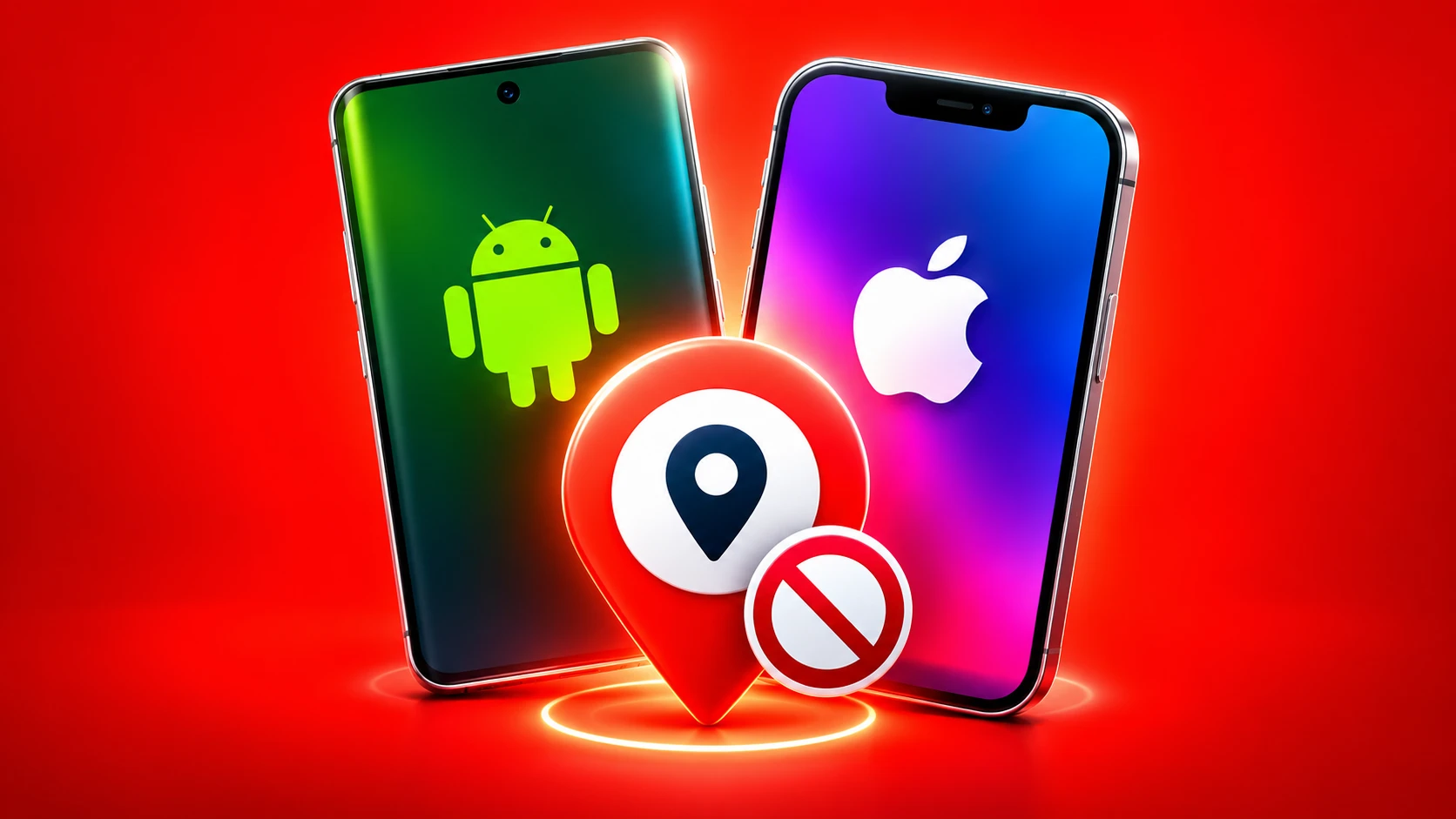
Turning off location tracking on apps on your Android or iOS device is a good way to increase your privacy, but you should know that it’s not a foolproof method. Turning off location access will prevent most apps from using your device’s GPS to find your exact location, but it doesn’t eliminate all the other methods they could use to guess where you are—such as your network connection or nearby Wi-Fi signals. But you still have control over your location permissions, which puts you in control and limits how much movement apps can see.
Most of us just touch ‘Allow’ when an app asks for location access without much thinking. It makes sense for Google Maps to know where you are, but a photo-editing app or a game might not need to know that at all. It’s worth checking which apps are still allowed to access your location if you’ve given permission to many apps over time. It is also possible to remove access without removing them, and it’s rather straightforward to do on Android and iPhone.
How to Turn Off Location Tracking Apps on Android
- Open Settings on your Android phone and tap Location.
- Tap App location permissions You will see a list of apps and whether or not they have permission to access your location.
- Tap the app that you no longer wish to share your location with.
- Some alternatives will appear here. If you wish to fully disable location access, select Don’t allow. If you would like the app to only use your location when you are using the app, pick Allow only while using the app.
- Some apps may additionally include a toggle for precise location. If you’re okay with sharing your broad region but don’t want the app to know your exact position, turn it off.
How to Turn Off Location Tracking Apps on iPhone
- On your iPhone, go to Settings > Privacy & Security.
- Tap Location Services to check which apps can access your location.
- Scroll down the list and tap the app you wish to change location access for.
- Choose Never under Allow Location Access if you never want the app to access your location. Choose While Using the App if you want it to know where you are while you are using it.
- Some apps don’t need your precise location to work. To share just an estimated location with one of them, toggle off Precise Location on the same screen.
Turning off location access restricts how apps may utilise your phone’s location, but it doesn’t prevent all the ways they might try to predict your whereabouts. For example, an app might utilise your IP address to figure out your approximate position. What it can collect depends on the app and what rights you have granted it.
If privacy is a problem, it’s worth looking at what each app genuinely needs.” Some programs may function very well without location access, but others, such as navigation apps, require it to accomplish their job. You may also disable Precise Location for apps that don’t need to know your exact location.
FAQs
Yes, iPhone and Android both allow you to manage location permissions on an app-by-app basis.
Read More: Use VPN on Android in India
No, apps can still guess your position based on your IP address or other data.
Go to the location settings on your phone, find the app, and change its location permission.
Open Settings, go to Location, and select App location permissions. Choose an app and select Don’t allow to disable its location access.
Read More: How to Add or Remove a Second WhatsApp Account on iPhone
Yes, both Android and iPhone let you manage location permissions for individual apps without affecting other apps.
Read More: How to Transfer WhatsApp Chats from iOS to Android