WhatsApp also allows you to disable auto-downloading of images, videos, audio files and documents. But no matter what platform you’re on, WhatsApp has a tonne of quality-of-life features for consumers. But if you’re not careful, these functionalities can prove to be more vexing than handy. For some perspective, WhatsApp allows you to auto-download images, videos, audio files and documents. But if you’re a member of a lot of groups, or you get a lot of files through private chats every day, auto-downloading media files might soon fill up your device capacity. This will make you delete the undesired files one by one after they have been downloaded automatically. But you may disable auto download on WhatsApp.
Read More: How to summarise WhatsApp chats using AI
If you want to know how to stop WhatsApp from automatically downloading images, videos, audio files and documents, then we have got you covered with a step-by-step tutorial.
How to Stop Photos and Videos from Downloading Automatically in WhatsApp for All Chats and Groups
- Open WhatsApp on your phone.
- Head to your profile by tapping on your profile photo at the bottom-right of the screen.
- Go to the settings menu of WhatsApp and turn off auto-download of media files.
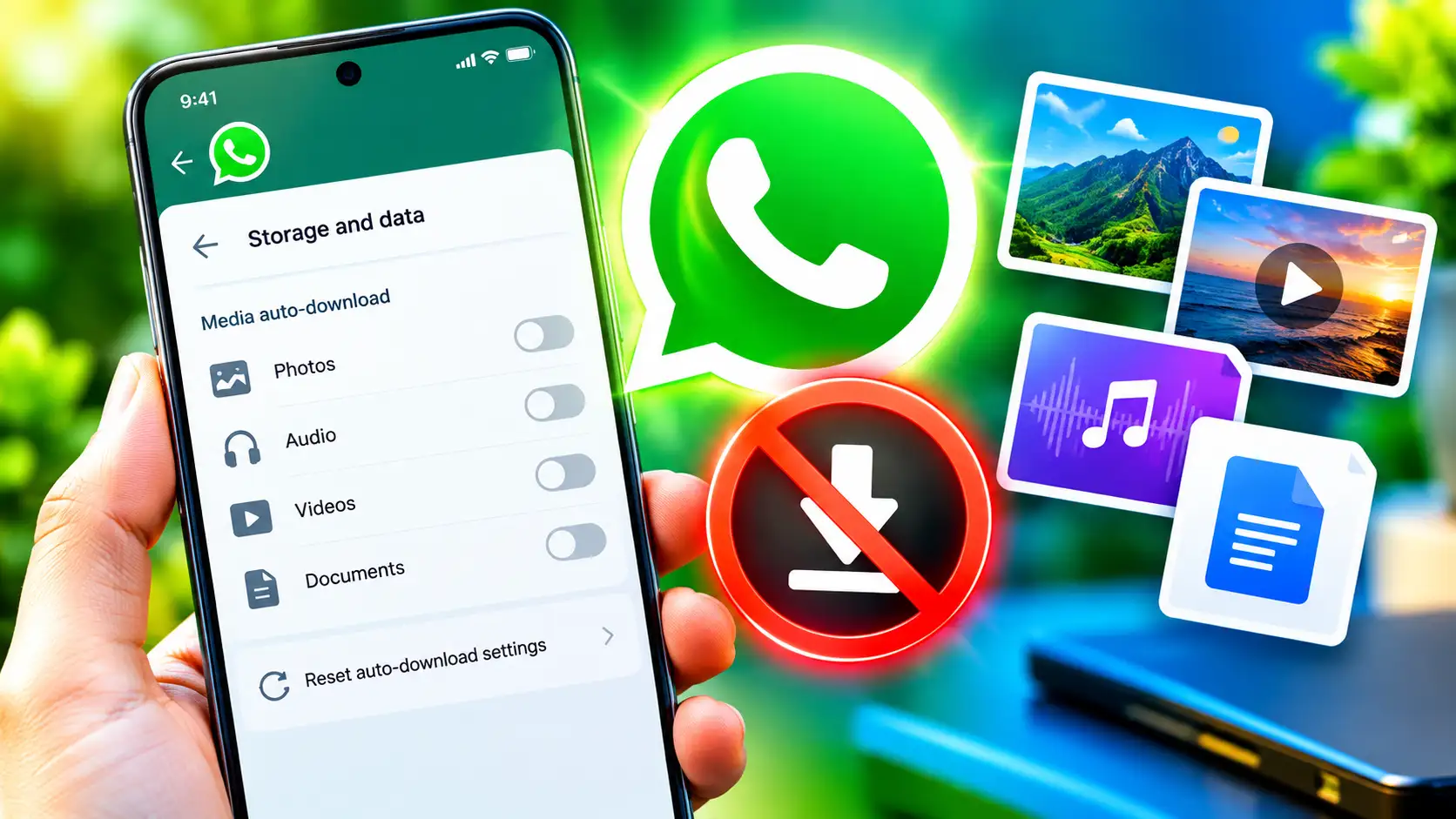
- Click on the Storage and Data button here to alter the settings.
- Then scroll down to the bottom of the screen.
- In the Media auto-download menu, you may switch off auto-download for each file type.
- Choose the Photos option to prevent WhatsApp from downloading pictures automatically.
- If you want to entirely stop auto-download, you can choose Never by touching on it.
- Alternatively, tap Wi-Fi to auto-download photos only while you’re connected to Wi-Fi.
- Repeat the procedures to switch off the auto-download feature for audio files, videos and documents as per your desire and needs
- You can also “Reset auto-download settings” by tapping on the button at the bottom of the screen.
Read More: How to free up whatsapp storage without deleting your chats
How to Stop WhatsApp From Auto-Downloading Images From One-on-One & Group Chats
- Open WhatsApp on your phone.
- Then, open the group conversation or individual chat where you want to stop the program from auto-saving photographs to your phone.
- Now, tap on the contact/group name to see their profile.
- Here, you need to go down till you reach the Save to Photos menu.
- Now touch on the Save to Photos button > set choice to Default (Off) or Never.
FAQ
WhatsApp automatically downloads photographs and videos, but you can stop this and switch off the auto-download feature on individual files in the settings menu.
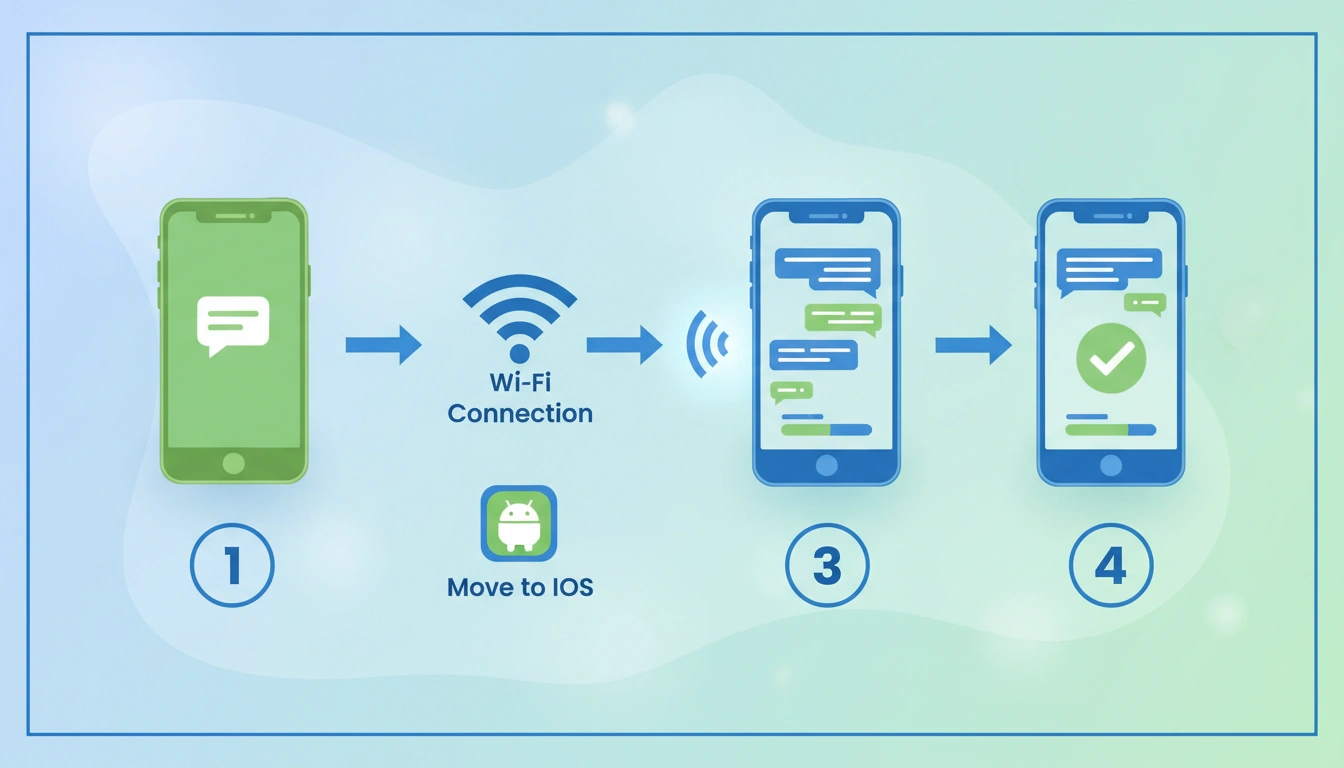
Read More: How to move your WhatsApp chats from Android to iPhone
Yes, you may disable auto-download for certain WhatsApp group chats in WhatsApp from the Chats menu.
You may reset the auto-download settings to default on WhatsApp by navigating to the Storage options and selecting the reset button.