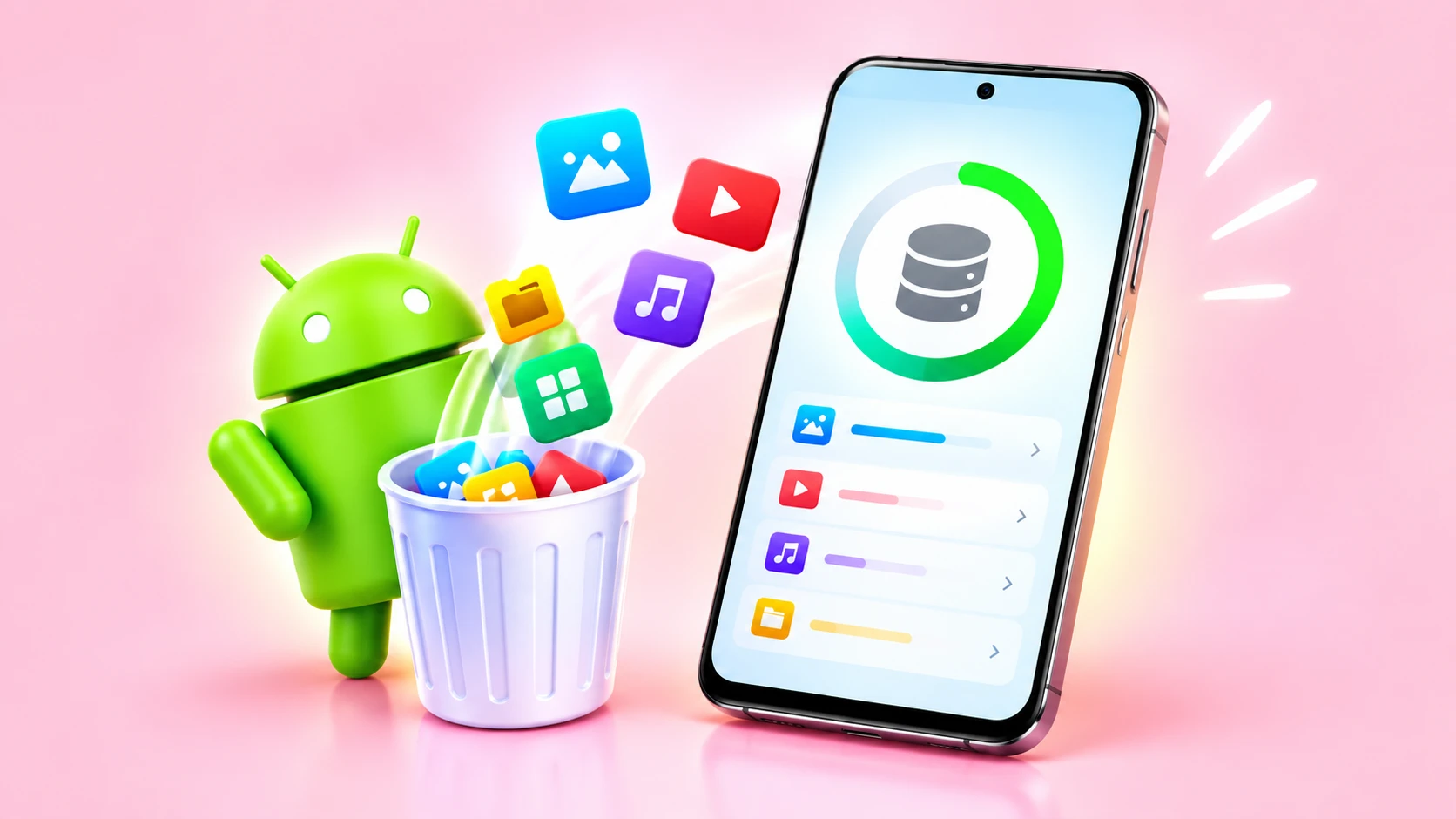
Android users can use Google Photos to back up their media. They can remove backed-up copies from their device and free up storage space on an Android phone while keeping them accessible through the app.
In recent years, Android brands have launched many handsets with high RAM and storage configurations to meet storage needs. As AI is widely available in all handsets, having enough storage is crucial for a smooth user experience. High-quality photos, long videos, and gaming-oriented features also require a lot of space on our devices now. Many of the latest smartphones have ditched expandable storage options, so there aren’t many ways to add space to your phone after you’ve purchased it. Here in this article, we will guide you on the ways to free up space on your Android smartphones.
Know Your Phone’s Storage Usage
The amount of space available in each Android smartphone will vary. Many entry-level models come with 4GB RAM and 64GB storage, and it goes up to 24GB RAM and up to 1TB storage on some models. Before getting started, know how much storage is available on your device. You can check which apps and files have consumed the most space by heading to Settings > Storage and selecting the category.
This might slightly vary across models, but you will get to view its storage usage for apps, photos, videos, documents, and other files. This can help you identify what needs to be deleted first.
Delete Unnecessary Photos and Videos to Free Up Space on Android
In almost all Android phones, photos and videos take up the lion’s share of the storage. Users with Google Photos can back up their media. The backed-up copies can be removed from the device to make room for new files. The backed-up images and videos can be accessed through the app when connected to the internet. Samsung smartphone users can back up and sync the device’s data using Samsung Cloud.
On supported devices, users can enable Smart Storage to automatically remove backed-up photos and videos when your device is running low on space. It can be enabled by heading to Settings > Storage > Free up space > opening the menu > selecting Settings > turning on Smart Storage.
Delete Downloaded Movies and Files
Downloaded films and documents will occupy considerable space. Removing content you no longer need will help you to make more space. For instance, on Google TV, head to Library and remove downloaded videos. In YouTube Music, open Library, tap the three-dot menu next to a downloaded item, and select Remove download.
Unnecessary files can be removed from the Downloads folder using your phone’s file manager. You can also transfer large files to a computer using a USB cable.
Uninstall Unused Apps to Free Up Space on Android
If you are in a pinch for space and need to make room quickly without removing photos and videos, you can check out your applications and uninstall rarely used ones.
Enabling the automatic app archiving in the Play Store also helps to free up space. This can be done by opening your profile on the Google Play Store>Settings>General>turn on Automatically archive apps. This feature removes unused apps while preserving their personal data, allowing you to restore them later.
Clear App Cache and Unnecessary Data
Clearing app cache can be a great way to clear up space without uninstalling applications. The temporary files saved in apps can be removed by following this: Settings > Apps, select an application, open Storage or Storage and cache, and tap Clear cache.
Remember, tapping Clear Storage or Clear Data can permanently remove locally stored app information, settings, and downloaded content.
Besides this, checking available space regularly and deleting unnecessary files from social media apps like WhatsApp, Instagram, Telegram, and others can help keep your Android smartphone organized.
FAQs
Open Settings and tap Storage. You can view how much space is used by apps, photos, videos, and other files.
Read More: How to Send High-Quality Photos and Videos on WhatsApp
You can back up your photos and videos to Google Photos and delete the copies from your device once the backup is complete.
Also Read: Use VPN on Android in India
Smart Storage automatically removes backed-up photos and videos from your device when storage is running low.
Read More: How to Turn Off Location Tracking Apps on Android and iOS
Yes, clearing an app’s cache removes temporary files and can free up storage without uninstalling the app. The amount of space recovered depends on the app.
Also Read: How to Check BSNL Prepaid Plan Validity Using USSD
Yes, uninstalling unused apps frees up storage space and may help your phone run more smoothly, especially when storage is nearly full.