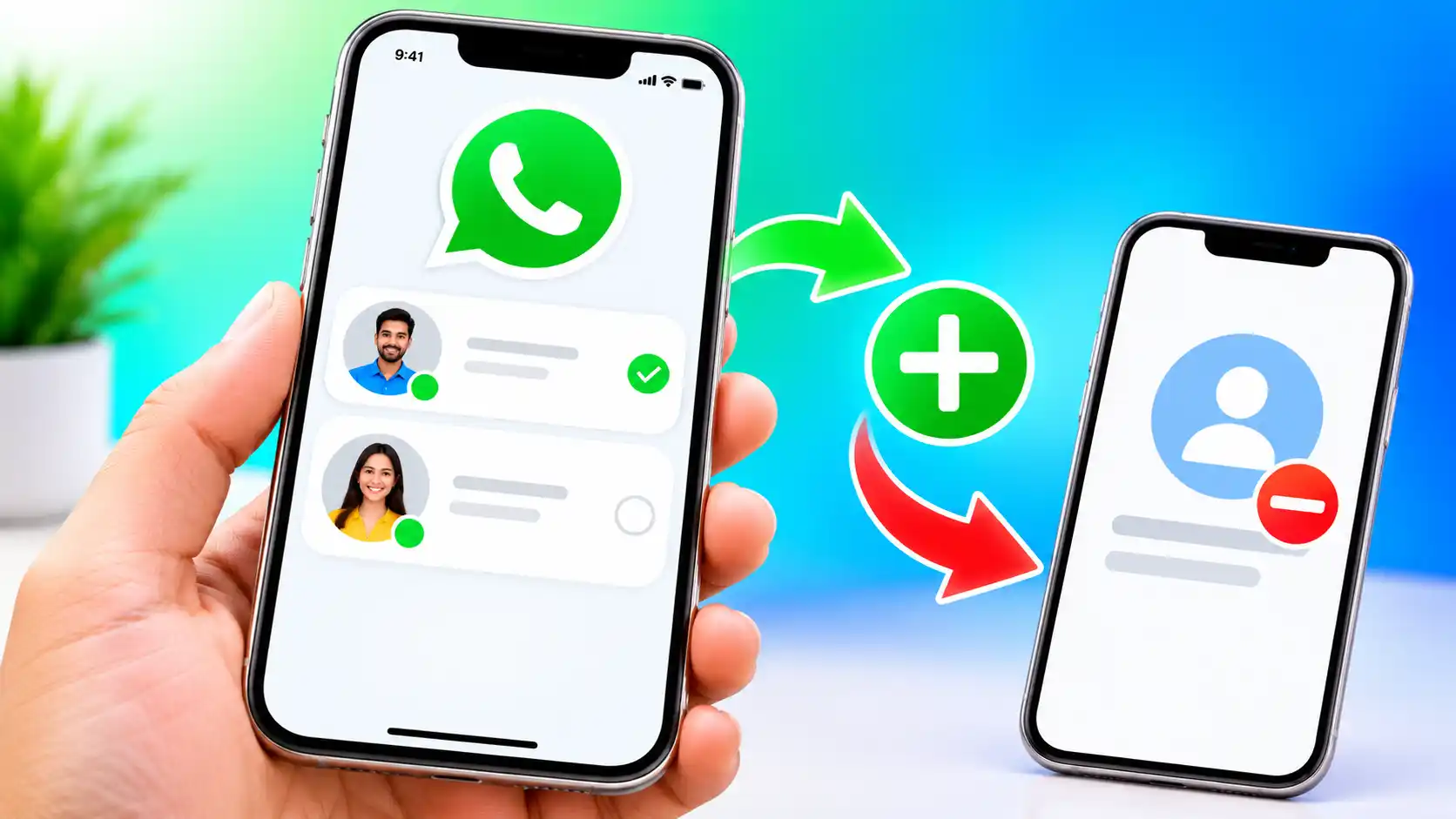
WhatsApp Chat Lock hides the notification’s message content and sender, but you can still get WhatsApp calls from closed contacts.
There are some WhatsApp talks you want to keep private, especially if you sometimes lend your phone to friends or family. Of course, you can lock the whole app, but it might be a bit of a pain if you only want someone to glance at a photo or make a quick call. Alternatively, there’s WhatsApp’s Chat Lock. It allows you to lock certain conversations and put them in a folder that only you have access to with your phone’s verification method. You can even conceal this folder from your main chat list so such talks are less likely to attract someone’s attention. Let’s have a look at how Chat Lock works, how to set it up, and what to keep in mind when using it.
Also Read: Use VPN on Android in India
What is WhatsApp Chat Lock?
You may use WhatsApp chat lock to keep some chats private without locking the entire app. When you switch it on for a chat, WhatsApp will remove it from your normal chat list and place it in a separate Locked Chats folder. Depending on the device you use, you may unlock the folder using your phone’s authentication mechanism, such as fingerprint, facial recognition, or passcode.
It works for both individual and group chats, so you can choose which talks you want to keep hidden. Also, WhatsApp hides message details from alerts for locked chats, so if someone glances at your device, they won’t be able to read the message. If you don’t want the Locked Chats folder to show up in your chat list, you can hide it with a secret code.
If you receive a message from a locked conversation, your alerts won’t display the sender’s name or message preview. That way, if someone happens to glance at your phone, they won’t be able to read the message or know who it’s from. You’ll still notice you’ve received a message, but you’ll have to unlock the conversation to read it.
WhatsApp calls, however, are a bit different. Locking a person’s conversation will not prevent them from calling you on WhatsApp, and their calls will still go through as normal.
How to Lock WhatsApp Chat
Locking a WhatsApp discussion is only a few steps, and you don’t have to change anything about your other conversations. This is how you do it.
- Open WhatsApp and find the individual or group chat that you wish to lock.
- Tap the contact or group name at the top to go to the chat information page.
- Scroll down until you find the Chat Lock option and tap it.
- Turn on Chat Lock and follow the prompts on screen to verify your identity using fingerprint, facial recognition, or your phone’s passcode, depending on the device you use.
- WhatsApp will now relocate your conversation to the Locked Chats folder that you will have to log in to enter.
If you don’t want to start the conversation, you may be able to lock it directly from your chat list. Hold the chat and search in the menu for the lock option. The exact instructions may differ slightly based on your phone and the version of WhatsApp.
How to Hide Locked Chats on WhatsApp
WhatsApp also lets you conceal the Locked Chats folder from your normal chat list, so it won’t show up with your other discussions. The first step is to create a secret code.
- Open WhatsApp and pull down on your chat list to view locked chats. If you have already hidden the folder, type your secret code in the search field to bring it up.
- Open Locked Chats and choose the three-dot menu or settings depending on the device you are using.
- Go to Chat lock options and press Secret code.
- Enter a code that you will remember but others won’t be able to guess. Re-enter it to confirm.
- Go back to Chat lock settings and turn on Hide locked chats.
Once you do this, the folder will disappear from your main chat list. If you wish to access your discussions, simply type your secret code into WhatsApp’s search bar and tap Locked Chats when it displays.
Remember your code, though WhatsApp’s reset option might wipe your protected chats, including the messages and media included within them, so choose a code you’ll remember.
How to Find and Open Locked Chats
Once you lock a chat, you won’t have to search through your entire discussion history to discover it again. Simply open WhatsApp and slide down on your chat list to open the Locked Chats folder. You can then press it and confirm it’s you with your fingerprint, facial recognition, or phone passcode, depending on the device. You’ll then be able to get up to speed on messages and reply exactly as you would normally.
If you have hidden the folder with some secret code, it will not show up in your chat list at all. To get it back, type your code into the WhatsApp search field. The hidden folder will be displayed, and you can tap it to return to your conversations.
FAQs
WhatsApp Chat Lock enables you to lock selected chats and place them in a separate folder that requires authentication to access.
Read More: How to Add or Remove a Second WhatsApp Account on IPhone
Open the chat, tap on the contact or group name, select Chat Lock, and follow the on-screen prompts.
Also Read: How to Transfer WhatsApp Chats from iOS to Android
Yes. Go to Chat lock settings, create a secret code, and enable the Hide locked chats option.
Enter your secret code in WhatsApp’s search bar to make the hidden Locked Chats folder appear.
Read More: How to export WhatsApp chats on Android and iOS
No, you can still get WhatsApp calls from people with locked chats.