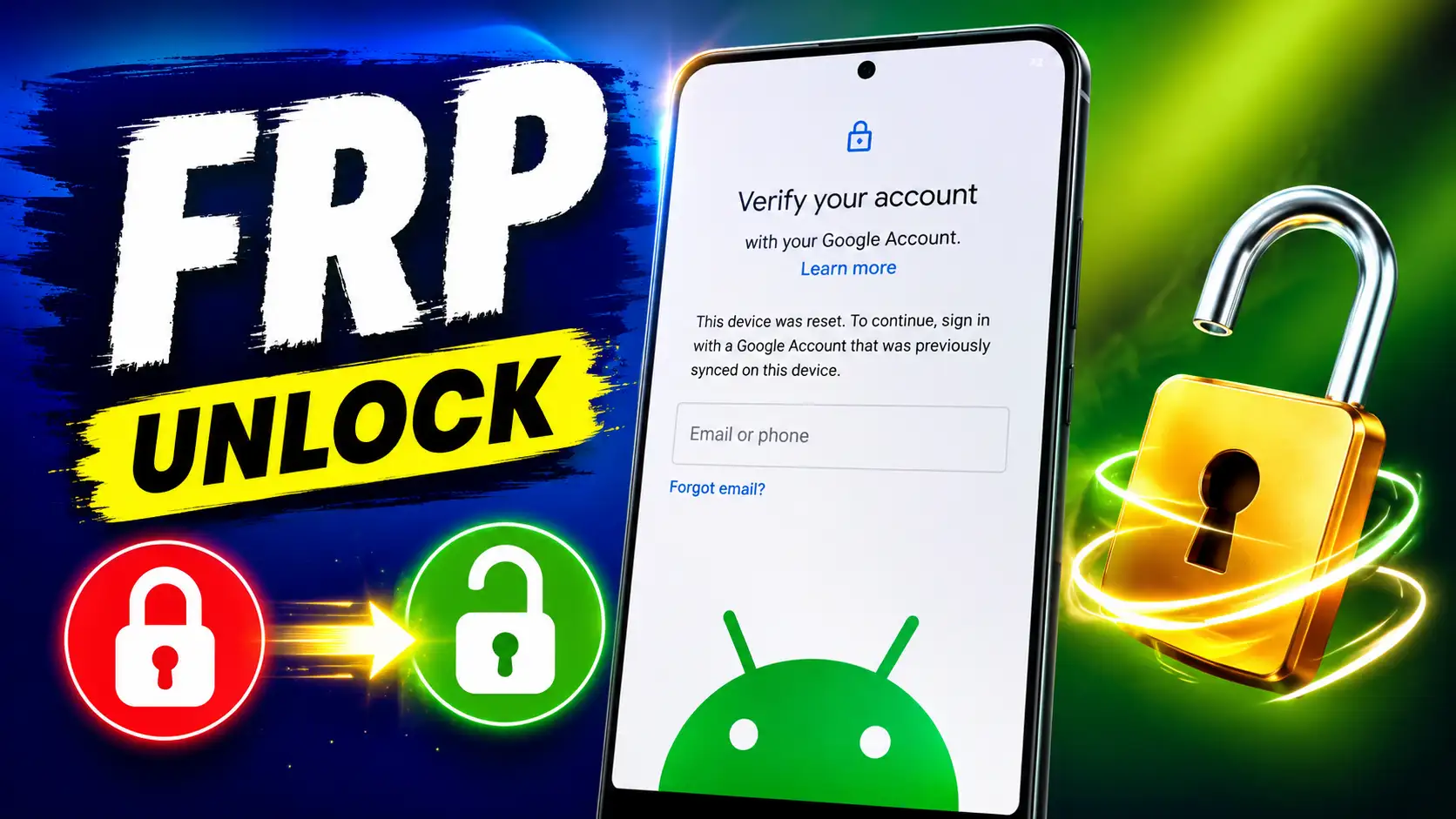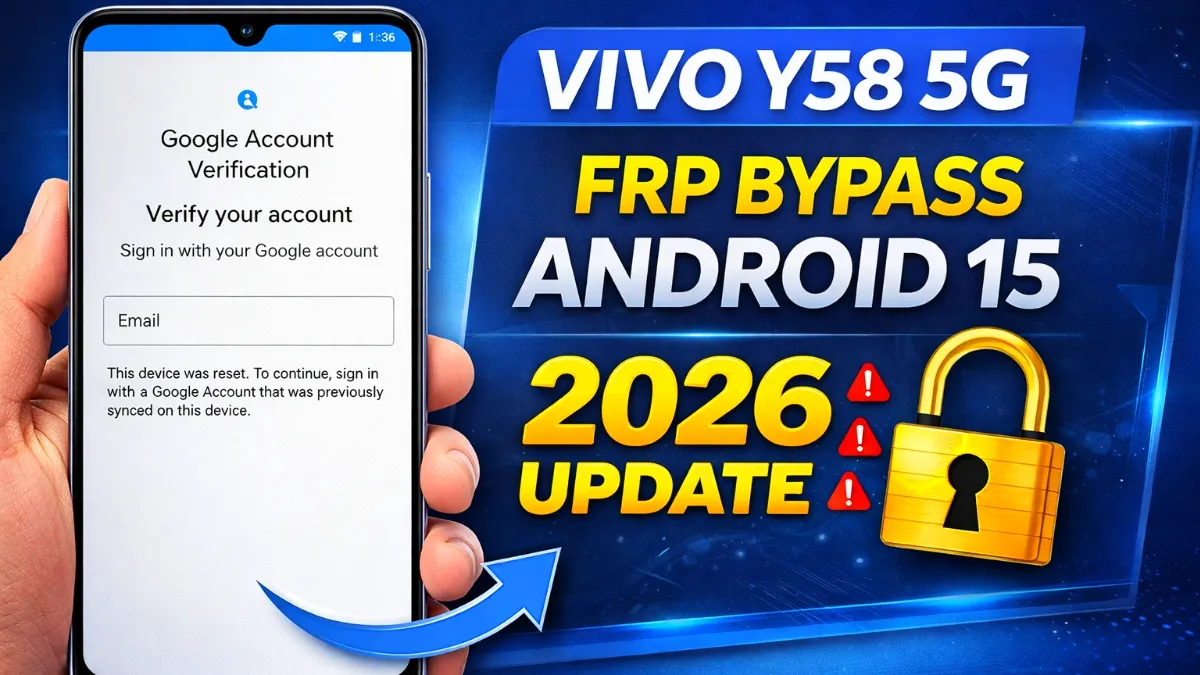
If your Vivo Y58 5G is asking for Google account verification after a factory wipe, you may be experiencing Factory Reset Protection (FRP). This security feature is designed to prevent illegal usage of an Android phone once it has been reset.
Many users search for terms such as “Vivo Y58 5G FRP Unlock Android 15,” “Vivo Y58 5G FRP after factory reset,” or “Vivo Y58 Google Account verification.” However, FRP is not the same as a normal screen lock, and performing another factory reset generally does not remove the Google verification requirement.
This tutorial covers why FRP emerges, how to recover access to a legitimately owned Vivo Y58 5G, what to do if you forget the Google Account password, and what second-hand phone buyers should know.
Important: This tutorial is designed for the owner of the device or someone who has authorization to use it. It does not include instructions for overcoming or evading Android’s security features.
Read More: BEST VPN FOR PUBLIC WIFI
What Is FRP on Vivo Y58 5G?
FRP stands for Factory Reset Protection.
It is an Android security measure that helps secure a phone when it is reset without first deactivating the Google Account linked with the device.
For example, say you have been using your Vivo Y58 5G with a Google Account. Later, the phone is factory-reset through Recovery Mode. When the device begins again, Android may ask you to verify a Google Account that was previously synchronized with the phone.
You may notice a message similar to:
“This device was reset. To continue, sign in with a Google Account that was previously synced on this device.
This is confusing because from the user’s point of view the phone has already been completely reset. FRP, however, is supposed to remain active after an authorization or reset to recovery mode.
The aim is simple: If someone finds or steals an Android phone, that person shouldn’t be able to simply factory reset it and use it as a new phone.
Why does Vivo Y58 5G ask for Google Verification after factory reset
There are a few different scenarios where you may encounter the FRP verification screen.
Google Account was connected when the phone was reset.
If the phone was syncing to a Google account before the factory reset, Android may ask you to verify the account.
It has been fixed with Recovery Mode on the phone
The verification procedure of the FRP can be initiated by a recovery-mode reset—the device is forced to verify that the person setting up the device is authorized to use the device.
Forgot Google Account username/password
Or sometimes you have the phone but can’t recall what gmail and password you used.
You purchased the phone second-hand
A used Vivo Y58 5G can display FRP if the previous owner reset the device without properly removing their Google account.
The account. one has received a software update
Software updates can change menus, security behavior, and setup screens. Therefore, an outdated FRP instruction prepared for an earlier Android/Funtouch OS version may not apply to the current software.
Vivo Y58 5G FRP Android 15 Version and FRP
Before searching for an “Android 15 FRP method,” it is vital to examine the real software version installed on the phone.
Vivo’s published specifications for the Y58 5G show the handset as coming with Android 14 and Funtouch OS 14. Therefore, every individual Y58 5G running Android 15 should be viewed as a phone that has gotten a subsequent software update rather than assuming every Y58 5G was originally delivered with Android 15.
This distinction matters since FRP behavior might rely on things such as the following:
- Android version
- Funtouch OS version
- Security patch level
- Device software build
- Google Play system update
- Account-security status
So, a guide that worked on a previous Vivo software build shouldn’t immediately be touted as operating on every Android 15 device.
Vivo Y58 5G frp Android 15 Factory Reset & How To Recover
The best choice is to select the Google Account that was previously synchronized to the phone.
Step 1. Connect your phone to the Internet.
Switch on the Vivo Y58 5G and connect to a working Wi-Fi network.
You’ll also want a decent connection to the Internet, because the gadget has to talk to Google’s authentication servers during setup.
Step 2: Visit the Google verification page
Proceed with the initial Android setup until the phone prompts you to sign in with the previously associated Google Account.
Step 3: Log in to the previously synced Google account.
Enter the Gmail address you had used before on the Vivo Y58 5G.
Make sure there are no typing mistakes.
So if the account is, for example,
example@google.com
Don’t unintentionally input the wrong Gmail address.
Step 4: Type in the right password.
Enter the password for this account.
If the password is accepted, follow the setup instructions displayed on the phone.
Step 5: Fill out additional security verification.
Depending on the security settings of the account, Google may request additional verification.
Next, follow the on-screen verification instructions using the recovery option approved by the owner of the account.
What If You Forgot Your Google Account Password?
One of the most typical reasons why individuals get stuck at the FRP screen is that they forget their Google account password.
If you own a Vivo Y58 5G, then recover the Google account instead of trying out random FRP tools or APKs.
Google has an official account-recovery mechanism that might help users regain access to their account.
After retrieving the account, utilise the retrieved credentials during the Vivo setup process.
Remember
Don’t continually type strange passwords.
Incorrect credentials can make the recovery procedure more challenging, particularly when Google’s security algorithms identify odd login behaviour.
What happens if I change my password on Google?
This is an important point many of the FRP articles miss.
If you recently changed your Google Account password, don’t expect the new password to automatically solve every device-verification situation.
Google says its Android factory-reset instructions recommend users know their Google Account credentials before resetting a device and that if they’ve recently changed their password, they may need to wait a while before doing a factory reset.
So if you just changed the password:
- To verify that the new password works, log in to your Google Account on an authorised device.
- Do not keep on resetting the Vivo Y58 5G.
- Give Google’s security systems time.
- Try to reconfigure with the correct account.
Vivo Y58 5G FRP Android 15 & Used Cell Phones
Another common source of FRP issues is second-hand phones.
What if you bought the Vivo Y58 5G from someone else? The seller factory resets the phone before sending it off. When you turn on the phone, you will see Android is asking for the prior owner’s Google account.
The gadget is not a good solution for this problem; reboots are not an option.
Contact the previous owner.
Ask the prior owner to help fix the account association using the standard account/device-management process.
You should also maintain evidence that the phone was lawfully purchased, such as:
- Purchase invoice
- Seller receipt
- Order confirmation
- IMEI information
- Original box, where available
- Other proof of ownership
If the seller cannot be contacted or refuses to resolve the problem, calling Vivo support or an authorised service center is the safer alternative.
Can another factory reset remove Vivo Y58 5G FRP Android 15?
Usually not.
This is one of the biggest FRP myths going.
Factory reset deletes user data, applications and settings on the local device. That doesn’t mean that the phone won’t need to be security verified any longer.
In fact, FRP is there to ensure that a simple factory reset doesn’t let unauthorised users set up the phone as their own.
So if your Vivo Y58 5G is already prompting for Google Account verification, then just doing multiple factory resets is not going to solve the problem.
Why Old Vivo FRP Tutorials May Fail on Android 15
You may have seen older YouTube videos or websites in the past that said:
- 100% Vivo FRP bypass
- Vivo FRP unlock no PC.
Be careful with such claims.
Android security is always evolving. What worked on an older Android version or security patch may not work anymore after a software update.
Vivo’s Funtouch OS is no different.
A tutorial may have been recorded on:
- Android 11
- Android 12
- Android 13
- Android 14
- Android 15
while your Vivo Y58 5G may have the latest software. So, it matters the Android version, Funtouch OS version and security patch level.
Instead of claiming that a particular bypass method works universally, a responsible troubleshooting article should explain the differences and direct legitimate owners toward account recovery or authorised service.
Don’t Trust Random FRP APK Downloads
Searching for “Vivo Y58 5G FRP APK” can return many websites offering applications that supposedly remove Google verification.
Be really careful.
Unknown APK files can potentially contain:
- Malware
- Adware
- Unwanted applications
- Monitoring software
- Fake unlock features
- Credential theft parts
- Aggressive advertising
There are several APKs advertised as “100% working” which are not safe.
You should specifically avoid websites that require you to:
- Disable some security features
- install some unknown APKs
- Enter your Google password into a third-party application
- Provide remote access to your computer
- Pay someone before displaying proof of service
- Download suspicious ZIP / RAR files
With personal information, banking apps, photos and other sensitive data at risk, the danger of installing unknown software solely to bypass a security screen is not worth it.
How about FRP Unlock Tools for Computers?
You can also discover Windows programmes that claim to remove Vivo FRP.
The same caveat applies.
Some tools may be authentic professional servicing utilities, some may have been modified, some may be out of date, and some may be harmful.
Be especially careful of any tool that claims to work on all Vivo models and all versions of Android.
The suggested route for a properly owned phone is:
Google Account recovery -> standard device verification -> Vivo/authorised service if required.
It’s safer than local security-bypass software.
What to do if your Google verification fails?
If you know your Google Account yet the Vivo Y58 5G keeps going back to the verification screen, try basic troubleshooting.
Check Wi-Fi Connection
Get a decent wifi network.
If you can, try to connect to another trusted network to see if it is a connectivity issue.
Verify the Gmail address.
Ensure you use the account that was truly synced to the phone before the reset.
Just because you can get into a Gmail account doesn’t guarantee that was the account previously associated with this particular device.
Repeat Password
If you do not know the password, recover the account instead of guessing.
Restart the phone.
Sometimes a momentary setup or connectivity issue might be resolved by a normal restart.
Try logging in to the account from another device.
possible, try to join in to the Google Account from another trusted device to verify the username and password are accurate.
If the problem persists, please contact assistance.
If you are positive you are using the correct account but the verification page still does not continue, you might want to contact expert support.
Vivo Y58 5G FRP Android 15 Troubleshooting Table
| Problem | Recommended Action |
|---|---|
| Forgot Gmail address | Recover the Google Account |
| Forgot Google password | Use Google’s account recovery process. |
| Recently changed password | Allow the required security waiting period. |
| Wi-Fi isn’t working. | Try another reliable network. |
| The previous owner’s account appears. | Contact the previous owner. |
| The phone was purchased used. | Keep proof of purchase and ownership. |
| Repeated factory resets don’t help. | Stop resetting and use account recovery. |
| The old FRP tutorial doesn’t work. | Check Android/Funtouch OS version. |
| An unknown APK is requested. | Avoid installing it. |
| Verification still fails. | Contact Vivo/authorised service |
Vivo Service Center Visit Preparation
In case the legitimate account recovery does not work, professional help may be the way to go.
Have your ownership details handy before you attend a service centre.
Useful documents are:
- Original invoice of purchase
- Good receipt.
- IMEI of device
- Serial number
- Original packaging
- Government-provided identity if applicable to the service provider
Exact needs may vary by service provider and context.
A professional service centre can tell you if the problem is due to account verification, software configuration or another device problem.
Vivo Y58 5G Important Tips and Tricks
Do these things to help prevent it from happening again.
Before handing the phone to someone else, delete your Google Account.
When you are selling or giving away your Vivo Y58 5G, be sure to properly deactivate your accounts and then go through the standard device-reset process.
Change your Google recovery info.
Make sure you have recovery mechanisms in place for your Google Account.
Do not reveal your Google password.
A real service provider would never ask you to post your password in a public space or enter it into an unknown website.
Save your sales receipt.
Keep this receipt and your original packaging. Proof of purchase may be required for service.
Stay away from dubious “one-click FRP” tools.
“Installing random software shouldn’t override the security features,” he said.
Frequently Asked Questions (FAQ)
Is the Vivo Y58 5G FRP locked?
Yes. Factory Reset Protection is a feature on Android smartphones that helps prohibit the use of a device after a factory reset.
Vivo Y58 5G Google account asked after reset?
The phone could be asking to verify a Google Account already synced on the device.
Can I remove another factory reset to bypass FRP?
Usually not. FRP requires you to verify the Google Account, so another factory reset will not help.
Is Vivo Y58 5G Android 15 or not?
Original Vivo Y58 5G specs come with Android 14 running on Funtouch OS 14. Individual smartphones may receive software updates later on, so check the actual software version on the phone before concluding that it is running Android 15.
What if I forget my Gmail password?
When setting up the device, utilise the Google Account credentials you recover by using Google’s official account-recovery process.
Are FRP methods working on all Vivo Y58 5G?
No. Software versions and security fixes and Funtouch OS builds may vary. Just because it worked on an older build doesn’t mean it should function on a newer one.
Conclusion
Having a Vivo Y58 5G FRP lock after a factory reset might be aggravating, especially if you know the phone is yours. But FRP is expressly designed to prevent unauthorised people from setting up a reset device without authenticating the previously attached Google account.
The simplest way to fix your Vivo Y58 5G stuck on Google Account verification is to find out the Google Account that was previously synced with the phone and recover the account if needed.
If you buy a used phone, retain the documents of purchase and work with the prior owner. If you are unable to retrieve the account, the next best thing is to get authorised Vivo or professional service support.
Most importantly, don’t trust every website or YouTube video that says “100% Vivo Y58 5G FRP bypass”. Android and Vivo security systems are always updated, and an APK or PC programme that worked on an older software version may not work or may not be safe on a subsequent build.
Please verify the real Android version, Funtouch OS version and security patch level for the Vivo Y58 5G Android 15 before following any troubleshooting information.
Briefly: validate the original Google Account, recover it if necessary, retain evidence of ownership and use authorised support if normal account recovery fails.