WhatsApp messaging experience is not the same for everyone. WhatsApp helps you free up storage on both iOS and Android without losing your chat history. Some use the messenger for informal talks, others use WhatsApp for work and some even for business. And that’s how many of us get all the typical “good morning” messages and images, family photos of loved ones, long video clips, even enormous documents in our chats. That also means your WhatsApp storage fills up fast. Depending on the amount of internal storage your phone has, you will soon receive a notice saying “Storage is Full” suggesting you free up some space to continue using the app.
Another larger and more frequent issue is failing backups. This can be caused by not enough cloud storage space and too many files in your program. So how do you keep WhatsApp working like a well-oiled machine? This can be done with the built-in storage manager of the app.
Read More: How to increase your android phones battery life
Benefits of WhatsApp Storage Manager
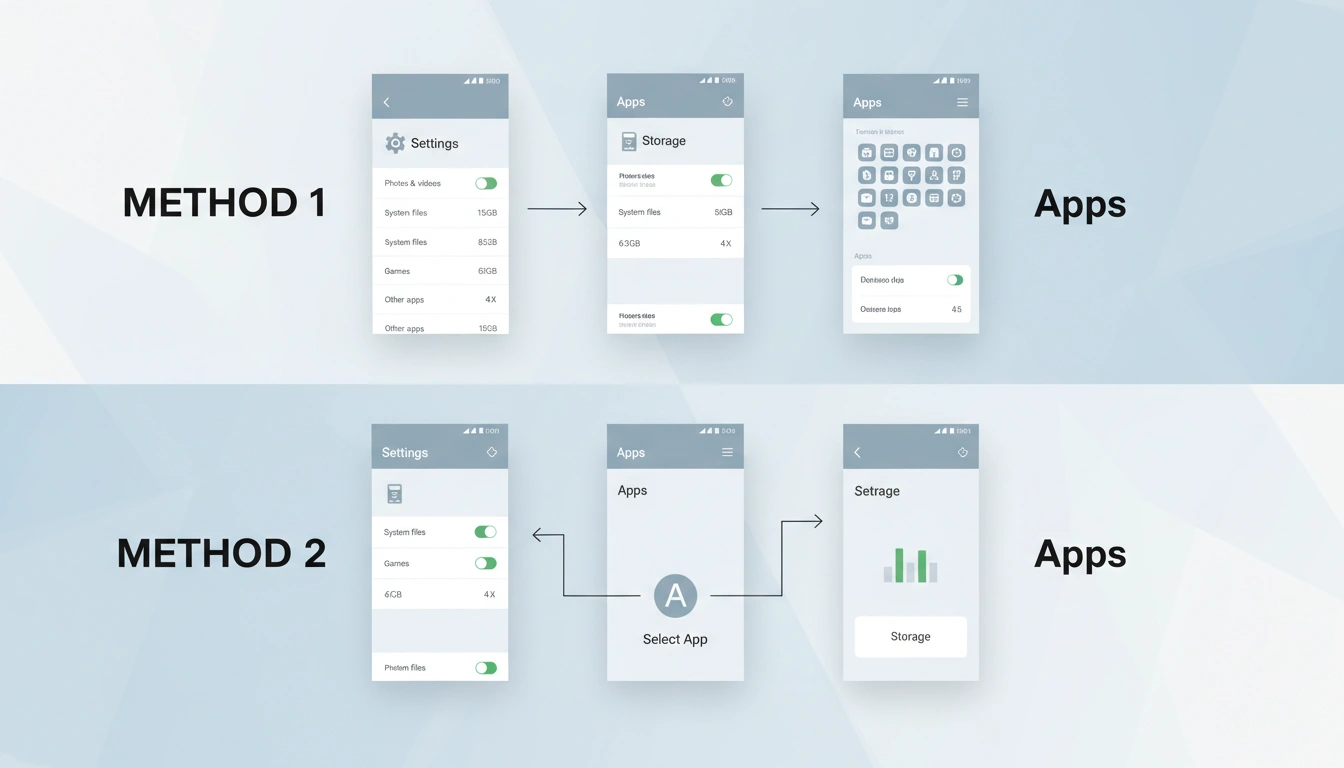
WhatsApp storage manager is a simple to use and easy application that may stop failed backups and clear up space if utilized properly. You may locate it in WhatsApp Settings under ‘Storage and Data’ under ‘Manage storage’.
This secret feature will let you see how much space WhatsApp and the media saved in the app are using. It also shows you how much free space you have left on your device, Android or iOS. You will be able to see clearly which objects buried between your chats are more than 5MB. It also indicates messages that have been forwarded several times across groups, which might lead to duplicate files. You may be surprised at the number of files you have received over time from various groups that you don’t need. The idea is to go through and take out.
Scroll down a little more to view individual chats and group chats. This long list will give you a decent indication of which group or individual chat is occupying the most space. Remember that the smaller you make these media files, the smaller your cloud backup will be. The smaller the cloud backup, the fewer hassles one has when moving to another device. It also means WhatsApp takes up less of your cloud storage allowance.
Besides regular visits to the storage manager and cleaning up files in between chats, it’s also a good idea to switch off ‘Media auto-download’. You’ll have to go through and download each file, but this setting is beneficial if you’re in too many group chats to check often. If you don’t check particular groups regularly, you should also turn on ‘disappearing messages’.
Read More: How to transfer contacts from android to iphone
Storage Manager: How to Clear WhatsApp Storage
- Launch WhatsApp on your Android or iOS device
- Tap on the ‘You’ menu item from the bottom menu bar on iOS or the three-dot menu at the top-right corner on Android.
- Tap Settings, scroll down to ‘Storage and data’ and then tap ‘Manage storage’
- In the storage manager, you can touch on the section ‘Larger than 5MB files’. Here you can see, select and remove the files or forwards you do not require.
- Tap and Hold to choose an item or choose all to delete all items.
- Then go back to the ‘Manage storage’ page and put in the part called ‘Forwarded numerous times’.
- Here you can examine, select and remove all the sent movies, documents and audio recordings that you have received in different groups at once.
- Tap and hold to choose an item or tap ‘choose all’ to delete all items
After deleting the useless files you will witness a huge decline in the quantity of consumed storage which means that your WhatsApp storage size is smaller than before. If you’re not happy with the results, you may drill down into individual chats and delete each piece of media separately.
Remember that deleting files here also deletes them from your phone’s Photo gallery or Files app. So, take your time, don’t rush.
FAQs
Yes, it is available on both platforms in the same places under Settings
Yes, you should cut media elements and keep smaller conversation backups.
It is contingent upon how many files you have on WhatsApp and if you remove them as a group or individually.