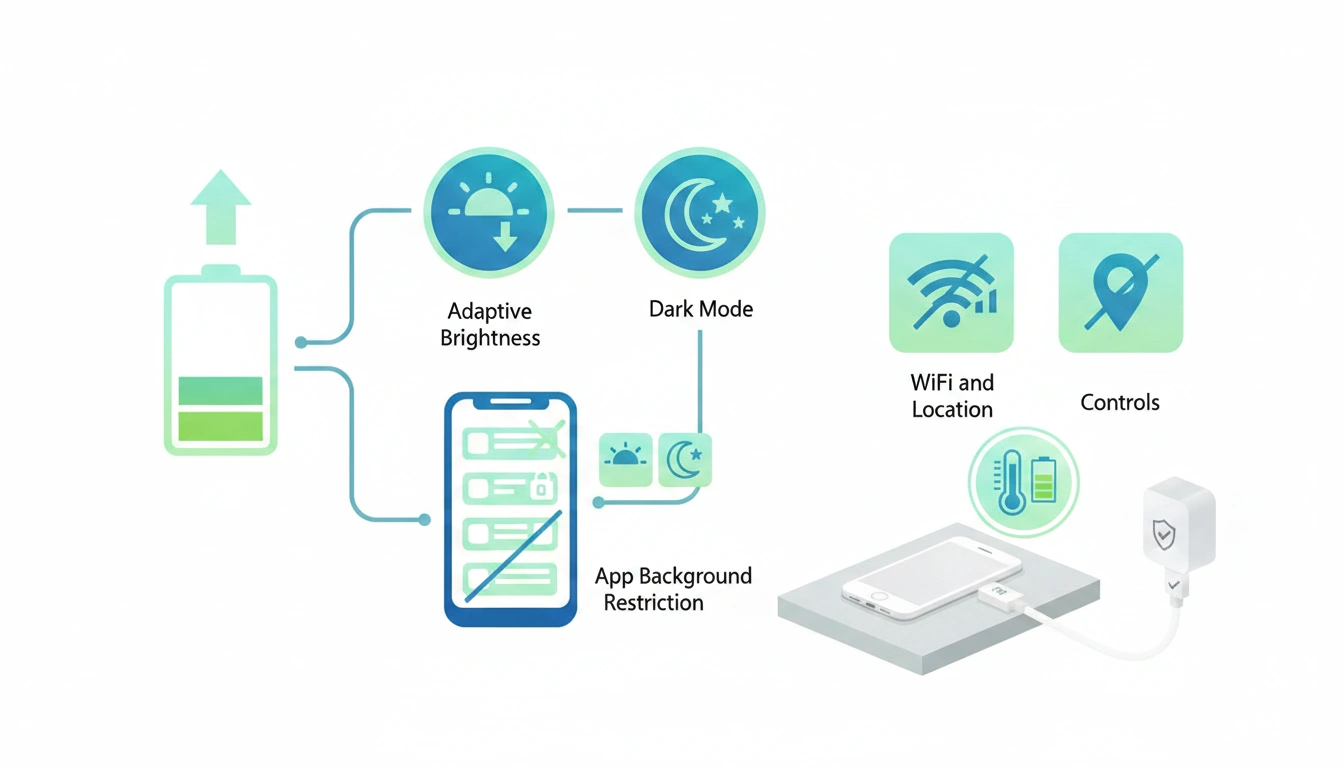
Google says using Dark Mode on your Android phone can help increase its battery life. This also means that all types of Android smartphones and battery sizes start losing battery faster. And because each battery has only a certain number of charge cycles before it loses its initial capacity, it too eventually dies and degrades too far. But if you are a heavy user and your Android phone continues dying before you would want it, there are many healthy practices you may follow. You can also adjust your smartphone settings to get the best battery life out of it. There are also other processes that run in the background, syphoning your phone’s battery without your notice. Changing these settings could help you to avoid sudden shutdowns.
If your Android phone battery is draining faster than you think it should, we’ve put up a step-by-step guide on how to get the most out of your Android device’s battery.
Read More: How much stroge do you need on a smartphone
Why Is Your Android Phone Battery Draining So Fast
There can be several reasons why your Android phone battery is draining faster than expected. A lot of the power is consumed in powering the display of the device. If you always use your handset on high screen brightness, the battery life of your phone could be affected severely. Likewise, if you have several apps and processes running in the background that you are not actively using, your Android phone could be sucking up its battery without you realising it.
Similarly, if your Wi-Fi, cellular, or Bluetooth is on, even while you’re not utilising those connectivity features, your phone might always be looking for other devices to pair with or using the modem to keep giving you updates. Furthermore, if you have not enabled the screen timeout on your Android smartphone, you can leave your Android smartphone screen on for a long time even when you are not using it, which can drain your phone’s battery.
Aside from this, various location services such as Google Maps and other navigation apps are always tracking the location of your device. Google claims this can continue to drain your Android phone’s battery, whether you’re using it or not. Also, your smartphone consumes more battery power when in the light mode to display the lighter shades, especially if your phone is equipped with an AMOLED display. However, note that all phones do drain battery capacity after a while of usage.
How to Increase Battery Life of Your Android Phone
- Enable Adaptive Brightness: You should enable adaptive brightness from your phone’s control center or Settings menu, which allows your Android handset’s ambient light sensor to adjust depending on the environment. That means your device is only using the power it needs.
- Manually Reduce Your Android Phone Screen Brightness: If you still think that the brightness of your Android phone screen is too high, you may manually reduce it to an ideal level so as to improve the battery life of your phone.
- Reduce Screen Timeout: You need to reduce the screen timeout timeframe from the Settings menu on your Android smartphone. Therefore, the display on your handset will switch off while it is not in use.
- Disable Keyboard Vibrations and Sounds: The vibration motor and needless sounds of the keyboard also drain a lot of battery life. You can turn off keyboard sounds and vibrations under Settings > Keyboard Settings.
- Handle Notifications: You will need to handle how many notifications are coming in on your Android phone. Your mobile may last longer on a battery if alerts are restricted to only necessary notifications.
- Limit background app activity: One of the most crucial things to do is to limit background app activity. This method will enable your Android phone to hibernate apps that you are not using, so they don’t run and refresh in the background. You may restrict background app activity under the Settings menu > Background app activity.
- Turn on battery saver mode: If your Android phone is running low on battery, you can turn on battery saver mode from its Quick Settings menu or control center.
- Enable Dark Mode: Enabling Dark Mode is another must-do to boost your Android phone’s battery life. Having an AMOLED screen on your phone would allow pixels to turn off where they need to generate the black color.
- Don’t Overcharge: Fully Deplete Your Phone’s Battery To further increase your Android phone’s battery life, you need to avoid overcharging your device or letting it conk out before putting it to charge.
- Do Not Use Your Android Phone In Extreme Temperatures To extend the battery life, you need to avoid using your Android phone in extreme temperatures.
- Erase unneeded accounts: Google suggests Android phone users erase unused accounts from smartphones to extend battery life.
FAQs
Why does my Android phone’s battery drain faster than before?
There are several reasons why your Android phone’s battery can be dwindling. One could be that its battery health has degraded over time.
How can I charge my Android phone to get the best battery life?
Yes, you may increase the life of your Android phone’s battery by not overcharging or fully discharging your handset’s battery before placing it on charge.
Do I need to close the apps running in the background to save the Android phone battery?
Yes, Google recommends that Android phone users shut down apps operating in the background to prolong their phone’s battery life.