Here’s how to free up space on your iPhone without deleting photos and videos using Optimise iPhone Storage, duplicate removal, app offloading, and more.
In recent years, the number of buyers choosing iPhone models with higher storage has spiked. While powerful chipsets, AI and gaming features, and capable cameras remain key attractions, sufficient storage is a basic requirement to keep all your apps and performance of the phone on track. Running out of storage on your iPhone can be frustrating, especially when your photos and videos take up more of the available space. Deleting photos definitely helps to free up some storage, but you don’t necessarily have to delete your memories and moments every time to make room for other apps and files.
Read More: How much RAM do you need in a smartphone
In this article, we’ll guide you on how to manage iPhone storage without permanently deleting your favorite photos.
How to optimize iPhone storage
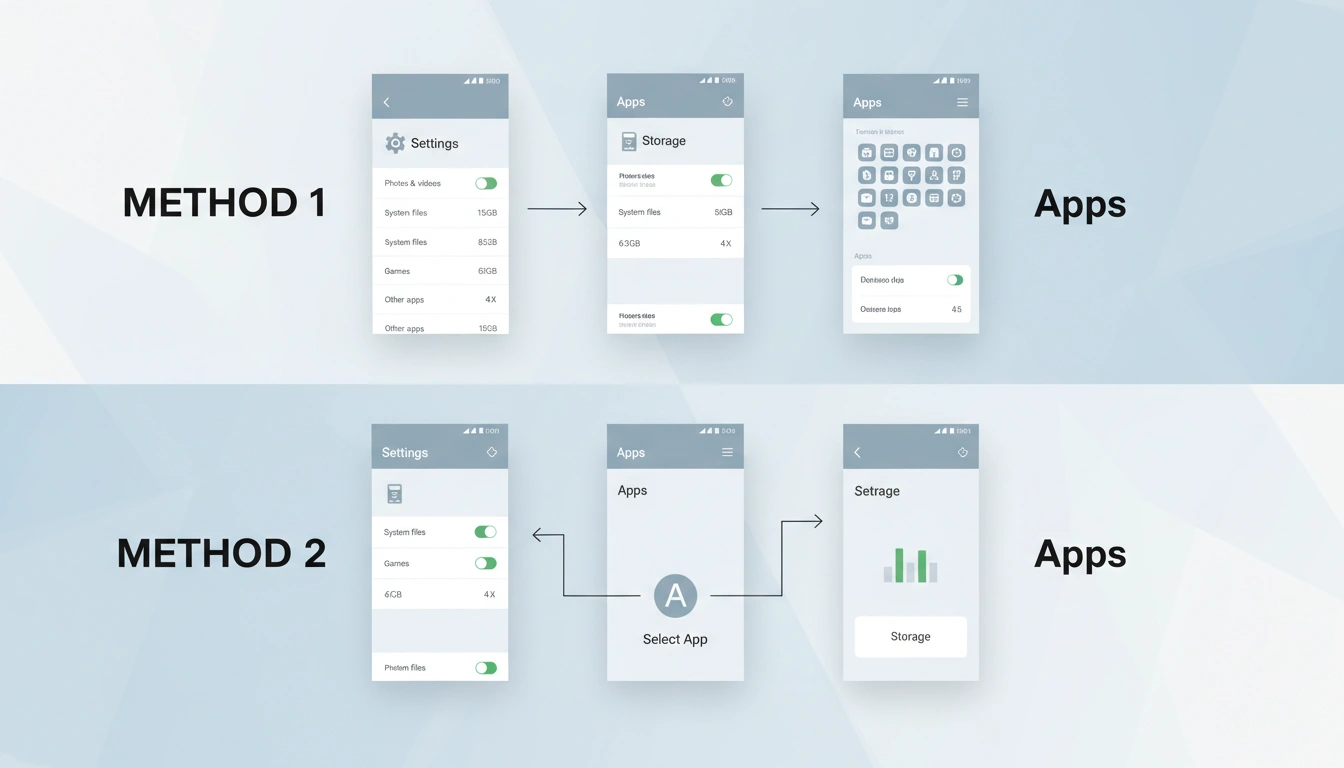
Before you start, you need to find out how much storage you have available on your iPhone and what is taking up space. You can access this breakdown of the storage usage by following these steps.
- Open Settings.
- Head to General.
- Tap iPhone Storage.
- Look at the apps and content that are listed on the page.
This helps you identify apps, media, and other data that take up significant storage on your device. If photos and videos take up more space on your iPhone, you can optimize the photo library with iCloud Photos, remove duplicate files, and review other storage recommendations from Settings.
With iCloud Photos, users can free up space on the device and still access their entire full-resolution collection on their phone. This can be enabled by
• Open Settings and tap your name at the top.
• Tap iCloud, then tap Photos.
• Turn on Sync on this iPhone.
• Select Optimise iPhone Storage.
This will enable original, full-resolution photos and videos to remain stored in iCloud. The space-saving versions can be stored on the iPhone. You can download original high-quality images from iCloud when needed. iCloud storage is separate from the built-in storage, and an Apple account automatically gets 5GB of free storage. Users who need more iCloud storage can upgrade to iCloud+ by paying extra.
You can check your iCloud Storage on iPhone by going to Settings> Tap your name> Tap iCloud, and check the storage bar to see used space.
Delete Duplicate Photos
Through social media downloads and AirDrop, your iPhone may include duplicate images and videos. The Photos app on the iPhone can identify duplicate photos and videos in the photo library in the Duplicates collection. Merging them or deleting duplicate files will also free up storage without affecting your original photo library.
You can check for duplicates by
- Open the Photos app and tap Collections.
- Scroll down to Utilities and tap Duplicates.
- Review the duplicate photos and videos.
- Select Merge to combine them.
Offload Unnecessary Apps
Instead of deleting apps, users can offload apps rarely used. This will remove the app but keep the documents and data. The app icon will remain on the Home Screen with a cloud symbol, and users can tap it to reinstall.
You can check which app takes the most space by heading to Settings > General > iPhone Storage and selecting it.
Read More: How much storage do you need on a smartphone
Delete Unwanted Files
If you have documents and data on your iPhone that you no longer need, you can review and delete them in the Files app by following these steps: Settings > General > iPhone Storage and check the recommendations shown near the top of the screen.
Users with large photo libraries who do not want to pay for an iCloud subscription can choose to move their files to a computer or an external hard disc. Connect your iPhone to a Mac or Windows PC, copy folders, and then delete the files from your handset.
You can also check apps like WhatsApp and Telegram to find and delete old conversations and chats with large media attachments. Additionally, you can also check for app caches, streaming data, duplicate system files, and unwanted contacts. If your iPhone is frequently showing an “iPhone Storage Almost Full” notification, regularly checking the storage breakdown will help you to clean up unwanted data.
FAQs
Yes, iCloud is free for a 5GB storage limit.
No, iCloud storage and the iPhone’s built-in storage are different.
No, full-resolution original images are stored in iCloud, while the iPhone will keep space-saving versions.