So if you have different work and personal numbers, here’s all you need to know about setting up a second WhatsApp account on your iPhone. Many of us have more than one phone number. One is often for work and the other for personal use, thereby keeping these two sides of our lives apart. For years it’s been easy to manage several numbers with dual-SIM and eSIM capabilities. But having two different WhatsApp accounts on one iPhone has always been a complete nightmare. Fortunately, that’s finally shifting. WhatsApp now officially allows you to use two accounts on one iPhone. This means you no longer have to carry a second phone just for WhatsApp or try for dubious third-party apps that purport to fulfill such needs but do more harm than good.
Read More: How to move your WhatsApp chats from Android to iPhone
So if you have different numbers for business and personal, here’s everything you need to know about setting up a second WhatsApp account on your iPhone.
How To Use Two WhatsApp Accounts On One iPhone
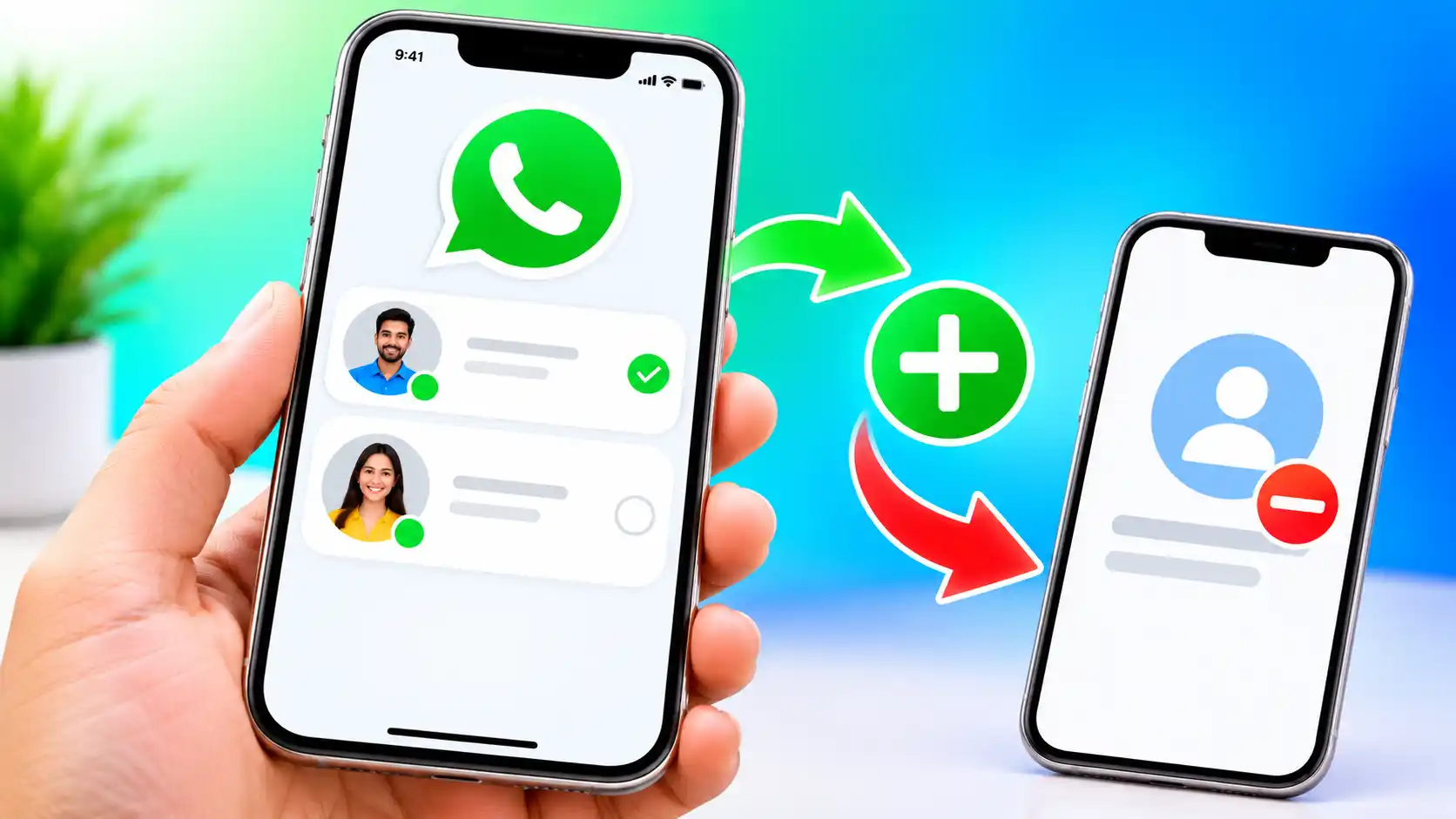
WhatsApp for iOS has added multi-account, which, as the name suggests, allows users to add and manage two different accounts on one iPhone. But each account has to be linked to a distinct phone number, as both the accounts function independently in the messaging program.
Meta says users will be able to swap between accounts without logging out once they’ve signed up. The active account is the one you’re using now; the other account just sits in the background. On the customization side, each account has its own profile image, about section, notification options, and privacy settings. With WhatsApp, alerts for incoming messages and calls will continue to be received when an account is idle.
To be able to use the multi-account feature, you’ll need a second phone number, which you may link via a physical SIM, eSIM, or other supported mobile number. “WhatsApp says that users can only create secondary accounts from their primary smartphone. The business also warns against switching accounts between devices too frequently, saying several verification attempts could trigger security limits.
How to Have Two WhatsApp Accounts on iPhone
- Open WhatsApp on your iPhone and tap Settings from the bottom navigation bar.
- Tap the plus (+) sign next to your profile name and choose Add Account.
- Tap Agree and Continue to accept the Terms of Service and Privacy Policy for WhatsApp.
- Now select your nation and input your phone number you wish to use to create a second account. Tap “Continue” and confirm the account using the six-digit number you receive over SMS or phone call.
- Enter your name and click Next.
- Add a profile photo and about info if you want. You also may skip this step and do it later.
- Complete the setup and wait for WhatsApp to register the account.
Once you have finished the authentication process, the second WhatsApp account will be added to the iPhone, and you can switch between them as and when needed from the Settings menu. WhatsApp advises that if the Add Account option is not accessible, users need to make sure they are running the latest version of WhatsApp for iOS. If you decide you don’t want to use a secondary account on a particular device, then you can remove it without permanently deleting the WhatsApp account itself.
How to Delete a WhatsApp Account on iPhone
- Open WhatsApp, then go to Settings > Account
- Tap on Delete Account
- If you want to backup your discussions before deleting your account, select Go to Chat Backup.
- Confirm the number and tap Remove.
Please be aware that when you delete an account, it is just disconnected from the present device. This will keep your WhatsApp account, groups, and channels operational.
FAQs
Yes, WhatsApp supports two accounts on a single iPhone, allowing you to keep personal and work conversations separate.
Read More: How Do I Unhack My Phone
Open WhatsApp, go to Settings, tap the + icon next to your profile name, select Add Account, and follow the instructions to verify your second phone number.
Open WhatsApp and navigate to Settings > Account > Remove Account. Follow the on-screen instructions to confirm and remove the account from your device.
Also Read: What is Mobile Security
Yes, if the official multi-account feature is available in your WhatsApp app, you can manage two accounts without relying on unofficial third-party applications.