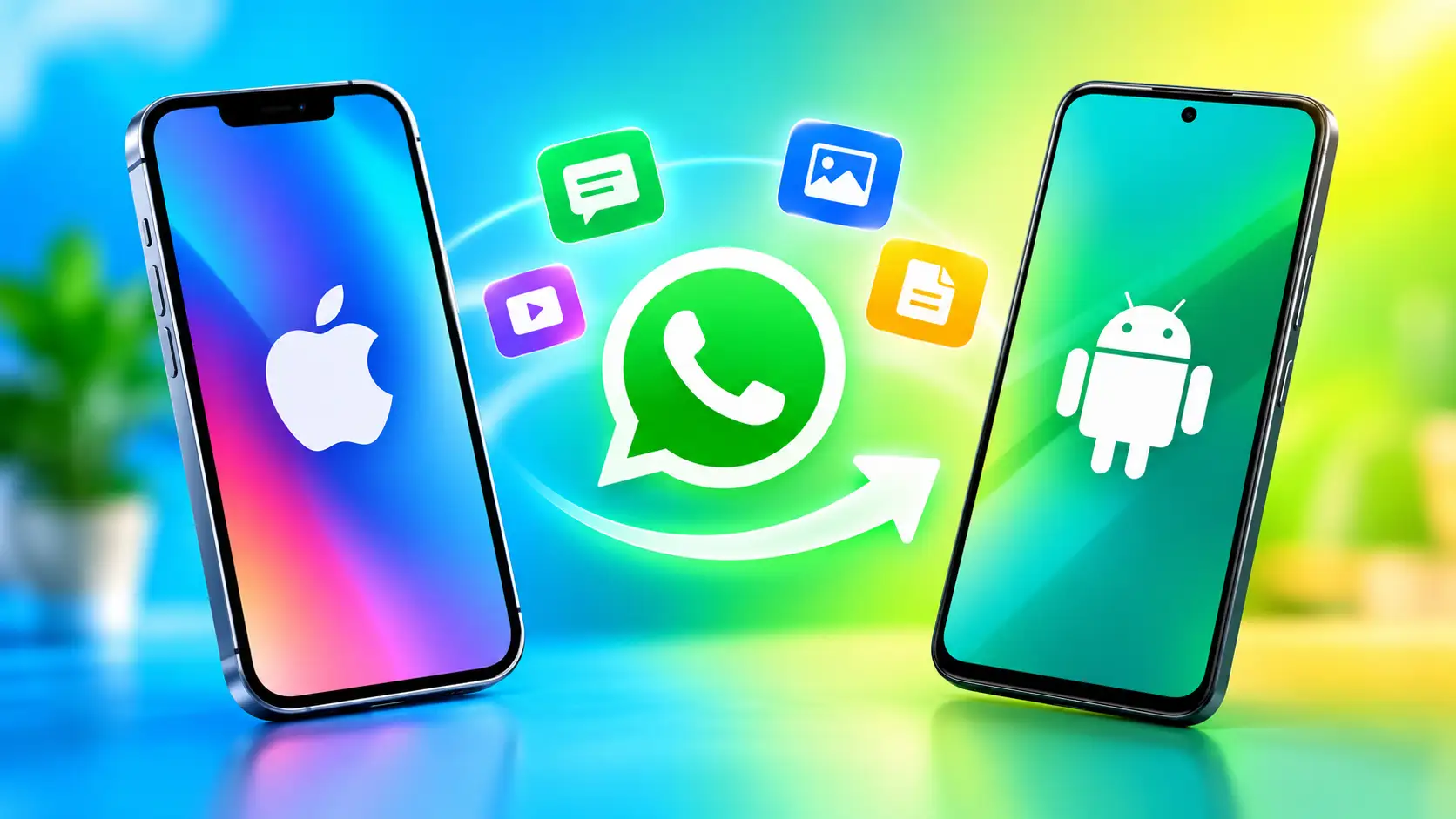
Switching to a new device is easy—only a few steps to transfer all your WhatsApp chats history. Here’s how you do it. Swapping phones, particularly between iOS and Android environments, may be a nuisance. The main issue is usually how to move your WhatsApp account properly without any data loss. WhatsApp for iOS has a dedicated tool for transferring chats, although we have heard of some users losing some chats or media during the migration process. Often workarounds or third-party technologies are necessary to counter this. However, WhatsApp has recently announced support for smooth cross-platform chat transfer, which allows users to transport their chats, photographs, and videos between operating systems.
Read More: How to summarise WhatsApp chats using AI
The functionality is aimed at making things easier, so users may carry on with their talks without having to start from zero. Changing devices? Take your complete WhatsApp history with you in just a few steps.
WhatsApp Cross-Platform Chat Transfer: What It Offers
You can now transfer your conversation history, media files, voice notes, documents, WhatsApp channels, and communities from iPhone to Android, thanks to WhatsApp’s new cross-platform migration tool. The instant messaging service owned by Meta says that key conversations and contacts shared would remain safe even after switching devices.
The transfer procedure is direct device to device, generally by cable or local Wi-Fi. This means that your data is not going through cloud servers during the transfer. WhatsApp says it can’t see or access the data being transferred. But if you’ve already backed up chats to iCloud, you might have that copy still saved separately.
The time it takes to transmit will depend on how much data you’re moving; larger conversation histories will take longer to complete. Remember that you can only transfer chats prior to starting WhatsApp on the new Android device. If you already have it set up, you’ll need to delete and reinstall the app to begin the transfer over.
There are certain limits as well. Firstly, you cannot merge old chats with new talks on the Android smartphone, and there is no present way to transfer chats to a different phone number without updating it first on the old device. WhatsApp Business chats, status updates, and peer-to-peer payment messages are not supported in transfer.
Your old iPhone will still hold your data unless you choose to remove it manually or uninstall WhatsApp after the transfer is complete, the platform says.
How to Transfer WhatsApp Chats from iPhone to Android?
Follow the steps below to transfer WhatsApp data from your old iPhone to your new Android phone:
- Open WhatsApp on your iPhone, tap Chats > Transfer chat history > Transfer to Android
- Tap Continue after the preparation process is completed
- If prompted, press Allow them to give permission to access the camera. Ensure your iPhone is unlocked during the process.
- Switch to your Android mobile. Open WhatsApp and authenticate your account with the same number that you have on your iPhone
- When asked to allow your devices to connect, tap Allow. Use your iPhone camera to scan a QR.
- Tap Join when prompted to join the Wi-Fi network and start the transfer.
After the process is done, tap Next on your Android device to view your chats. Now you may start using WhatsApp on your new Android phone!
FAQs
Yes, you can transfer your WhatsApp chats from an iPhone to an Android phone using WhatsApp’s supported chat transfer feature.
Also Read: How to stop WhatsApp from automatically downloading photos and videos
Yes, photos, videos, voice notes, and documents can be transferred along with your WhatsApp chat history.
Read More: How to improve the battery life of an Android phone
WhatsApp Business chats are not supported by the standard transfer method described in this guide.
Also Read: How to turn on two-factor authentication for Google accounts