 Advertisement
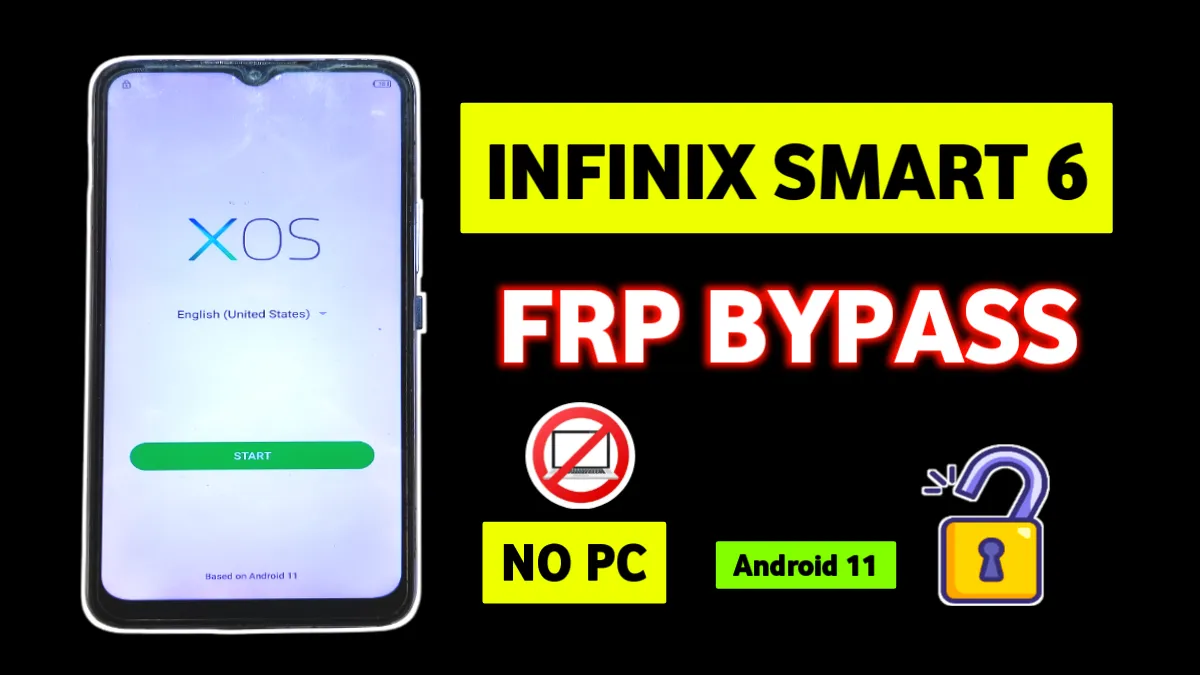
If you are searching for Infinix Smart 6 FRP bypass without PC Android 11, then you are in the right place. Many users get stuck on the Google account verification screen after a factory reset. However, with the correct steps, you can bypass FRP on Infinix Smart 6 without using any computer. In this guide, I will explain the full process in simple language so even beginners can follow it easily.
Moreover, this method is specially written for people who want a real working FRP bypass solution, not fake tricks. So read carefully and follow each step properly.
What is FRP Lock on Infinix Smart 6?
FRP (Factory Reset Protection) is a security feature by Google. It activates automatically when a Google account is added to the phone. Therefore, after a reset, the phone asks for the previously synced Google account. If you forget the account details, the phone becomes unusable.
Thankfully, using this method, Infinix Smart 6 FRP bypass without PC Android 11 is possible.
Requirements Before Starting
- Infinix Smart 6 (Android 11)
- Active WiFi connection
- SIM card with PIN lock enabled
- Another Android phone
- Internet access
Infinix Smart 6 FRP Bypass Without PC Android 11 – Step by Step
Step 1: Initial Setup and SIM Trick
First, select your country (for example, India) and connect to WiFi. After that, insert a SIM card with a PIN lock enabled. When the PIN screen appears, enter the SIM PIN and quickly eject the SIM tray.
Now, immediately swipe down the notification panel from top to bottom. If it does not work the first time, try 2–3 times. Eventually, the quick settings menu will appear while the lock screen is still active.
Step 2: Access Sound Settings (Frp Smart 6)
Next, swipe left to the lock icon. You will see a settings icon on the right side—tap on it. The Android menu will open.
Then:
- Go to Setup
- Click on Sound
- Open Ringtone
- Scroll down and tap Add Ringtone
This will open the phone’s file manager.
Read More: Redmi HyperOs Frp Bypass 2026
Step 3: Open Phone Settings (smart 6 frp bypass)
Inside the file manager:
- Tap the three-line (menu) icon
- Long-press on Drive
- Open App Info
- Go to Permissions
Now, tap the Search icon, type Settings, scroll down, and open it. After that, click Open from the side panel. Congratulations—full phone settings are now accessible.
Step 4: Use XShare to Install FRP Tools
In phone settings, search for XShare, open XShare Mini, and allow all permissions. Then, go to the Receive option and allow permissions again. A QR or search screen will appear.
Using another phone, search on Google for Subrata Service Center. Open the website, tap the three dots, and download the following files:
- XShare Mini
- Google Account Manager APK (Android 9–10)
- FRP Bypass APK
Install XShare on the second phone and send the Google Account Manager and FRP Bypass APK to the locked Infinix Smart 6.
Step 5: Add New Google Account
Once the files are received, they will install automatically. Open the FRP Bypass APK, tap the three dots, and choose Browser Sign-In. Accept the terms and sign in with any Gmail account.
After successful login, go back to Settings > App Management, find Google Account Manager, and uninstall it.
Final Setup and Completion
Finally, return to the setup screen and tap Next. You will see a message that a Google account has been added. Continue with the setup, and your Infinix Smart 6 FRP bypass without PC Android 11 will be completed successfully ✅.
Important Notes
- This guide is for educational purposes only
- Works on Infinix Smart 6 Android 11
- Follow steps carefully for best results
FRP (Factory Reset Protection) is a Google security feature that activates after a factory reset. It requires the previously synced Google account to verify ownership. Without the correct account, the phone remains locked.
Yes, this method is 100% without PC. You only need a SIM card with PIN lock, WiFi, and another Android phone to transfer the required files.
No, this guide is specifically tested on Infinix Smart 6 running Android 11.
You should use Google Account Manager APK for Android 9–10, as it works best with this FRP bypass method.
Try the SIM PIN trick 2–3 times. Timing is important. Remove the SIM tray immediately after entering the PIN and swipe down quickly.
Yes, after completing the setup, you can remove or change the Google account from Settings > Accounts.