 Advertisement
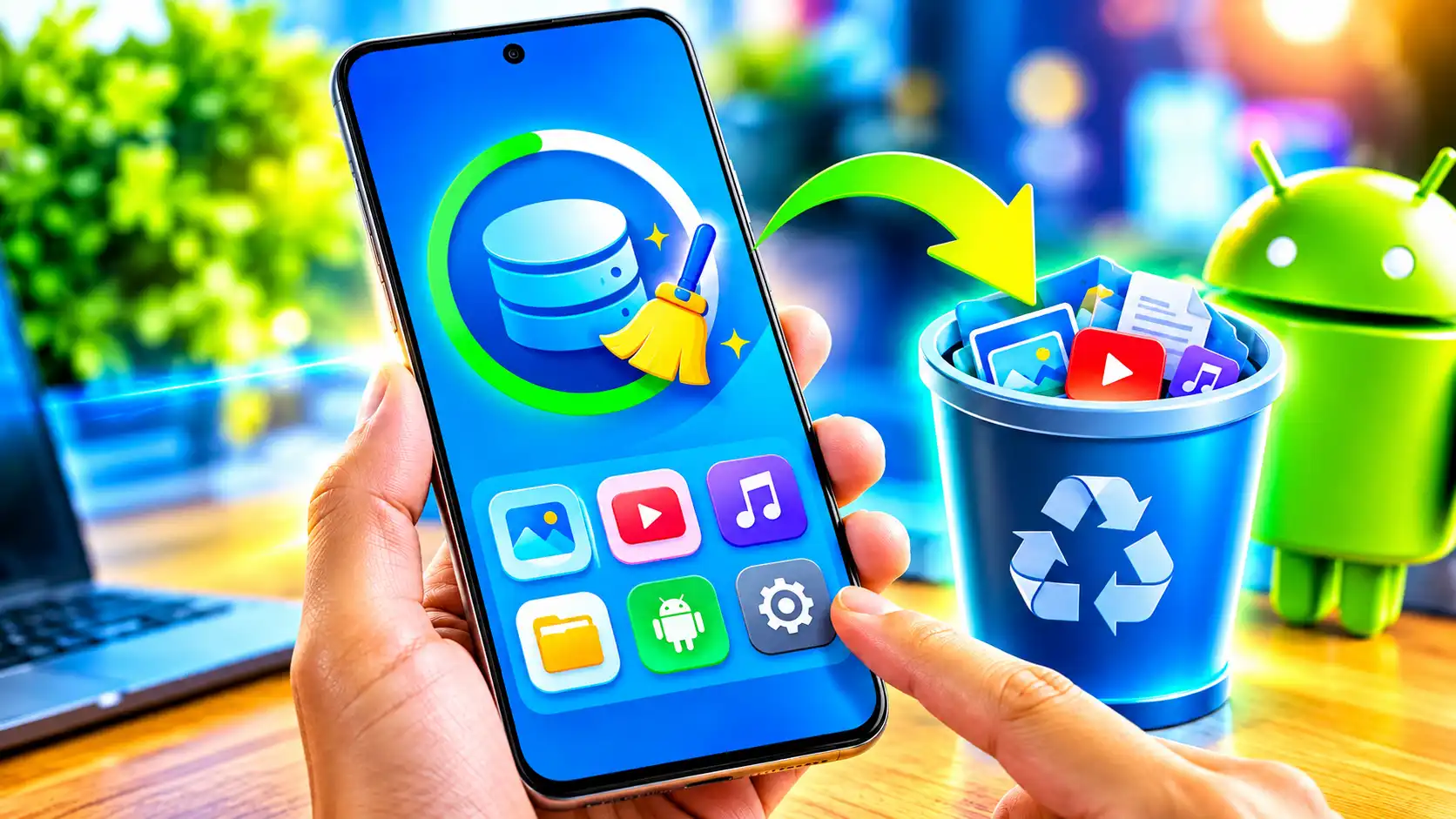
Free Up Storage on an Android Phone: A Few Android Handsets Offer the Smart Storage Feature. We are all familiar with RAM and storage. Storage is where your handset stores photos, videos, music, apps, and other files, whereas RAM is used for apps and the Android system. Smartphone brands are launching models with up to 1TB of onboard storage now; still seeing the “storage full” message on an Android phone can be annoying. Running out of storage will stop you from downloading new apps, files, photos, and videos. Clearing unwanted files is the first and primary solution to make some room for new data and files and improve the performance of your smartphone.
Read More: How to Recover a hacked Facebook Account
Ways to Free Up Storage on an Android Phone
Before starting, you can check how much storage you are using on your Android phone by heading to Settings> Storage> selecting a category. This lets you identify which category—photos, videos, apps, downloads, or other files—is taking the lion’s share of the available storage.
Automatically Free Up Storage
Few Android handsets offer the Smart Storage feature that is designed to automatically delete copies of photos and videos backed up to Google Photos when storage is running low. This feature eliminates the need for manually removing files. You can turn this feature on by heading to Settings> tap Storage> select Free up space> tap Menu> turn on Smart Storage.
Manually Delete Unnecessary Files
Users can remove unnecessary data and improve system performance by reviewing large files that are no longer needed and deleting them manually.
You can also review files that you no longer need and delete them manually.
- Open Settings
- Open Storage, then select “Free up space“.
- Select the category.
- Open Select Files
- Choose the files you want to delete. If the category is not listed, select Browse
- Select individual files or choose all available files.
- Tap Move files to Trash
Users with Google Photos backup can remove the backed-up copies from their phones. The backed-up versions can be accessed from Google Photos when the Android smartphone is connected to the internet.
Another way is to delete downloaded media, which can quickly consume storage. You can delete Google TV downloads by opening Google TV>tap Library>scroll to the downloaded video>tap Downloaded>Remove.
The YouTube Music downloads can also be cleared by similar steps: Open YouTube Music>, tap Library>, and select More next to the song, album, or playlist> tap Remove download. Media downloaded through other apps can be directly deleted from the app.
Uninstall Apps, Clear App Cache
Another way to make storage space on your Android phone is to remove apps that you rarely use. Review the apps installed on your phone and remove those you no longer need. Many apps store temporary files over time. Clearing an app’s cache can recover some storage without removing data. This can be done from the phone’s Settings app.
Archive Unused Apps
Users can archive apps on Android phones to make space for new apps. The app itself is removed, but your personal data is retained, and its icon remains on the phone. Users can reinstall the app later from Google Play.
- Open the Google Play Store
- Tap your profile picture
- Go to Settings > General
- Turn automatically archive apps on or off.
Delete Downloaded Files
The downloads folder can contain documents, images, videos, PDFs, and other files you no longer need. Check your downloaded files weekly or monthly and remove anything that is no longer useful. This can be accessed through the Files or Files by Google app.
FAQs
Photos, videos, downloaded movies or music, and large apps and games often take up the most space.
Read More: BGMI Lite how to register, download and play
Back up your photos to Google Photos. Once you’ve confirmed the backup is complete, you can remove local copies to make space.
Yes, deleting apps you no longer use can free up the app’s storage space.