Learn how to download and use Instagram on Apple TV. Follow simple steps to install the app, watch Reels, and explore its features.
Read More: Use VPN on Android India
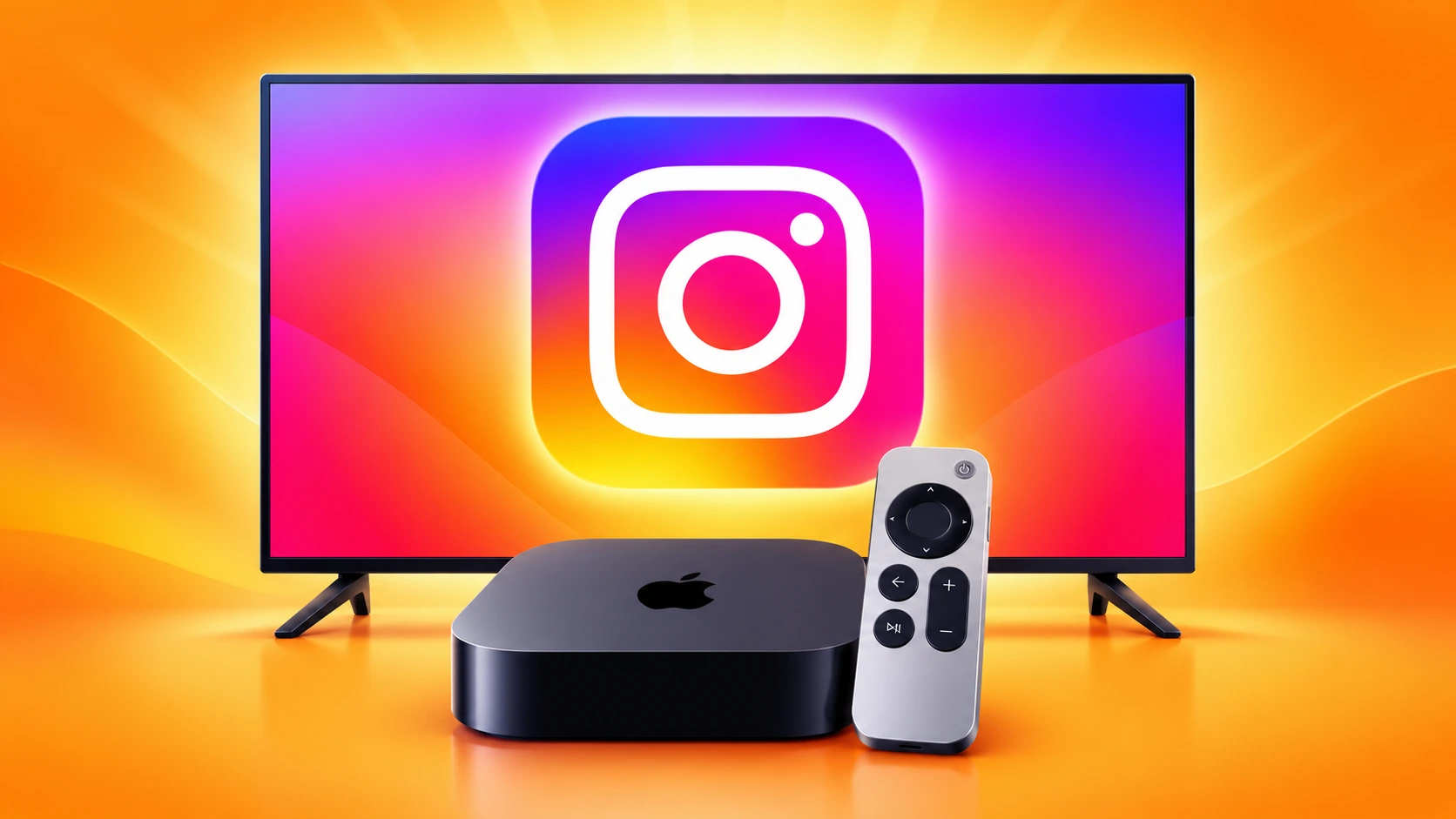
The app requires an Apple TV HD or Apple TV 4K with tvOS 26 or later. If you’re someone who spends a considerable bit of time watching Instagram Reels, now you can view them on your television with the dedicated Apple TV app. You can watch longer videos, live shows, and videos from artists without having to mirror your phone’s screen. But the app is centered around watching videos and doesn’t have the entire feature set offered on Instagram’s mobile app. To utilise it, you will need an Apple TV with tvOS 26 or later. Here’s how you download and utilise the app.
How to Download Instagram on Apple TV
- Ensure your Apple TV is running tvOS 26 or later. This version of the program is required for the Instagram app.
- Open the App Store on the Apple TV home screen.
- Go to Search and type Instagram with the on-screen keyboard or your remote.
- Tap on Instagram in the search results to open its app listing.
- Tap Get to download the app. If asked to confirm the download on your Apple TV, follow the on-screen instructions.
- Once the installation is complete, open Instagram from your home screen and follow the setup steps.
You don’t need an iPhone to install or use Instagram on Apple TV. However, the specific process to log in and verify your account may vary for the app, so follow the directions on the screen when you open it for the first time.
What Can You Use Instagram for on Apple TV?
The Instagram app on Apple TV is mostly for watching videos. You can scroll through Reels, watch lengthier movies and live shows, and discover material from other creators. It also supports cross-device playback, so you can pick up right where you left off.
There are none of the features that Instagram has on the mobile app on the TV version. You can’t post to Reels or Stories or view direct messages. You also can’t submit comments through the TV app. So you’ll have to pull your phone back out to engage with a video or message someone.
If you’re not seeing Instagram on the Apple TV App Store, the first thing you want to verify is if your device is compatible with the app. You need an Apple TV HD or Apple TV 4K running tvOS 26 or later. For updates, see Settings > System > Software Updates > Update Software. After you update your device, enter the App Store on your Apple TV and search for Instagram directly.
If you still don’t see Instagram, check your App Store region. It may not be available in your country. Be sure you’re searching on your Apple TV streaming device, not a smart TV because they’re separate platforms. If you have Instagram in the store but can’t download it, make sure you have enough storage space and that no limitations are blocking you from installing apps.
FAQs
On an Apple TV running tvOS 26 or later, open the App Store, search for Instagram, and click Get to install.
Read More: How to Add or Remove a Second WhatsApp Account on IPhone
An iPhone is not required to install or use Instagram on Apple TV, although the app may require additional steps to sign in or verify your account.
No. The TV app does not support publishing posts, Reels, or Stories, accessing direct messages, or leaving comments.
Read More: How to Free Up Storage on an Android Phone Without Deleting Important Films