 Advertisement
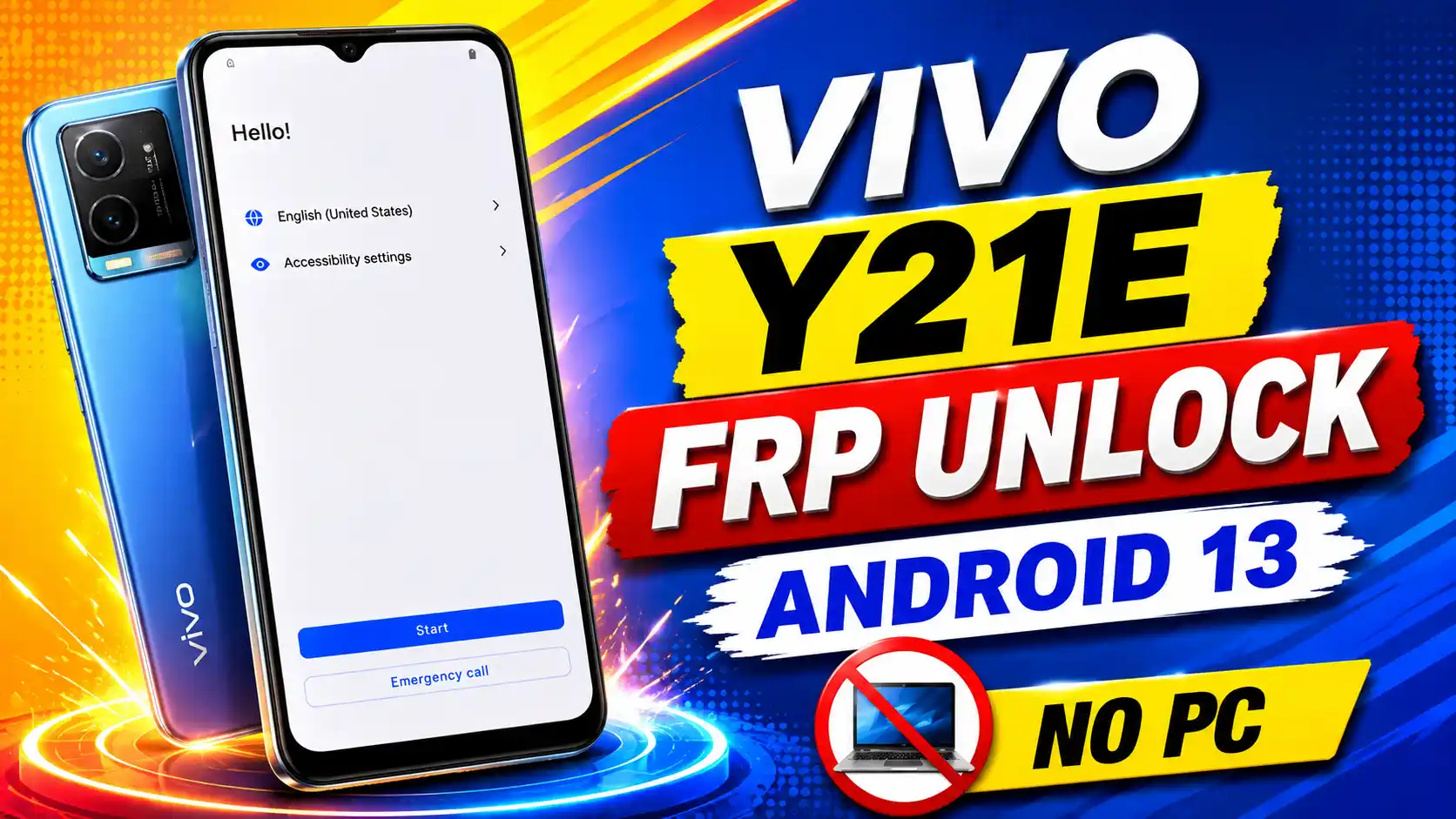
If your Vivo Y21e is flashing Google account verification after a factory reset, you may be asking how to unlock FRP without using a PC. This condition is connected to Factory Reset Protection (FRP), a security feature included in Android to help safeguard a device from unauthorized use after a reset.
In this post, we’ll explain what FRP means for the Vivo Y21e running Android 13, why the verification screen occurs, and the secure, legitimate ways to restore access without a computer.
Important: FRP is a device-security feature. The methods outlined here are intended for the rightful owner of the phone. If the phone belongs to someone else, the prior owner should complete the Google account verification.
Read More: FRP Bypass File
What Is FRP on Vivo Y21e?
FRP stands for Factory Reset Protection.
It is a security measure related to the Google account on an Android smartphone. When a Google account has been added to the Vivo Y21e and the phone is subsequently reset without first removing that account, Android may ask for the previously synchronized Google account during the initial setup.
The goal is simple: if a phone is lost or stolen and someone conducts a factory reset, the reset alone should not make the device immediately useable.
Therefore, seeing a Google verification screen after resetting your Vivo Y21e does not necessarily signify that the phone has a software problem. It usually indicates Android is requesting you to verify ownership.
Why Does the Vivo Y21e Show FRP Android 13 After a Factory Reset?
FRP verification can happen in a number of settings.
The phone was restored to factory settings.
A factory reset erases all user data and returns the device to its initial setup condition. But there might still be a need to verify the prior account associated with Google’s security system.
Google account not deleted before factory reset
If you reset the phone with a Google account still signed in, Android can begin the ownership verification procedure during the device setup.
Forgot Google account information
Sometimes the owner remembers the phone’s PIN or pattern but does not recall which Gmail account was previously synced.
The phone was bought second-hand
A secondhand Vivo Y21e may still be linked to the prior owner’s Google account. In that case, the safest thing to do would be to contact the prior owner and have them perform the mandatory account verification.
Vivo Y21e Unlock FRP Android 13 Without PC: How To Do
If you are the actual owner, you usually do not need any special FRP bypass software only to get your access back. The first step is always to retrieve the Google account previously linked with the phone.
Step 1: Connect Vivo Y21e to the Internet.
Switch on your Vivo Y21e and go via the first setup.
If the device asks you to connect to a network:
- Choose your Wi-Fi network
- Type the Wi-Fi password
- Awaiting the connection to finish
- Proceed with the installation
Please make sure you have a reliable internet connection since Google will need to contact its servers to validate your account.
Step 2. Find the Google Account You Used Before
Think of which Gmail account you used earlier on the Vivo Y21e. You may have multiple Google accounts, so be sure you test the account that was truly synced with the phone (before the factory reset).
If you still have access to any of your Google accounts on another phone or computer, you can check them. If you’ve forgotten your Gmail address, find the account using Google’s account-recovery options.
Step 3: Reset a Forgotten Google Password
If you know your Gmail address but don’t recall the password, recover the account before you try to complete the Vivo Y21e setup. Google may ask you to verify your identity with information associated with your account.
Verification may include, depending on your account configuration:
- A password you have used before
- Email Reset
- Phone number for recovery
- Trusted Devices
- Other account security verifications
Once you have successfully retrieved the account, go back to the Vivo Y21e and try to log in with the right credentials. Be careful not to try strange passwords over and over. You may make it more difficult to get into your account.
Step 4: Log in to the previously synchronised account
When you have found and retrieved the correct Google account:
- Continue via the Vivo Y21e setup process.
- Connect the gadget to the Internet.
- Enter the Gmail address you previously synced.
- Type the right password.
- Follow the further verification steps Google asks you to.
- Complete the rest of the setup steps.
If the account is allowed, the device should proceed through the standard Android setup process.
Did you recently change your Vivo Y21e Google password?
This is a very serious scenario. Google can ask you to complete additional security checks if you’ve just updated your Google password and then reset your phone.
Do not try to use any unofficial FRP tools or try various passwords again and again. Just wait for the account security process to finish and follow Google’s instructions. This may help you avoid unnecessary account-verification issues.
Vivo Y21e FRP After Buying It Secondhand
If you acquired a Vivo Y21e from a third party and it’s requesting the former owner’s Google account, don’t attempt to bypass the security mechanism. Your best bet is to contact the seller or prior owner.
Ask them to help you complete the ownership verification or properly remove their account from the device.
You can also visit an authorized Vivo service facility with a valid purchase receipt, invoice, or other proof of ownership and ask about support available. This is especially crucial if the seller stops replying.
Does a factory reset delete the Vivo Y21e FRP?
No.
Factory reset and FRP are two different things. A factory reset deletes personal info, apps, settings, photographs, and other local data from your devices.
FRP, however, is meant to survive an unauthorized reset so that a simple wipe of the phone will not erase the check of ownership. This is the reason why, after a factory reset, your Vivo Y21e can still ask for the previously synchronized Google account.
Vivo Y21e FRP Bypass
Sometimes the right Google account is typed, but it doesn’t go any farther. Here are a few things to look out for.
Check Your Internet Connection
Try to connect to a good Wi-Fi network. Please restart the router and reconnect the phone if you can. A bad connection can interfere with Google’s verification procedure.
Verify your Google account.
Ensure that there is no other Gmail account that was previously logged into the phone. If you have more than one account, check which account is synced with the Vivo Y21e.
Confirm Password
Try logging in to the same Google account on another trusted device. If the login doesn’t work here either, then the problem may be with the Google account and not the Vivo phone.
Reboot the Phone
Sometimes a simple restart will clear any temporary configuration or network difficulties.
When it reboots, connect to Wi-Fi again and continue with setup.
Never waste time on repeated failures
Avoid logging into various Google accounts or passwords often. If you do not know the account credentials, use account recovery using Google.
Vivo Y21e FRP Bypass Without PC: How to Unlock Vivo Y21e FRP?
If you’re referring to recovering access to your own phone as “unlock,” then yes, you can do the standard Google account verification straight on the Vivo Y21e without connecting the device to a PC.
There is a very crucial difference between account recovery and FRP bypass, though. Account recovery is a process to make sure you are the rightful owner of the account.
A third-party FRP bypass is an attempt to overcome device security verification. That’s why it is not recommended to use unknown FRP APKs, modified applications, unofficial exploit files, or shady websites.
Why You Should Not Use Random FRP APKs
You may locate websites that provide APK downloads to unlock Vivo Y21e FRP instantly.
Take care with these files.
An unknown APK may potentially:
- Include harmful software
- Request Additional Permissions
- Show unwanted advertisements.
- Gather personal information
- Change device settings
- Install more unwanted apps
Some sites may include fake download buttons that take you to irrelevant files.
If you are the legitimate owner, then restoring your Google account is considerably safer than installing unfamiliar software.
How to Avoid FRP Issues in the Future
You can also cut down the probability of bumping into an FRP verification issue before you do a factory reset.
How to reset your Vivo Y21e before
- Make backups of crucial pictures and files.
- Be careful to remember the email of your Google account.
- Make sure you know your Google password, please.
- If you want to give the phone to another person, delete your Google account from the phone.
- Make sure the gadget is correctly removed from your accounts before you give it away.
This is especially critical if you’re selling or giving away your phone.
Frequently Asked Questions (FAQs)
What is the FRP of the Vivo Y21e?
Vivo Y21e FRP, or Factory Reset Protection, is an Android system that can ask for the previously synced Google account after a factory reset.
How to bypass Vivo Y21e FRP without a PC?
If it is your device, you can do the genuine Google verification and account-recovery process right on the phone without a PC.
Why is the Vivo Y21e asking for an old Gmail account?
The phone could have been reset with the Google account remaining linked with the device. This means Android can ask that previously synced account to prove it owns the account.
I forgot my Gmail password. What am I supposed to do?
Go through Google’s formal account-recovery process, recover your password, and prove your identity. Once you have access, input the recovered credentials on the setup of the Vivo Y21e.
Factory Reset Vivo Y21e Bypass FRP Does it?
No, a factory reset is not going to necessarily erase the FRP ownership verification, but it will erase any local user data.
Is it safe to download an FRP bypass APK?
Better not to use unknown APK downloads and unapproved tools. These can pose security and privacy hazards, particularly if downloaded from unknown places.
Last Words
Vivo Y21e FRP Bypass Android 13 If there is no PC, this problem is usually caused by Google’s Factory Reset Protection and not a hardware issue. FRP is a security feature that protects personal data and prevents unauthorized use after a factory reset.
If you own the Vivo Y21e, the best and most secure option is to restore the previously synced Google account and perform the verification directly on the phone. If it was bought secondhand, get out to the prior owner or ask Vivo for verifiable proof of ownership.
Avoid downloading dubious APK files, unofficial unlock services, or apps claiming to permanently disable the FRP. The proper account-recovery path is safer and helps keep your device and Google account protected.
Note: Android 13 and Vivo’s software interface may be different depending on software version and area; therefore, some setting screens may seem somewhat different on your Vivo Y21e.