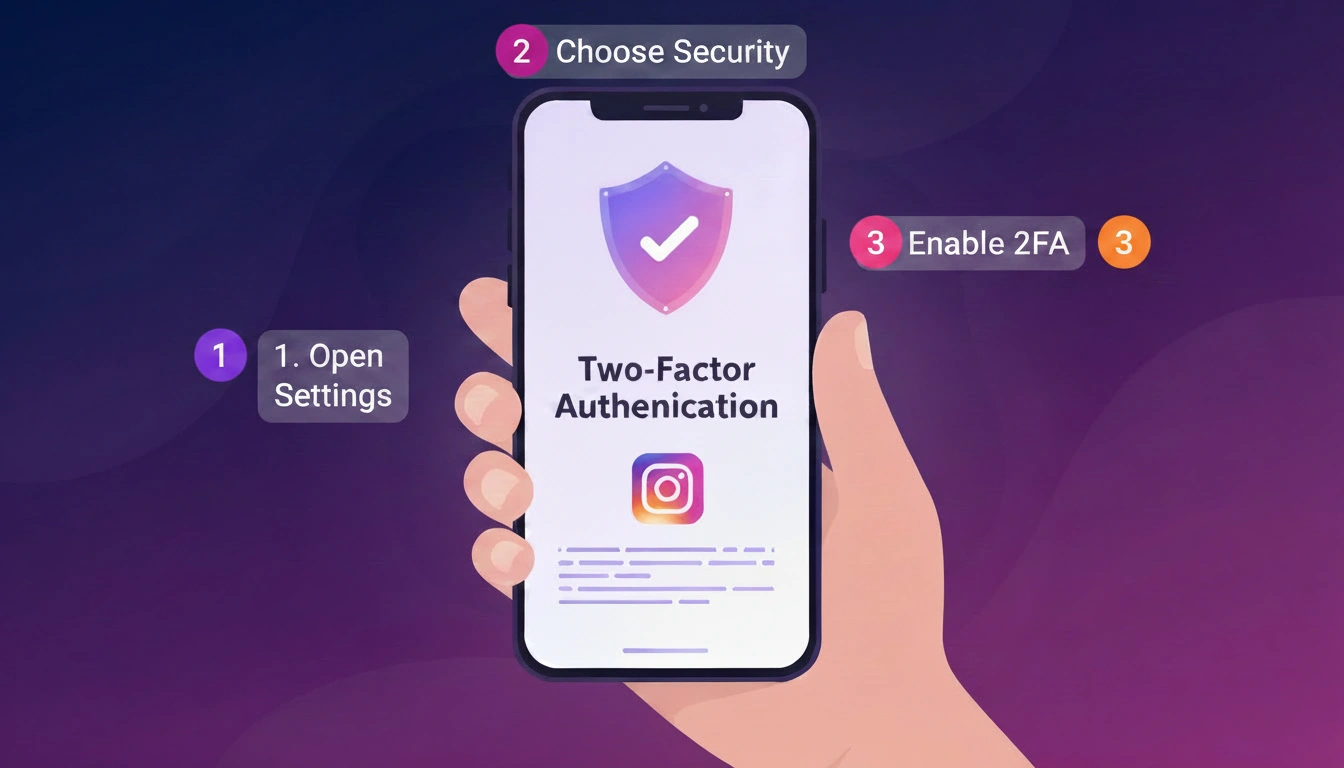
Instagram offers you three options to set up two-factor authentication: via an authentication app, SMS or WhatsApp. Instagram is one of the Meta platforms where you can use two-factor authentication for an extra layer of protection on your account. The feature asks for a second login code when you log in from a device that Instagram doesn’t recognise, making it harder for someone to get into your account with just your password. Instagram offers three options to enable two-factor authentication, utilising an authentication app, SMS or WhatsApp. If you haven’t turned it on yet, here’s how to secure your Instagram account using two-factor authentication.
Read More: How much RAM do you need in a smartphones
How to Turn on Two-Factor Authentication on Instagram
You don’t need to complicate things if you want a more secure Instagram account. You can turn on two-factor authentication in the Accounts Center and pick an authentication app, text message or WhatsApp. Here’s how to set it up.
- Open the Instagram app and sign into your account that you want to set up two-factor authentication.
- Once on your profile, tap on your profile image at the bottom right of the screen.
- Tap on the three-line menu in the top-right corner to access Instagram’s menu.
- From the menu, touch Accounts Center and then press Settings & Privacy.
- In Accounts Center, click Password and Security to review your security options.
- Tap ‘Two-factor authentication‘ and choose the Instagram account for which you wish to activate the feature.
- You will see the security options accessible on Instagram. Select the option you want to use and proceed with the on-screen instructions to complete the setup.
- If you choose an authentication app, you can use Duo Mobile or Google Authenticator, for example, to get your login codes. Meta encourages this and says you can link numerous devices to the same account so they all get the codes.
- If you prefer text messaging, choose this option and use a mobile number already linked to your account or create a new number. Instagram will use the number you choose to send you login codes.
- You can also get your login codes through WhatsApp. However, Meta wants you to enable text-message two-factor authentication before you can enable the WhatsApp option.
Once you have completed the setting, Instagram will use the security option you choose whenever it needs to validate a login. Meta also allows you to review login requests and remove devices you’ve already identified as trusted.
How to Turn off Two-Factor Authentication on Instagram
If you change your mind and no longer wish to utilise two-factor authentication, you can turn it off in the same security settings under Accounts Center.
- Launch Instagram and tap on your profile photo in the lower right corner to access your profile.
- Click the three lines in the top right corner and pick Accounts Center from the options displayed.
- Open password and security and touch Two-factor authentication to see your accounts’ security settings.
- Choose the Instagram account you wish to disable two-factor authentication on.
- Select the security mechanism you want to turn off, then follow the on-screen directions to finish the process.
If you lose access to your phone or email and can’t receive your login code, you can sign in with a backup code. You may also see your login requests and remove any trusted devices at any time.
Frequently Asked Questions (FAQ)
What are the two-factor authentication options for Instagram?
Instagram has support for authentication apps, text messaging and WhatsApp.
How to Disable Two-Factor Authentication on Instagram?
Yes, you may disable it in the Accounts Center.
What if I lose access to my login code?
You can log in with a backup code.