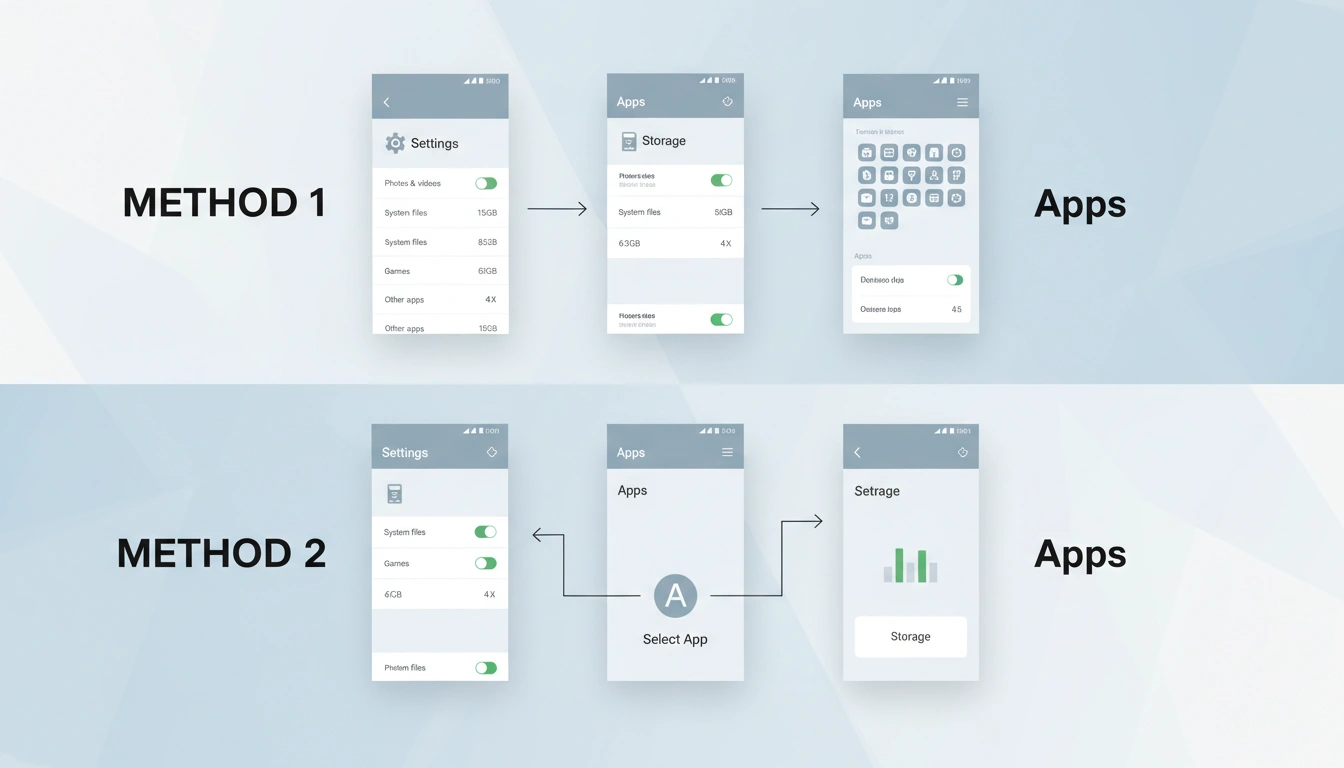
Google has two ways to check which apps are taking up the most storage space on your Android phone. Android apps have gotten a lot bigger in recent years, taking up a chunk of your handset’s onboard storage. Therefore, it is very essential for you to maintain checking which apps are occupying how much space on your Android phone so that you will not face unanticipated usage hurdles. You can achieve this in a number of ways. Google allows Android users to check the list of programmes and how much storage they are taking up on your handset via the Settings menu and the Files app. You may free up some space on your Android phone for new images and videos or other apps by uninstalling apps, clearing the cache and clearing storage.
Here is a step-by-step instruction for you that will help you determine which apps are using up most storage on your Android phone.
Read More: How to Secure your Instagram account
Advantages of seeing which apps are taking up storage space on your Android phone
If you’re wondering why you should check which apps are eating up storage on your Android phone, there are several benefits to doing so. For example, it helps you find large apps that you may not be using often but are still using up space on your phone’s internal storage. Android phones come with limited storage.
If your phone doesn’t allow an external microSD card, you don’t even have a choice to upgrade it. Therefore, it becomes crucial to know which programme is consuming how much space so that you can prioritise your usage. On top of all of this, clearing up storage on your Android phone can potentially boost your phone’s performance. Handsets also use the onboard storage due to memory swapping in case there is not enough RAM available. Thus, you can improve the multitasking efficiency of your Android phone by detecting and uninstalling apps. Plus, it frees up space for images and movies on your cellphone and other vital documents when you delete useless apps.
How to Check What Apps Are Taking Up Storage Space on Your Android Phone From the Settings App
- Open your Android phone and swipe down from the top-right corner of the screen.
- Click the gear icon in the bottom right corner of the screen to access the Settings menu.
- Next, scroll down and tap on Storage options.
- Here you can click on the Apps button.
- To see which program is using the most storage space on your Android phone, hit the sort by button and choose Sort by size*.
- Or you can also opt to sort the list of apps by name.
- Touch on the name of any individual app here and touch on the clear storage or clear cache options to lower the amount of storage the app is occupying on your Android phone.
How to View Which Apps Are Taking up Storage on Your Android Phone From Files Apps
- Unlock your Android phone and swipe on the home screen to navigate to the app drawer.
- Now scroll down and open the Files app.
- Here you can tap on the apps, which are placed in the bottom right corner of the screen.
- You’ll see a new screen with distinct areas for Large Apps, Unused Apps and Games. Tap one of the options to select which section you want to see the apps in.
- Here, you tap the program that you think is unnecessarily taking up space on your Android phone and click the Uninstall button.
FAQs
You can go to the Files app to check out the list of apps that are not in use on your Android phone.
No, cleaning the cache does not uninstall the program from your Android phone. However, it may erase some internal data like passwords and usernames or other preserved data.
You may verify the same either through the pre-installed Files app or by going to the Settings menu on your Android phone.