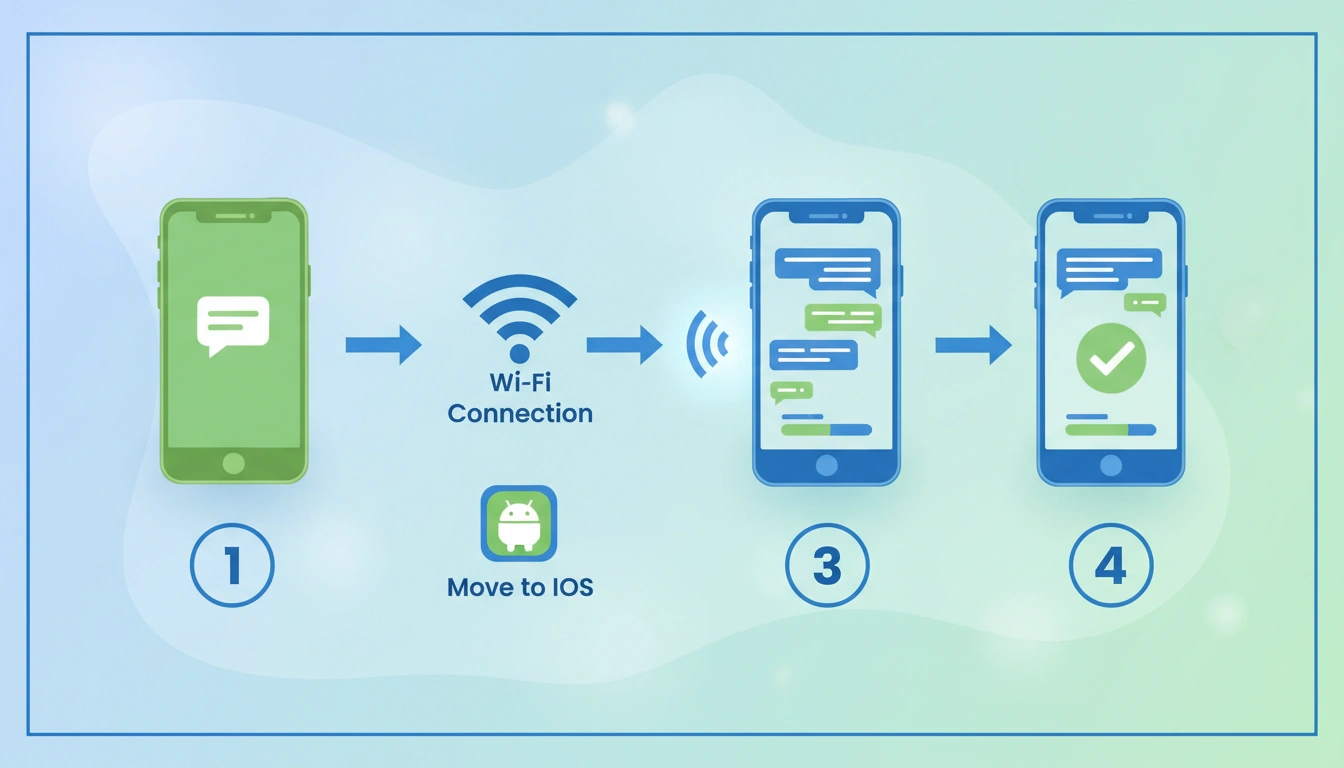
Easily move all your WhatsApp chats’ history to a new device in a few simple steps. Here’s how to do it. Switching to a new smartphone was generally seen as a burden, with the main worry being the loss of years of WhatsApp chats. But that is not the case anymore. Earlier this year, the Meta-owned messaging service included a built-in option for migrating chats across platforms. It enables users to transfer their conversation history securely, including messages and media, between Android and iPhone and vice versa without depending on third-party software. Provided both of your devices match the system requirements, the process is quite basic.
Read More: How to find which apps are taking up storage on android mobile
In this guide, we will explain how you can transfer your WhatsApp chats from an Android phone to an iPhone in just a few simple steps.
WhatsApp Supports Cross-Platform Chat Transfers
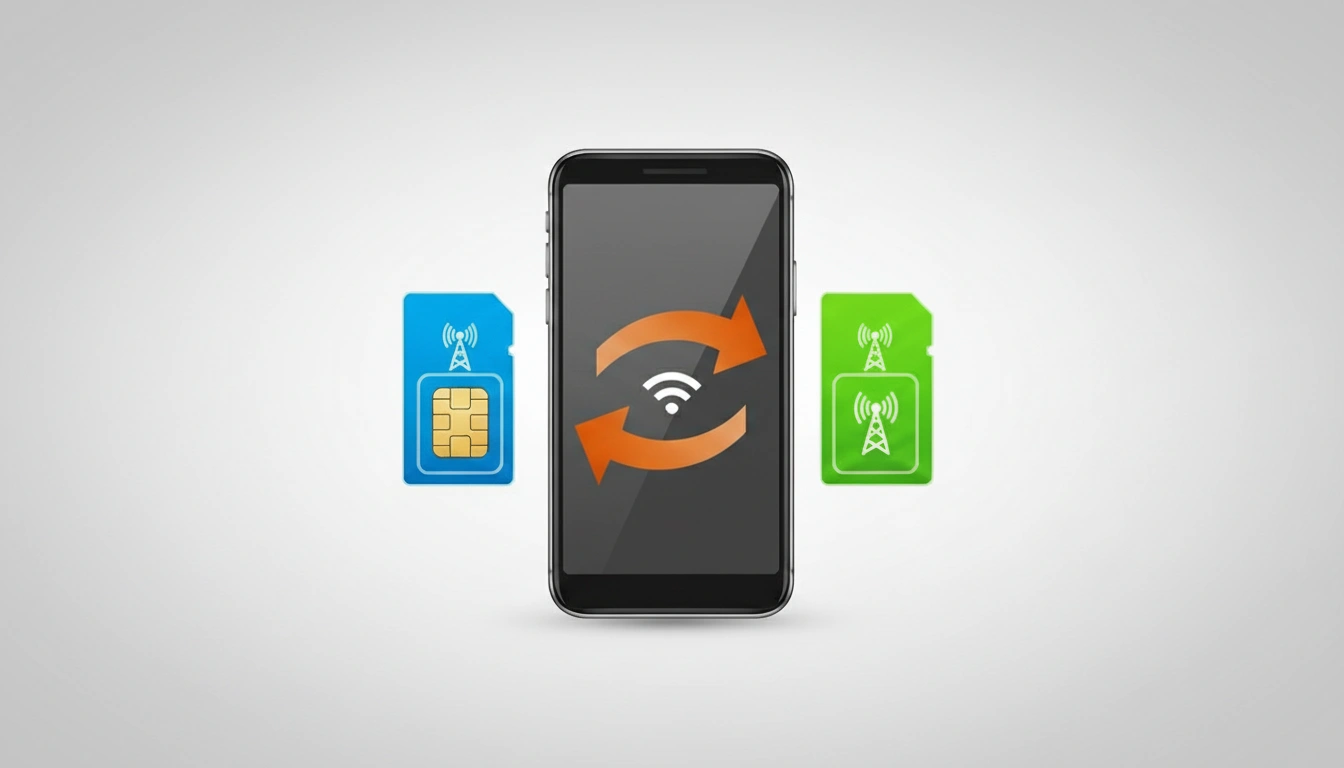
If you have WhatsApp, it natively supports chat history transfer from Android to iPhone. Unlike cloud backups, which are platform-specific, such as Google Drive for Android and iCloud for iPhone, this method transfers chats directly between the two devices over a local Wi-Fi connection.
This implies your data does not traverse through cloud servers during transfer. WhatsApp also says it can’t read or see the data being shared.
There are a few limitations, however. Firstly, it is not possible to merge old chats with new conversations. Also, WhatsApp does not allow you to transfer your chats to a different phone number without first changing it on the previous handset. It also doesn’t support peer-to-peer payment messages, WhatsApp Business chats and status updates during transfer.
If you wish to move WhatsApp chats from iOS to Android, we have a detailed guide on how to do so. If you haven’t claimed your username on WhatsApp before the feature is broadly pushed out, here’s how you can do so in a few simple steps.
What You Need to Know Before Transferring Your WhatsApp Chats
Before starting with the chat transfer, make sure that you are using the same phone number and both devices have the latest version of WhatsApp. The Wi-Fi connection should be stable, and both the Android and iPhone should have sufficient charge.
Finally, ensure that your iPhone has enough free storage space to hold the transferred chats and media.
Read More: How to buy a refurbished phone safely in india
How to Transfer WhatsApp Chats from Android to iPhone: A Complete Guide
- Open WhatsApp on your Android device and go to Chats > Transfer chat history > Transfer to iPhone
- Tap Continue when WhatsApp finishes preparing your chat history for transfer.
- If prompted, tap Allow to allow WhatsApp to use your Android phone’s camera. Keep the device unlocked during the entire transfer process.
- Now, head to your iPhone. Open WhatsApp, and authenticate your account using the same phone number you used on your Android phone.
- When prompted, tap Allow to enable the two devices to connect.
- Scan the QR code on the iPhone with your Android phone’s camera.
- When requested on your Android phone, press Join to connect to the temporary Wi-Fi network that has been formed for the transfer.
- Wait for WhatsApp to transfer your chat
- When the transfer is finished, press Next on your iPhone.
- You can now see your chats in WhatsApp. You can continue to use the app on your new iPhone.
FAQs
No, the transfer takes place directly between the two devices and does not rely on cloud backups.
No, you need to verify WhatsApp on the iPhone with the same phone number as you used on your Android phone when you transferred it.
Yes, WhatsApp does transferred your messages and supported media items, including photos, videos, and voice notes.