Learn how to reset Samsung phone in 2025 using simple hard reset methods, factory reset steps, pattern and password unlock solutions. Works for all Samsung Galaxy models. Easy, safe, and beginner-friendly guide.
If you are searching for how to reset Samsung phone, you are in the right place. Whether your Samsung mobile is locked, running slow, stuck on a screen, or you forgot your password, a hard reset or factory reset can fix most problems. This guide will help you reset any Samsung Galaxy phone safely using simple button combinations and professional methods.
FRP Bypass APK Download (2025 – 2026)
When You Should Reset Your Samsung Phone
A reset can solve many issues, such as:
Phone stuck or frozen
Forgotten password, pattern, or PIN
Bootloop problem
Slow performance
Virus or software issues
Preparing the phone for resale
Samsung Phone Reset Methods (Without Password)
Method 1 – Using Volume Up + volume down + Power Button
- Power off your Samsung phone.
- Press Volume Up + Power button together.
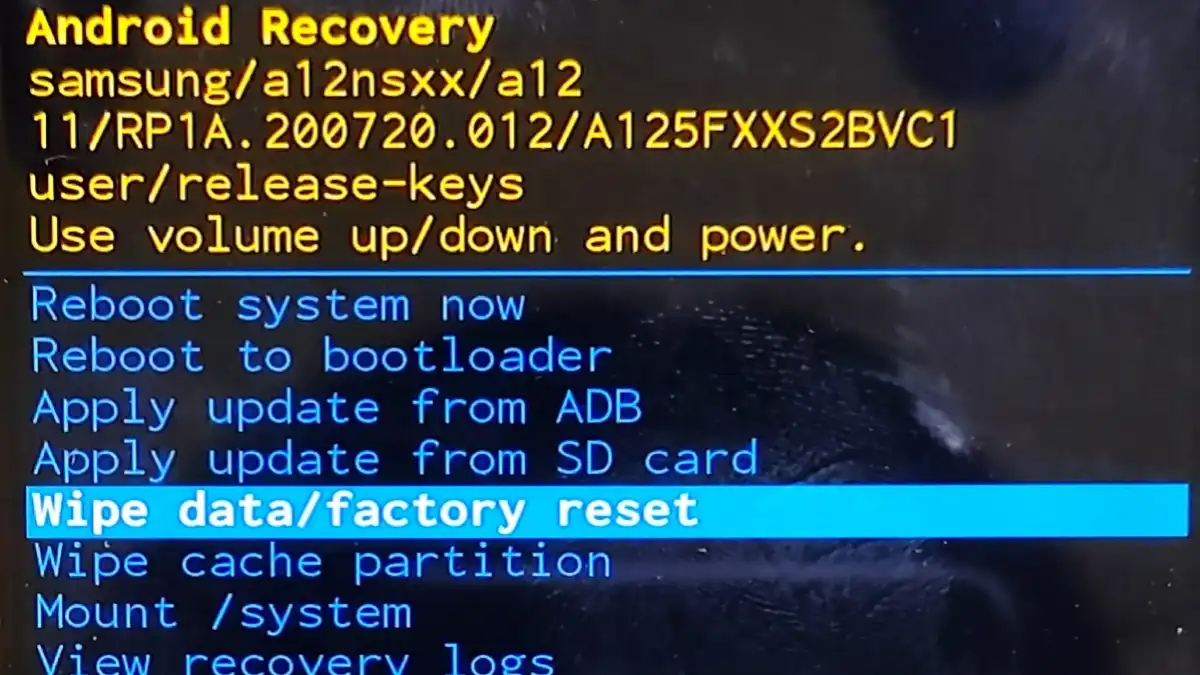
- Release down buttons & press volume up button to continue when Samsung recovery mode logo appears.
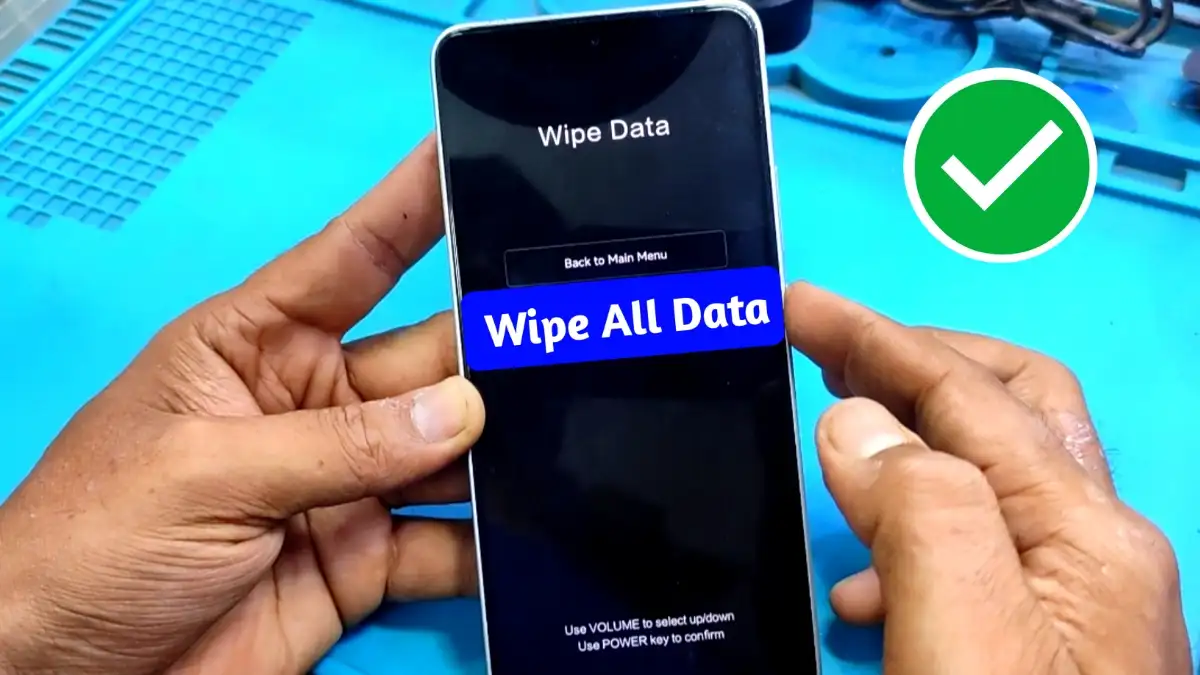
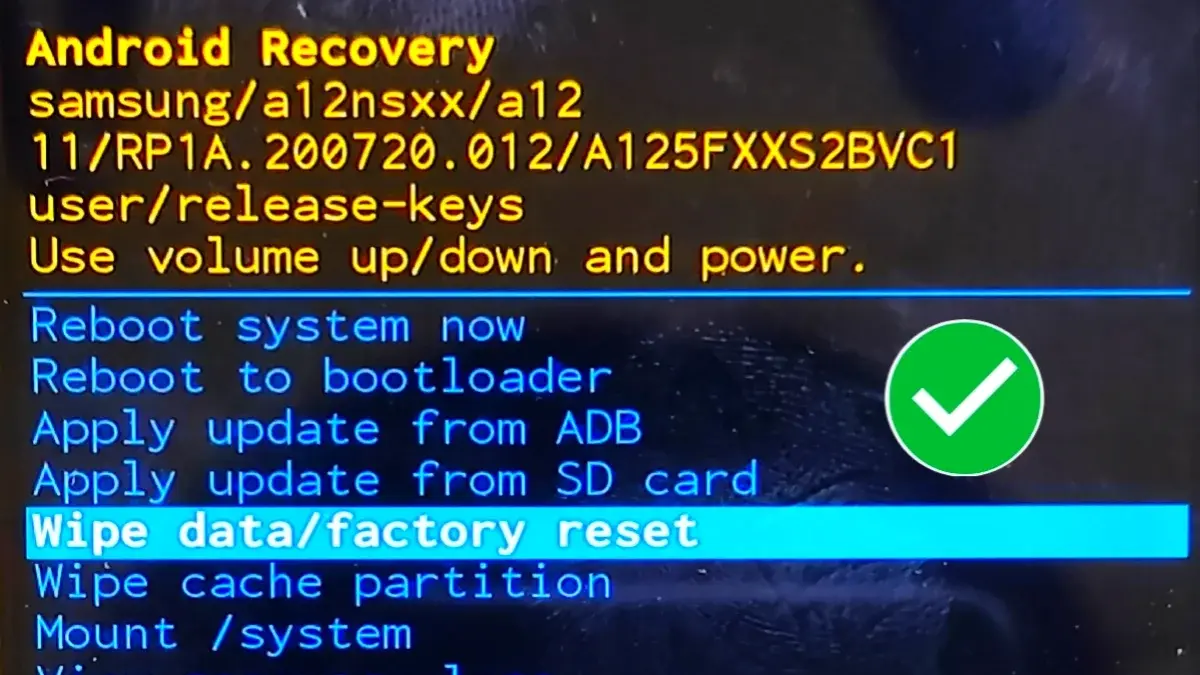
- Use Volume buttons to navigate to Wipe data/factory reset.
- Press Power button to confirm.
- Select Factory data reset.
- Reboot the phone.
This method works on most Samsung Galaxy models.
Method 2 – With Charging Cable (Recovery Mode)
If Method 1 does not work:
- If not turn off the phone.
- Connect the charging cable.
- Now press Volume Up + Volume Down + Power button.
- Release down buttons after entering Recovery Mode.
- Choose Wipe data/factory reset.
- Confirm the reset and reboot the phone.
This trick helps when buttons are not responsive.
Method 3 – Reset Using PC (Drivers Needed)
For some newer Samsung devices:
- Connect the phone to a PC using USB cable.
- Install Samsung USB drivers. (must needed install driver as a model you have to reset)
- Now press Volume Up + Volume Down + Power button.
- Release down buttons after entering Recovery Mode.
- Choose Wipe data/factory reset.
- Confirm the reset and reboot the phone.
This method is helpful for deep software issues.
Yes, a factory reset removes screen lock.
FRP (Factory Reset Protection) is a security feature that activates when a Google account is added. After reset, the same Google account is required to unlock the phone.
In most cases, yes. A factory reset can fix:
• Slow performance
• App crashes
• Software bugs
• Virus or malware issues
Yes, it is safe if you:
• Back up your data
• Remember your Google/Samsung account credentials