Learn how to factory reset Samsung phone when locked or unlocked. Step-by-step guide with buttons, recovery mode, and easy methods for every Samsung model.
How to hard reset Samsung phone when locked is one of the most searched queries by smartphone users. Many people forget their password, PIN, or pattern lock and cannot access their device. In such situations, a factory reset is the best solution. A factory reset deletes all personal data, apps, and settings from the phone and restores it to the original condition. In this article, we will explain step by step how to reset Samsung phone, how to factory reset Samsung phone when locked, and different methods to wipe data successfully.
What Does Hard Reset Samsung Mobile?
Before learning how to factory reset Samsung phone when locked, let’s understand what it actually does.
Factory reset wipes all stored data
It removes pattern, PIN, or password lock
It brings the phone back to its original system state
Fixes software problems like lagging, crashing, or virus infection
How to Hard Reset Samsung Mobile (Normal Method)
If your Samsung phone is not locked, you can reset it directly from Settings.
- Open Settings on your Samsung phone
- Go to General Management
- Tap Reset
- Select Factory Data Reset
- Confirm and enter password or PIN
- Your phone will reset automatically
This is the easiest way if the device is not locked.
Read More : Samsung A2 Core FRP Bypass Without PC
Samsung Phone When Locked (Recovery Mode Method)
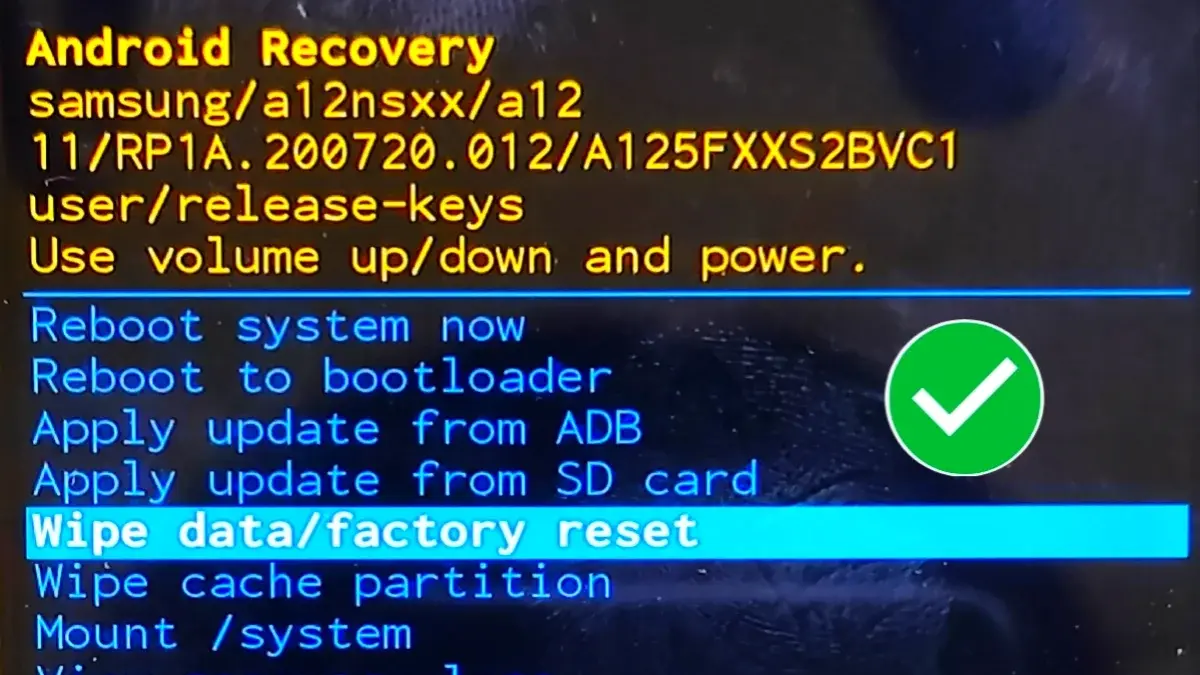
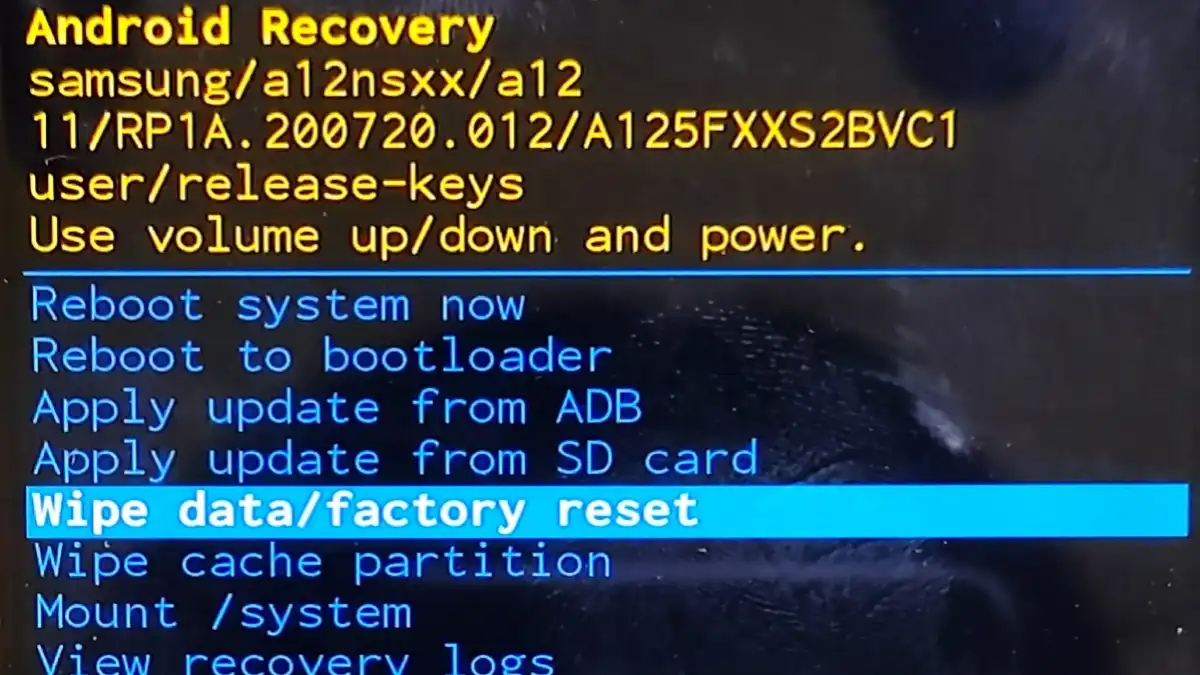
Now let’s focus on the most important method – how to factory reset Samsung phone when locked using recovery mode.
- Switch off your Samsung phone
If the phone is not switching off, press and hold Volume Up + Volume Down + Power button until it reboots.
- Enter Recovery Mode
Press Volume Up + Power button together until the Samsung logo appears.
- Navigate Recovery Menu
Use the volume buttons to move up or down
Use the power button to confirm
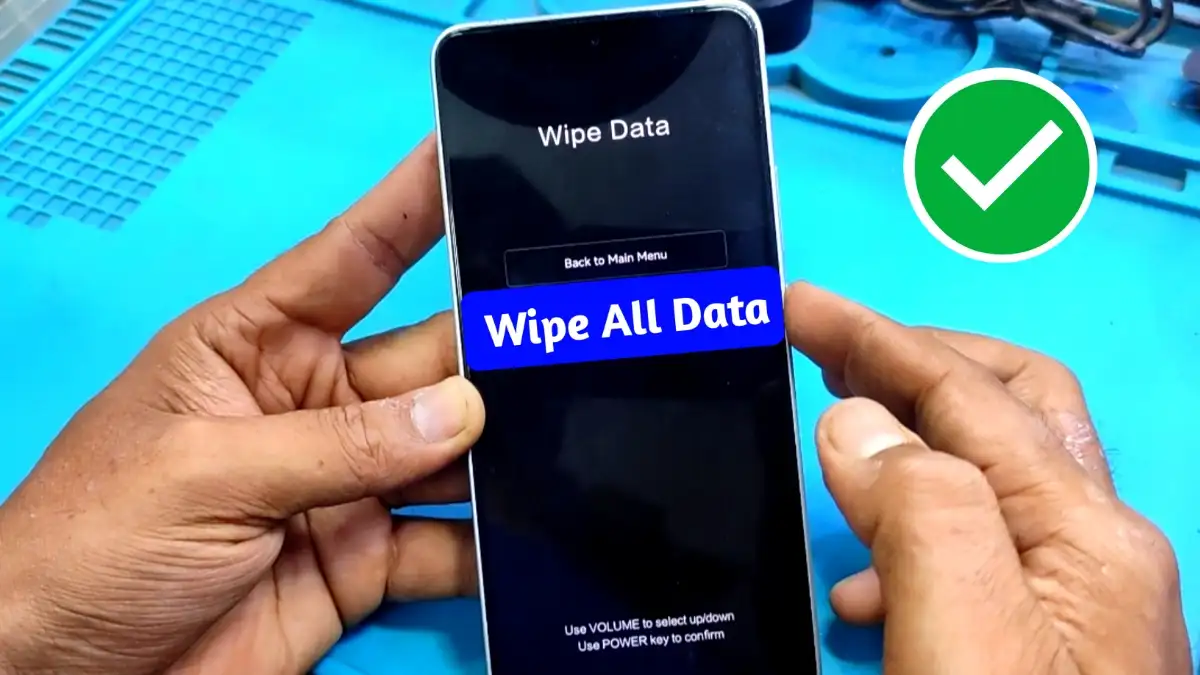
- Select Wipe Data/Factory Reset
Choose “Yes – delete all user data”
- Reboot System Now
Once completed, your Samsung phone will restart as a new device
This is the most reliable method when you forget your password, pattern, or PIN.
Alternative Method (With Charging Cable)
Sometimes the phone does not switch off normally when locked. In such cases, you can try this alternative method.
- Connect your Samsung phone to a charger or computer (with drivers installed)
- Press and hold Volume Up + Volume Down + Power button
- The phone will reboot, then release and quickly press Volume Up + Power button
- Recovery Mode will appear
- Select Wipe Data / Factory Reset
- Reboot the device
This method works when the phone is not responding or cannot be turned off normally.
Important Things to Know Before Reset your Phone When Locked
All Data Will Be Deleted – Photos, contacts, and apps will be erased.
Remove Google Account – If FRP (Factory Reset Protection) is enabled, you may need to log in with your Google ID after reset.
Battery Charge – Keep at least 50% battery before performing reset.
Backup Important Data – If possible, backup files before factory reset.
When Should You Hard Reset Samsung Phone?
When phone is locked due to forgotten password
If Samsung phone is lagging or crashing
When virus or malware is affecting the phone
Before selling your Samsung phone
When apps are freezing and system errors appear
Conclusion
Learning how to factory reset Samsung phone when locked is very important for every smartphone user. Whether you forgot your password, pattern, or PIN, you can easily reset your device using the recovery mode method. Just follow the step-by-step guide above and your phone will be restored like new. Always remember that all data will be erased, so try to backup if possible. With these simple methods, you can successfully reset Samsung phones of any model in 2025.