 Advertisement
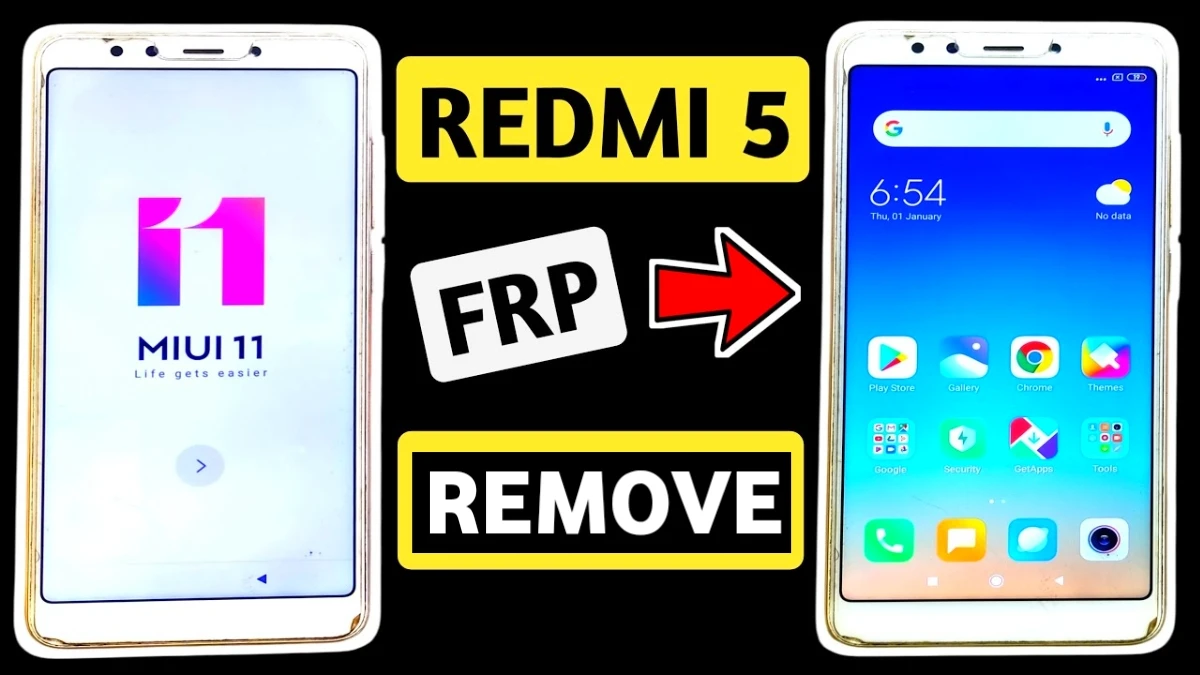
If you are stuck on Google account verification after resetting your phone, this guide will help you complete the Redmi 5 FRP Bypass After Factory Reset Without PC easily. Many users face this issue when they forget their previous Google account login details after performing a factory reset.
However, by following the correct steps, you can remove Google account after factory reset and access your device again. This method does not require any Android FRP unlock tool or mobile phone unlock software, making it simple for beginners.
So, if your device is showing the Google verification screen, follow the instructions below carefully to complete the Google Account Verification Bypass process.
Read More: Poco M6 Pro 5G Google Account Bypass Without PC
What is FRP Lock on Android?
FRP stands for Factory Reset Protection, a security feature introduced by Google to protect Android devices from unauthorized access.
When someone resets a phone without removing the previously synced Google account, the device asks for the original Google account credentials. This is known as Google account verification.
Therefore, if you forget the account details, you may need a Google account verification fix like the method explained below.
Redmi 5 FRP Bypass Without PC – Step by Step
Follow these simple steps carefully.
Step 1: Connect to WiFi
First, go to the WiFi setup screen and connect your phone to a stable internet connection.
Step 2: Use SSID Trick (Redmi 5 frp bypass)
Next, tap on Add Network and type:
www.youtube.com
Then press and hold the text. After that, some options will appear. Tap on the link icon to open YouTube.
Step 3: Open Chrome Browser
Once YouTube opens, select Chrome Browser, then tap Accept & Continue and allow all permissions.
Step 4: Visit the Unlock Website (Redmi 5 FRP)
Now tap on the search bar and type:
Subrata Service Center website
Open the website and tap the three-dot menu on the right side.
Step 5: Open Settings Shortcut
Here you will see several APK files and shortcuts. Tap the Settings Shortcut icon, which will open your phone settings directly.
Step 6: Enable Second Space (Redmi 5 bypass frp)
Now go to:
Special Features → Second Space
Turn on Second Space and wait while the phone creates a new user space.
Next, tap Continue and choose Using a Shortcut. When the password screen appears, simply tap Skip.
Step 7: Reboot the Phone
Your device will enter Second Space mode. Finally, reboot the phone.
After restarting, the phone will open normally and the Redmi / Mi 5 FRP bypass process will be completed successfully.
Faq
FRP (Factory Reset Protection) is a security feature on Android devices. After a factory reset, the phone asks for the previously synced Google account to verify the owner. If you don’t remember the login details, the device will remain locked on the Google verification screen.
You can complete the Redmi 5 FRP Bypass after factory reset without PC by using a WiFi connection, opening YouTube through the SSID trick, launching Chrome browser, and accessing phone settings through a shortcut. After enabling Second Space, reboot the phone to remove the Google account verification screen.
Yes, the method is safe if you are the original owner of the phone and have forgotten your Google account details. This process simply helps you regain access to your device when you are locked out after a reset.
Yes. In many cases, you can remove Google account after factory reset without using any Android FRP unlock tool or mobile phone unlock software. The method explained in this guide uses built-in phone features like browser access and Second Space.
Google account verification appears because of Factory Reset Protection (FRP). It prevents unauthorized users from accessing the phone after a reset, especially if the device was lost or stolen.
Yes. Professional technicians often use specialized mobile phone unlock software or mobile phone repair tools to fix FRP problems quickly. However, simple bypass methods like this guide can also work for many users.