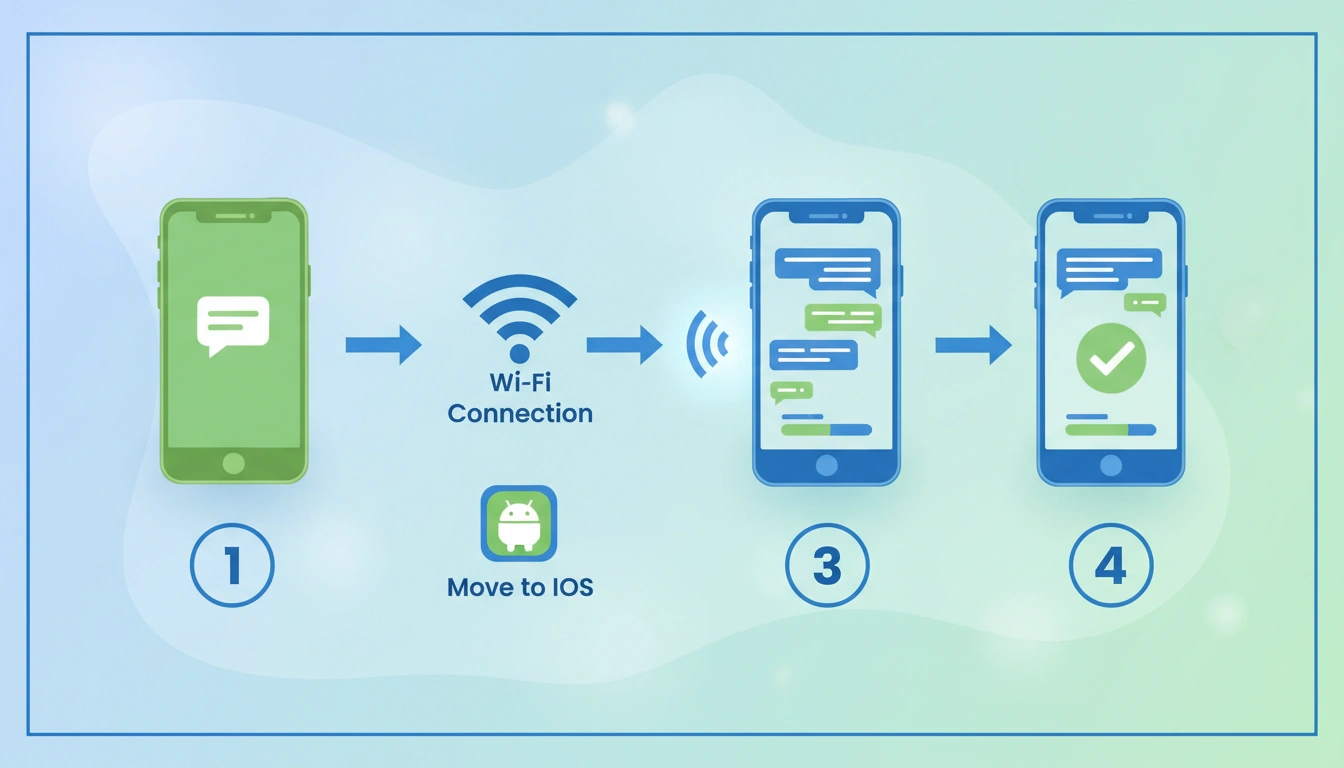
When you reset your OPPO A55 to factory settings, you may have to enter the previously synced Google account. You may notice the notification “This device was reset. To continue, sign in using a Google account that was synchronized previously on this device.”
This is termed the FRP lock, or factory reset protection.
FRP can be a bit of a mess, especially if you don’t remember the Google account that was previously used on the phone. Many people search for terms such as “OPPO A55 FRP Unlock Android 13/14 Without PC,” “OPPO A55 FRP bypass,” or “OPPO A55 FRP APK.”
But installing random APK files or unknown FRP tools can generate more security issues.
Read More: WHAT IS MOBILE SECURITY
The safest way is to get the original Google account back or have the prior owner delete his account or call an authorized service provider if you can prove the ownership.
In this post, we will explain what FRP is, why it happens, how to accomplish it without a computer, and how to fix frequent Google verification problems.
What Is OPPO A55 FRP Unlock?
What is FRP? FRP is Factory Reset Protection.
This is a security feature of the Google account for Android devices.
When you add a Google account to an Android phone, Google may use that account as part of the protection system of the phone. If someone does an unauthorized factory reset, it may ask you to verify the previously synced account during the configuration of the device.
This helps to restrict the utility of a stolen phone in that simply executing a factory reset does not necessarily mean that the prior owner’s protection is removed.
For example:
Pre-reset:
OPPO A55 → Google Account → Secure your device
After an improper reset:
OPPO A55 –> Setup screen –> Google Verification Account
The aim is security, not inconvenience.
OPPO A55 Google Account Verification What is it?
There are many reasons why your OPPO A55 shows the verification screen.
1. The phone was factory reset.
If the device was reset while it was still paired with a Google account, Android may expect the prior account during setup.
2. Reset phone from recovery mode.
A factory reset in recovery mode can trigger Google verification.
3. You bought a second-hand OPPO A55
The new owner may see the verification screen if the prior owner didn’t correctly unlink their Google account before selling the phone.
4. You forgot the Google account.
Sometimes the phone is yours, but you just don’t remember what Gmail address was previously used.
5. You changed the password recently
Google security systems may sometimes ask for extra verification after modifications are made to account security settings. So trying different passwords over and again is not a viable idea.
OPPO A55 FRP Unlock Android 13/14 FRP Support variation, and the
Software versions may vary by locale, firmware build, and update history.
If you are writing this page for SEO, please don’t say that all OPPO A55 run exactly the same Android version officially. Firmware, variation, and market may change.
| Feature | Details |
|---|---|
| Device | OPPO A55 |
| Security | Google Factory Reset Protection |
| Android | Version depends on software/region. |
| Internet | Required for account verification |
| PC | Not required for Google account recovery |
| Google Account | A previously synchronized account may be required. |
| Recommended solution | Account recovery/authorised service |
Method 1: Sign in with the Google Account that you used before
This is the easiest and safest solution.
After the OPPO A55 shows the Google verification, log in to the Google account that has been previously synced with the device.
You might need:
- Gmail account
2. Your Google account password
3. Internet connection
4. Your recovery phone/email in case you are asked for further verification
Steps
- Power on OPPO A55.
2. Connect your phone to a secure Wi-Fi network.
3. Complete the Android setup screen.
4. When you go to Google Account Verification, enter the Gmail address you had previously synced.
5. Type the password correctly.
6. Complete whatever security check Google requests.
7. Keep on setting up the device.
If it works, the phone should go through the standard setup.
Method 2: Recover your lost Google Account
What if you bought the OPPO A55 but forgot the Gmail?
Don’t be looking for an “FRP APK.”
Recover the Google account instead.
Try to Recall:
- Your previous Gmail address
2. Recover phone no.
3. Recovery email
4. Old passwords
5. Other devices you were signed into Google on
If the account is yours, the proper method is to go through Google’s ‘own account recovery process.’
After you have the account, return to your OPPO A55 and enter the credentials you recovered during the setup.
3. Recover your Google Account from another device.
If the OPPO A55 is not set up, use another trusted phone, tablet, or computer to retrieve the Google account.
For example:
- Open a device and go to Google’s account recovery page.
2. Enter email address or recovery information.
3. Follow the Google Verification Process.
4. Reinstate your account.
5. Back to OPPO A55
6. Wi-Fi Connection on the Oppo A55.
7. Sign in with the restored account.
No need to install an APK on a locked OPPO A55 using this way.
Used OPPO A55 Method 4:
Used phones are a very typical FRP issue.
For example, you purchase an OPPO A55 from a third-party seller.
The prior owner may have done a factory reset but not removed their Google account first.
In this case the basic FRP need will not normally be resolved simply by restarting the phone over and over.
The fix is to get in contact with the ex-owner and have them help you to remove their account using the proper Google/device account process.
Important
Never ask the vendor for his Google password.
The vendor should take steps to safeguard their account credentials and implement Google’s lawful account/device management processes.
Method 5: Reach Out to OPPO or an Authorised Service Centre
If you’re the actual owner and you can’t get back into the account, expert help may be your best bet.
Have ownership paperwork on hand if applicable, i.e.,
- Bill of purchase
2. Original invoice
3. Device info
4. Warranty documents
5. Other ownership proof
A trained technician can establish what official recovery options are available for the given device and software version.
This is especially handy when the phone is a customer’s phone at a repair shop.
Can you access Settings on an FRP-locked OPPO A55?
This is one of the most common questions searched for.
After a factory reset, the regular Android setup environment is purposely locked down until the security requirements of the device are satisfied.
There are websites or videos that say you may bypass verification by following a certain sequence of menus, accessibility features, or browsers or by installing APKs.
These strategies may change with Android releases and security fixes. instructions on
More significant, specific instructions on how to bypass the verification process would be instructions on how to bypass a device security control.
These techniques are not dependable. It’s better to describe why they might exist than post exploit instructions for an instructional repair piece.
Subrata Service Centre for Educational Assistance Website
If you are posting this article on the subrataservicecenter.com website, then it is possible to set up a specific resource section for OPPO users.
For instance:
Support OPPO A55
You may list on your website:
- OPPO A55 specs
2. Android troubleshooting tips
3. Google account recovery info
4. Explanations for factory reset
5. Software update details
6. Backup instructions.
7. Ultimate guides to Android repair
8. Official support links.
9. Repair-service details
What are OPPO A55 FRP APK files?
Many websites advertise files named like the following:
- FRP apk
2. Account Manager Apk
3. QuickShortcutMaker
4. FRP Bypass APK Download
5. Settings Download APK
6. Browser APK
7. Android APK App Installing
But the availability and behavior of these applications may vary considerably depending on the Android version, the security patch, and the firmware.
More crucially, an APK obtained from an unknown website can potentially contain the following:
- Malicious Software
2. Spyware
3. changed code
4. Big advertising
5. Stealing credentials components
6. Undesired permissions
Hence, Subrata Service Centre should not be distributing unknown FRP-bypass APKs only because they are popular in the search results.
Or you may post an APK safety notice to your blog:
APK Safety Notice: Don’t install unknown FRP bypass APK files from untrusted websites. Modified APK files may have malware or require unnecessary permissions. Make use of official software sources if possible.
This also increases the trustworthiness of your website in the long term.
Why FRP APK Methods Fail
Android security is one reason FRP tutorials age so rapidly.
A previous security patch method may fail after an update.
Google & device makers constantly update security features.
Therefore:
Old tutorial! = working solution guaranteed
Or a video from a few years back showing some menu or app. The same procedure may not work on any fresh security patch.
So don’t say something such as the following:
“100% work on all OPPO A55 models.
More accurately:
“Device firmware, security patch, account status, and ownership situation limit recovery options.
Common OPPO A55 FRP Problems and How to Fix Them
This device was reset. Message
Usually this is because Android has detected a factory reset state and needs to verify your account.
Solution: Log in with the Google account you synced before or go through the valid account recovery processes.
Google password not working correctly First, be sure you are typing the proper Gmail address.
If you’ve just changed your password, don’t try to guess it by trying different combinations over and over again. Follow Google’s account-recovery process and jump any security hurdles.
I bought the phone secondhand.
Contact the former owner.
The seller should enable proper account/device management methods.
Don’t ask for or retain their Google password. The phone is not on-line.
Network access needed for Google verification.
Try:
- Another network on Wi-Fi
2. Rebooting router.
3. Test if other devices can access the internet
4. Enter Wi-Fi password again
A factory reset did not clear FRP.
To be expected.
FRP is meant to be such that several factory resets do not necessarily remove the protection.
Things You Must NOT Do
If you search “OPPO A55 FRP unlock without PC,” you will see various sites that provide dubious files.
Avoid:
- FRP APK websites are unknown.
- Changed Google Account Manager files
- Repair cracked software
- Not recognised USB devices
- Websites requesting your password to Google
- Requests for remote access from strangers
- Fake services “100% guaranty”
- Repeated factory resets
- Suspicious permission files
Instead, employ the proper account recovery and authorized support.
Tips for Service Technicians
If you are doing mobile repair business, then you need to be careful when doing FRP jobs.
Before you begin work on a customer’s OPPO A55:
- Verify that the customer owns the phone or has authorization to have the phone serviced.
2. Document the request for service.
3. Never ask customers for their Google password.
4. Never save customer account credentials.
5. Explain that FRP is a security measure against stealing.
6. Official recovery should be used wherever possible.
7. Keep the customer’s personal info confidential.
8. Don’t download suspicious APK files to customer devices.
Such methods will protect the customer and the repair business.
How to Fix FRP Issues Before Factory Reset
The simplest FRP problem is one that never arises.
Before you factory-reset your OPPO A55:
Back up critical data
Ensure that your images, contacts, papers, WhatsApp data, and other vital data are backed up.
Keep your Google account in mind
Please confirm you have the Gmail address and password for the phone.
Sell with appropriate removal of the account.
If you are selling the phone, be sure to fully deactivate your accounts before handing over the device to the buyer.
Do the factory reset
“First back up your vital information and manage your accounts properly, then do a factory reset.
This can save the next owner unnecessary setup hassles.
Can you FRP unlock OPPO A55 without a PC?
The answer depends on what you mean by unlock.
If you mean getting back into your own phone without a computer, then yes—typically you can regain the Google account on another device and complete setting up the phone without a PC.
If you mean avoiding Google verification without the authorized account, then it is a different story. FRP is designed to prevent unauthorized access. Bypass methods might be security-sensitive and unreliable across firmware versions.
For this reason, the recommended strategy is:
Recover your Google Account → Verify that it’s you → Set up your phone →
Instead of:
Factory reset: download random APK * Try to break security
Frequently Asked Questions (FAQ)
1. What is OPPO A55 FRP?
FRP stands for Factory Reset Protection. This is an Android security feature that may ask you to enter your previously synced Google account after a factory reset.
2. Want to unlock FRP on OPPO A55 without a PC?
If you’ve got or can retrieve the Google account you previously synced, you may be able to complete setup without a computer.
3. What if I forget my Google account password?
Use the official Google account recovery process from a trusted device.
4. Can I use any Google account?
If a reset triggers FRP, it may need an account that was synced on the phone before.
5. Does a factory reset wipe FRP again?
No. Repeating a factory reset will not reliably clear factory reset protection.
6. Can FRP APK remove the lock?
Random APKs are not a security bypass solution and should not be trusted. They depend on the Android version and firmware. Downloading modified APKs can be a security concern.
7. What to do with a second-hand OPPO A55?
Contact the prior owner and sort out the device/account problem. Retain proof of ownership and purchase
8. Can I provide my Google password to a technician?
No. Your Google password is confidential. Technicians should not be sharing your account credentials.
Final Thoughts
The search term “OPPO A55 FRP Unlock Android 13/14 Without PC” is really popular, as many customers are stuck with Google Account verification after resetting their phones.
But there is a reason FRP exists, and that reason is to secure the device and the owner’s data in case the phone gets lost or stolen.
If the OPPO A55 is your own, start by applying the easiest approach—utilize the Google account that was previously synchronized with the phone. Forgotten account? Use Google’s account-recovery method. If the phone is a used one, contact the prior owner. For service, if needed, bring in your product for expert or authorized service. Proof of ownership required.
The best long-term strategy for an educational website like Subrata Service Centre is to offer accurate troubleshooting advice, teach users about FRP, direct them to legitimate account recovery avenues, and avoid posting unknown APKs or asserting that an unofficial bypass works on all firmware.
One caveat: Android versions, security fixes, and device firmware are always in flux. An outdated video showing a way that no longer works on a modern OPPO A55.