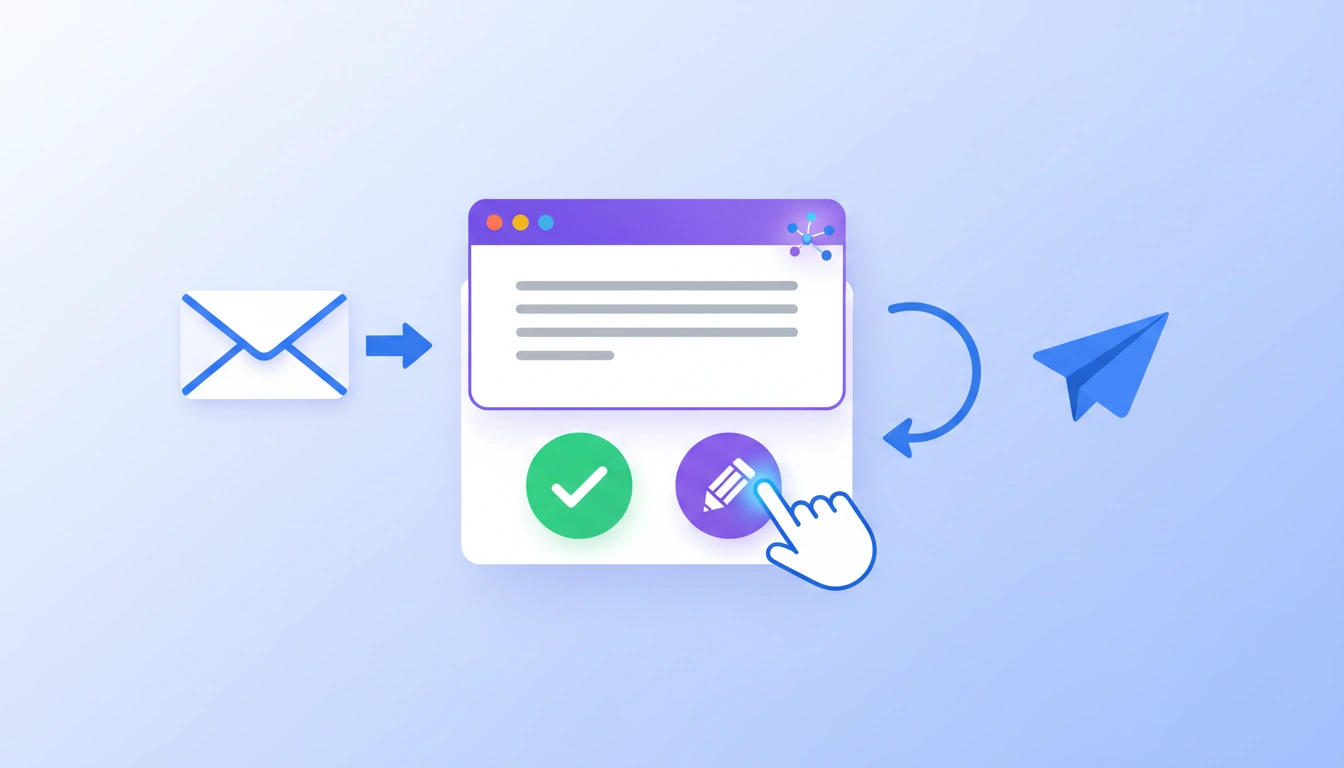
Claude can analyse Gmail threads, understand their context, and draft replies on your behalf. Here’s how to do so. Answering emails can take up a lot of your workday, especially when dealing with routine questions, follow-ups, and requests that do not require a long response. Fortunately, Al can come to your rescue. Claude, Anthropic’s AI assistant, can connect directly to Gmail. The chatbot can analyse email threads, understand their context, and draft replies without requiring you to copy and paste messages into an AI chatbot. It can even send emails on your behalf, but it asks for your approval first by default. This is all made possible by Google Workspace connectors.
Read More: How to set up UPI auto mandates
What Are Google Workspace Connectors, and How Do They Work?
Anthropic says Google Workspace connectors allow Claude to connect directly to services such as Gmail, Google Calendar, and Google Drive. Once the Google account is authenticated, the chatbot can retrieve relevant information from those services when you ask it to do something that requires access to them.
For Gmail, Claude can search and read emails, find information in threads, summarise conversations, and use the information it finds to prepare responses. The Gmail connector can draft, send, reply to, and forward emails as well. This makes the workflow simpler. Instead of opening an email, copying its contents, asking Claude to write a response, and then pasting that response back into Gmail, you can simply tell Claude what you want it to do in natural language. For example, you can ask the Al chatbot to find the latest email from a particular person and reply to it while following specific instructions about tone or content. There is, however, a caveat. The Gmail connector is currently available through Claude’s paid plans, while Team and Enterprise users may need their organisation’s administrator to enable connectors before they can authenticate their Google account.
How to Reply to Emails in Gmail Using Claude Step
Step 1: Open the app and look for the Connectors option. Click the (+) button and select Connectors. Find Gmail in the list and choose the option to connect it.
Step 2: Sign in with the Google account whose Gmail inbox you want Claude to access and grant the requested permissions.
Step 3: Open the chat window for Claude and tell it what message you’d like to work with. It will then search your Gmail and use the relevant email thread as context.
Step 4: Tell Claude what information you’d like to include in the response and how you’d like it to sound. You can also ask it to make the response more casual, formal, brief, or detailed.
Step 5: Read the proposed response. If the response looks correct, approve the action when Claude asks for confirmation. Claude will then send the reply through Gmail.
Things to Keep in Mind
Anthropic warns that connected data should be treated carefully. Email content, especially from unknown senders, can contain instructions designed to manipulate an AI system, commonly referred to as prompt injection. There are also some limitations. Gmail attachments are not directly accessible through the connectors. While Claude can access attachment metadata, the attachment content cannot be read through Gmail. Some advanced Gmail filters may also not be supported. Anthropic also says performance can vary with large mailboxes.
FAQs
Yes. Claude’s Gmail connector can now draft, reply to, and send emails. By default, however, Claude asks for your approval before sending a message. Team and enterprise administrators can control approval settings for their organisations.
Yes. After you authenticate your Google account and connect Gmail, Claude can search and read emails and use relevant threads to answer your requests or prepare replies.
Anthropic itself warns that it is best to keep human approval enabled, particularly for important or external emails. Email content can contain malicious or misleading instructions intended to influence an Al agent, so reviewing the response and recipient before sending is recommended.
Not by default. Claude’s default setting requires approval before an email is sent. Some team and enterprise configurations can allow actions to run without asking for approval each time.