 Advertisement
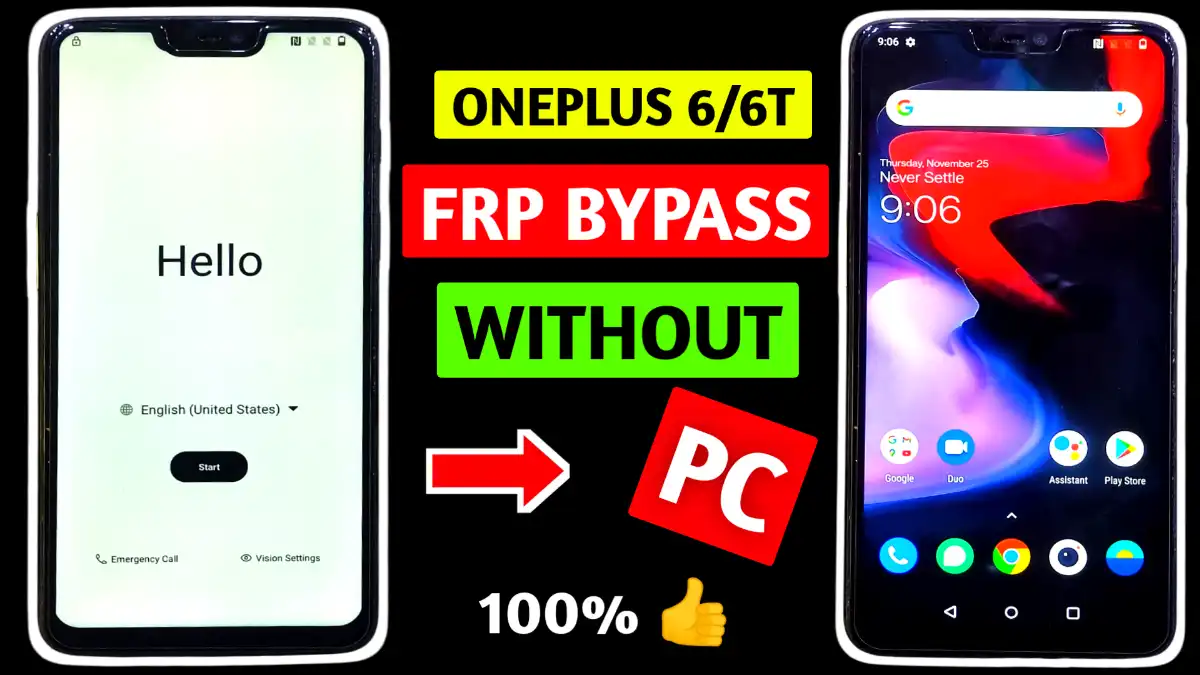
OnePlus 6 FRP bypass is a common search for users who are stuck on the Google account verification screen after a factory reset. If you recently reset your OnePlus 6 and forgot the previously synced Google account
This step-by-step tutorial will help you understand the exact flow to access phone settings and complete the setup process successfully. This guide is written in simple language and follows a practical method that works directly from the device, without using a PC or external tools.
🔹 What is FRP Lock on OnePlus 6?
Factory Reset Protection (FRP) is a security feature introduced by Google to protect Android devices from unauthorized use. However, if you forget your Google account details, the same protection can block you from using your own phone. That’s why users search for a reliable OnePlus 6 FRP bypass solution.
🔹 OnePlus 6 FRP Bypass – Step by Step Flow
Step 1: Connect to Wi-Fi
First, power on your OnePlus 6 and connect it to a stable Wi-Fi network. Once connected, go back to the home screen.
Step 2: Access Emergency Settings
Now, tap on the Emergency option, then select Emergency Rescue. After that, click on Add Contact and deny the permission request. Next, tap on Go to Settings.
Step 3: Open Phone Settings via Search
Inside permissions, tap the search icon (🔍) at the top-right corner. Search for Settings, press enter, scroll down, and tap Settings, then click Open. Your phone settings will now open.
Read More: Xiaomi hyperos frp bypass
🔹 Disable Required System Apps ( Bypass OnePlus 6)
Step 4: Modify System Apps
Go to Apps & Notifications → App Info, tap the three dots, and enable Show System.
Select Android Setup, then tap Force Stop and confirm. Go back, open the other Android Setup, disable the app, and force stop it again.
Step 5: Disable Google Play Services ( frp OnePlus 6 )
Scroll down, find Google Play Services, and tap Force Stop and Disable.
🔹 Complete Setup Successfully
Now return to the home screen and tap Next to continue setup. When Co-Creation Labs appears, tap Skip.
When Join the Red Cable Club appears, select Skip again.
For Screen Lock, choose Skip, then continue through permissions and gestures. Finally, complete the setup process.
✅ Final Result
Once setup is finished, the OnePlus 6 FRP bypass process is completed successfully, and you can access your device normally.
FRP (Factory Reset Protection) is a Google security feature that activates after a factory reset. On OnePlus 6, it requires the previously synced Google account to verify ownership before completing setup.
This happens when the phone is reset without first removing the Google account. As a result, the device asks for the old Google ID and password during setup.
Yes. This OnePlus 6 FRP bypass method works without PC, USB cable, or external software. Everything is done directly on the phone.
This method generally works on Android 9, Android 10, and some Android 11 builds on OnePlus 6. Results may vary after new security updates.
No. This tutorial does not require installing any APK, mod app, or risky file, making it more reliable and beginner-friendly.
Try repeating the steps carefully, especially the permission denial and search process. Make sure Wi-Fi is connected and all steps are followed in order.