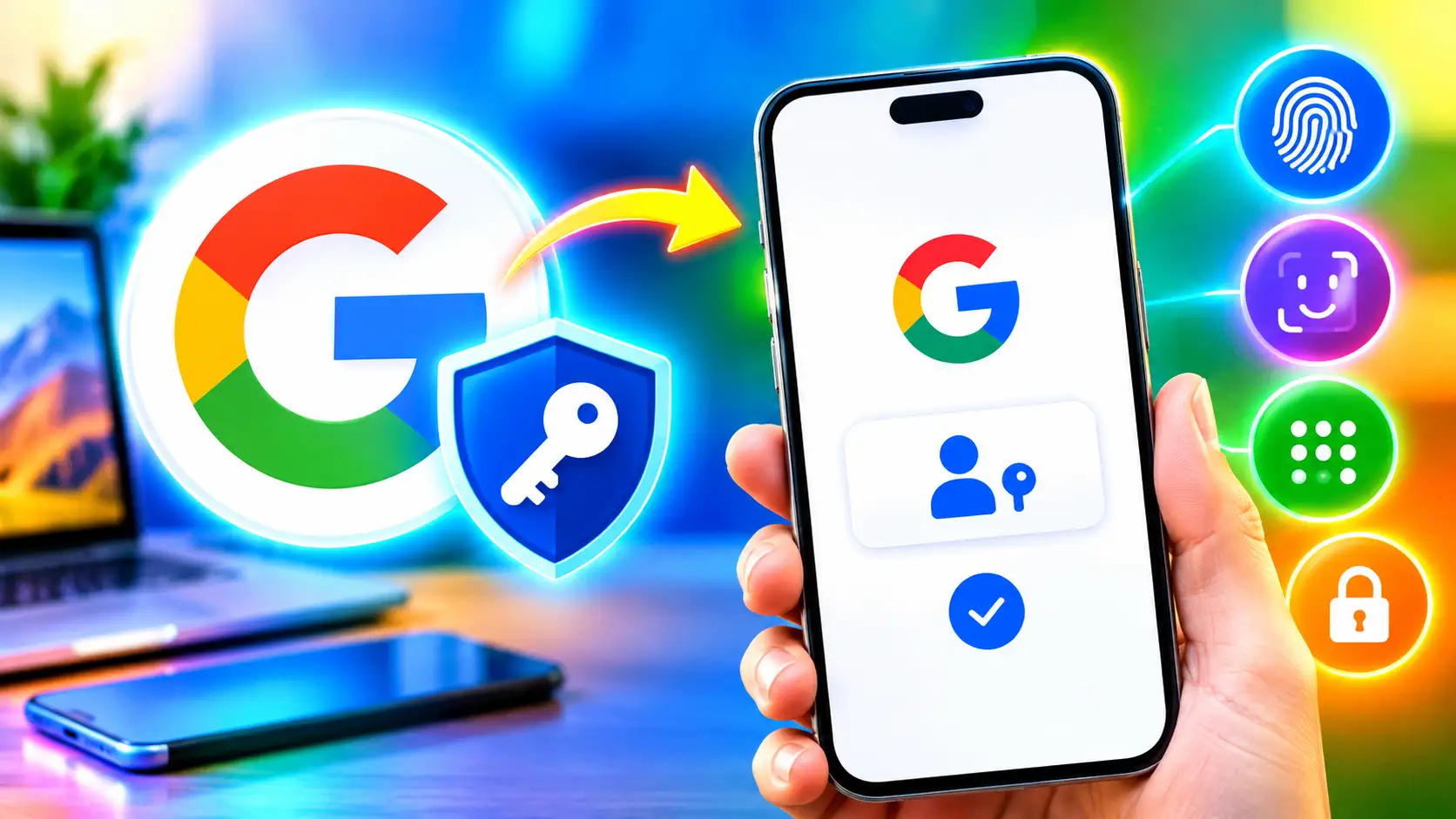
Your password manager stores and synchronises passkeys, and you can use them to log in on other devices. Google launched Passkeys in 2023 to move away from passwords. They were launched as a secure replacement for traditional passwords and a simple way to sign in using your biometrics. Google created passkeys to be resistant to internet threats, like phishing. The password manager stores and syncs the passkeys, and the users can log in to different devices with the same passkey. Create passkeys for your Google Account and sign in on supported phones, PCs, and other devices. For example, a passkey made on an Android phone will also enable you to log into the Google Account when switching to a new device, including an iPhone.
Read More: How to use Claude to automatically reply to emails in gmail
Passkeys enable users to log in to apps and websites using a PIN, fingerprint scanner, and face unlock, depending on the device. In this article, we will walk you through steps to set a passkey for a Google Account.
How to Set Up a Passkey for a Google Account
Google suggests users generate passkeys on devices they own and use them to make themselves more secure. During setup, Google may ask you to log in to your account or verify your identification.
You can create a Google Account passkey by following these steps:
- Visit the Google Account Passkeys page.
- Tab Create a passkey
- If asked, choose Create a passkey again.
- Unlock your device by utilising its screen-lock technique.
- Follow any other instructions that may appear on the screen.
To create passkeys on multiple devices, repeat these procedures on other devices. You can then use the passkey to check in to your Google Account on that device.
How to sign in to a Google account with a passkey
Once you’ve created a passkey, it will replace having to input your account password. Depending on the device, users can authenticate with fingerprint or face scan, screen lock, or PIN.
Follow these steps to sign in with a passkey:
- Navigate to the Google sign-in page.
- Your Google Account username.
- Choose the passkey if it’s an available sign-in option.
- Follow the instructions given by your device/browser.
- Unlock your device with your fingerprint, face recognition, PIN, or another approved screen-lock method.
With passkeys, you can sign in to a computer using a passkey saved on a compatible Android phone, iPhone, iPad, or hardware security key. Sometimes Google may give you a QR code, which you can scan using either your phone’s camera or a QR code scanner app. Then you can authenticate yourself and unlock the phone with your fingerprint, face unlock, or PIN.
Making a passkey will not delete the password associated with your Google Account. When they have to, users can still utilise their password. When you create a passkey, however, you will default to a passkey-first sign-in experience. If you want to use your password first instead, you can alter this in your Google Account security settings. Sign in to your Google Account>Tap Security & Sign-in>Tap How you sign in to Google> switch off Skip password when feasible.
FAQs
Yes, you can use face recognition to confirm your identity while logging in with a passkey on supported devices.
Read More: How to set up autopay and recurring UPI mandates
Yes, Google did introduce passkeys as a password alternative. It’s a passwordless sign-in method.
Passkeys are designed to offer protection against phishing and scams, as they cannot be copied the same way as a password.