
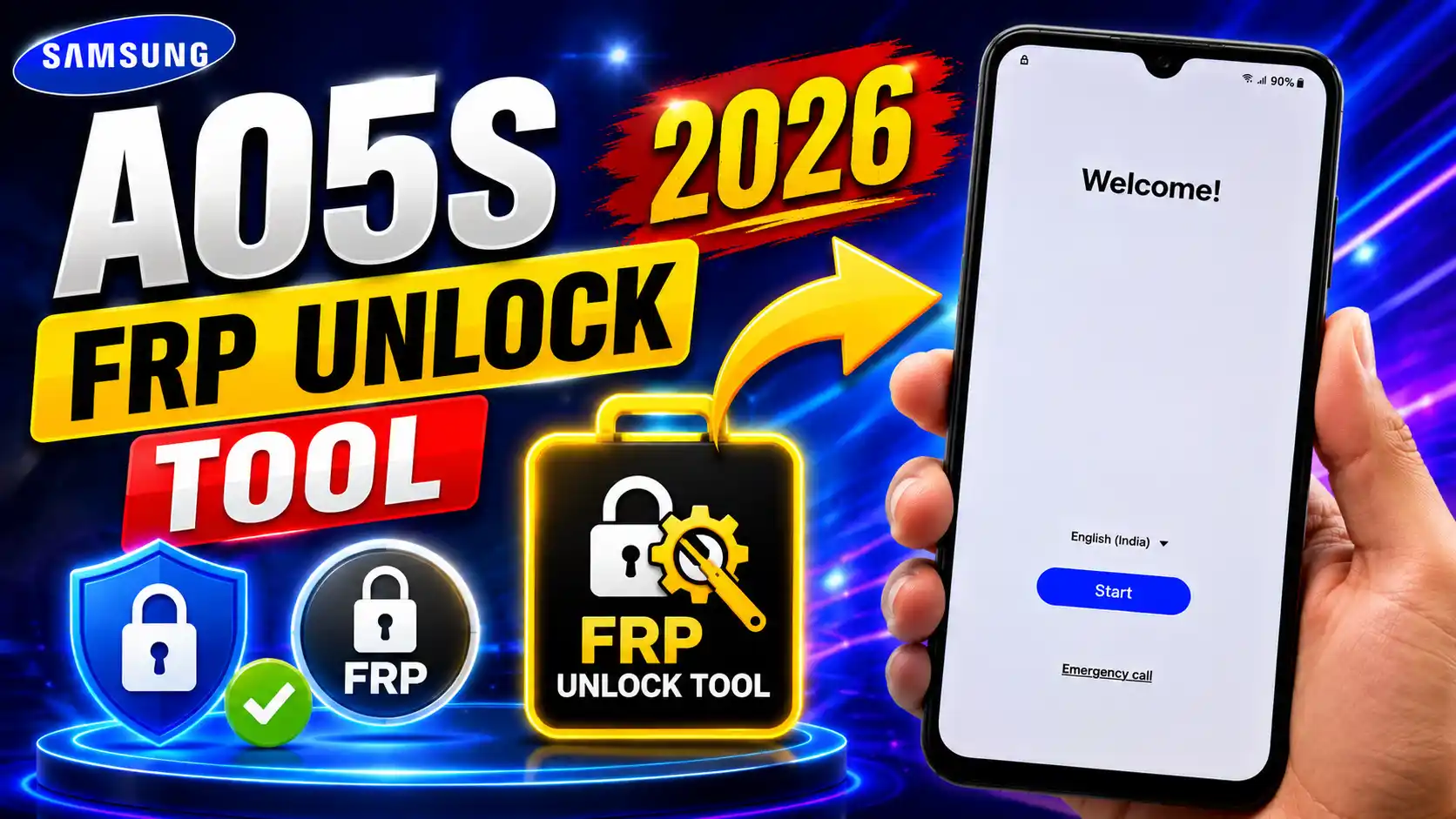
If you factory reset your Samsung Galaxy A05s and it is asking you for Google Account Verification, then you may see the FRP screen on the first setup. FRP is the abbreviation of Factory Reset Protection. It is a security feature that prevents an unauthorised person from resetting an Android phone.
In this post we will talk about the Samsung Galaxy A05s FRP problem, Unlock Tool and EDL-based servicing, compatibility checks, frequent mistakes and safe recovery solutions. This post is written in plain English for beginners and mobile technicians to quickly comprehend the process.
Important: This guide is for instructional purposes and approved mobile repair only. Only fix phones that you own or have permission to repair. FRP is a security feature designed to prevent theft and should not be used to access lost or unauthorised devices.
Read More: iphone Back Glass Repair Cost USA
Samsung Galaxy A05s FRP What is it?
FRP – Factory Reset Protection. It is a security feature of Android related to the Google account used on the phone.
If a Google Account is tied to an Android device and device protection is turned on, a factory reset doesn’t always imply the phone is ready for someone else to use.
After the reset, you may be asked to log in using the Google Account that was previously linked to the device.
For example, you might see a message like:
This device has been reset. To continue, sign in with a Google Account that has already been synced on this device.
This is the standard behaviour of FRP.
The reason for this protection is simple: if someone steals your phone and does a factory reset without authorisation, they shouldn’t be able to set it up easily as their own device.
Samsung Galaxy A05s Specifications
Always confirm the precise model before undertaking any servicing.
The Galaxy A05s comes in a number of regional variations. The SM-A057F/DS is one such model.
| Feature | Details |
|---|---|
| Device | Samsung Galaxy A05s |
| Model | SM-A057F/DS |
| Android | Android 13 / 14 / 15 variants |
| Security | Google FRP / Device Protection |
| Article Focus | Unlock Tool & EDL servicing |
| PC | Required for PC-based servicing |
Don’t assume that the same approach will work on all A05s variations. The outcome can be influenced by the model, software version, security patch, and available service support.
Why Does a Samsung A05s FRP Turn On After a Factory Reset?
There are various methods to reset a Samsung phone.
A reset could occur through:
- Android Settings
- Rescue Mode
- Service procedures
- Software issues troubleshooting
- Another individual doing a factory reset
If you have Google Account protection turned on before the reset, you may need to verify your account when the phone starts up again.
That’s why a factory reset doesn’t always clear FRP.
A reset wipes the user data and settings, but the security protection associated with the prior account is not always removed.
What Is the Unlock Tool?
Unlock Tool is a PC-based mobile servicing tool to perform many supported smartphone procedures by technicians.
It can offer various features for supported Samsung and other Android handsets, depending on the device and the tool version.
But support can evolve over time. A tool version that supports one model or software version may not support another version of that same phone.
Thus, before you begin any operation, check:
- Exact model number
- Version Android
- Security update
- Chipset / Platform
- Current tool version:
- Operations supported
- Connection type
This is especially true for the Galaxy A05s, as the servicing compatibility may change with software updates.
What Is EDL Mode?
EDL most often stands for Emergency Download mode.
It’s a low-level service mode for usage on approved devices for specific repair and software servicing tasks.
EDL is not like standard Android mode and not like the usual recovery interface. Technicians can interface with a supported device in a low-level manner using specific servicing software.
However, availability of EDL and the operations it supports are dependent on the exact hardware and software setup. So, don’t expect every Galaxy A05 to behave the same way.
Service: Things to check before service
Spend a few minutes to check everything before you connect the phone to a PC.
Check the Model Number
Make sure the phone is indeed the Galaxy A05s and confirm its model number.
For example: SM-A057F/DS
Do not utilise files or servicing options designed for another Samsung model.
Check the Android Version
Compatibility might be affected by program version.
An older Android build on a phone can act different from a current security update on another device.
Verify the Security Patch
Security updates can affect servicing capabilities.
So that implies a previous instruction could not work on a phone with a recent security patch.
Power the Battery
Make sure there is enough battery power before starting any PC-based servicing activity.
An unexpected shutdown during an important operation can bring some other complications.
Use a Good USB Cable
A cable of insufficient quality may cause:
- Connectivity issues
- Disconnects Device
- Detection failure
- Operations suspended
A quality data cable is recommended.
Fundamental for Samsung A05s FRP unlock requirements
Items that may be needed for the technician working on an approved Galaxy A05s are:
- Samsung Galaxy A05s
- Windows computer
- Good data USB cable
- Samsung USB drivers appropriate
- Authorised service software
- Compatible Unlock Tool version
- Stability with USB connection
- Correct model data
Do not download unknown modified/cracked versions of servicing software. Such files may include harmful apps and can even create major problems for the computer or phone.
EDL Service Workflow: Unlock Tool EDL Mode
Supported interfaces and parameters may vary per version of Unlock Tool. It is therefore best to learn the basic procedure than to follow an obsolete screen-by-screen guide.
The basic flow is:
Connect Device → Identify Phone → Install Driver → Detect Service Mode → Verify Model → Check Compatibility → Perform Authorised Service Operation → Restart Phone → Complete Setup
Let us learn these steps.
Step 1: Locate the Phone
First, verify that the device is a Samsung Galaxy A05s.
Be sure to check the model number.
This avoids the accidental selection of the wrong device profile.
Step 2 – Install the Required Driver
The Windows PC needs the suitable driver to talk to the phone.
The tool may not detect the device if the driver is not there or not working properly.
Step 3: Plug in the Phone
Connect the gadget to the PC using a good USB cord.
When the phone is in a supported service mode, Windows can indicate a new device connection.
Step 4: Confirm Service Mode Detection
The technician must ensure that the correct servicing mode is identified.
If you don’t see EDL or any other mode you need, don’t keep repeating random operations.
First, verify the compatibility of the model, driver, cable and software.
Step 5: Check Tool Support
Launch the genuine servicing software and validate the current version supports the particular device and operation.
This is one of the most critical stages.
Step 6: Execute the Authorised Service Procedure
If the device and software are compatible, follow the documented servicing workflow for the tool.
Do not choose choices meant for another model.
Step 7. Restart the device.
Once the process has been properly finished, restart the phone.
Sometimes, the first boot can take longer than usual.
Step 8: Finish Android Setup
Connect the phone to the internet and navigate through the setup page.
When prompted for Google Account verification, enter the previously synced account.
What if the Samsung A05s FRP Unlock Tool is not detecting?
It’s a regular problem in mobile service.
There can be several reasons.
Check USB Cable
Try another data cable of good quality.
A charging-only cable may not be able to communicate data properly.
Check the USB connector.
Try another USB port on your PC.
Don’t use any loose or damaged ports.
Validate Windows Drivers
Open the Windows Device Manager and verify that the phone is detected appropriately.
If there is a driver warning, reinstall the correct driver.
Model Checking
Please ensure that you have selected the proper Samsung model.
Choosing the incorrect model makes it impossible to identify correctly.
Tool Compatibility Check
Your Unlock Tool version does not support the specific program or security patch on the phone.
Check the current supported device details of the utility.
Does Samsung A05s FRP Android 15 Version Count?
Yes.
Android software and security updates may impede device servicing.
For example, a technique shown in an old video might work on an older build of software but not on a newer security patch. This doesn’t always indicate the phone is broken.
It could be as simple as the existing tool or process not supporting that particular software setup.
For this reason always record the following information prior to servicing:
- Model number
- Version Android
- Security patch level
- Software/build info
This saves a lot of time for troubleshooting.
What If Samsung A05s FRP Verification Still Appears?
If after a reset or maintenance attempt, the device keeps showing Google verification, do not keep trying different tools or files.
There are some good possibilities.
Use the old Google account.
If you know the Google Account that was previously synced to the phone, utilize it during setup.
This is generally the best solution.
Recover Google Account
Lost your account details? Try Google’s account recovery methods.
Make sure that you submit the correct recovery information related to the account.
Did you change your password recently?
If you recently changed your Google Account password, device verification may not work right away in some scenarios.
Follow Google’s current guidelines for account recovery and device setup instead of resetting the phone over and over.
Used phone
If you bought a secondhand Galaxy A05s and FRP is still linked to the prior owner, please reach out to the vendor or previous owner.
They are obliged to do the correct verification.
Proof of Purchase
If you are the rightful owner but cannot retrieve your account, you can also contact Samsung or an authorised service provider with evidence of purchase.
Samsung A05s FRP Bypass and Solutions
Device not located
Reasons could be:
- USB cable issue
- Driver issue
- USB port issue
- Wrong service mode
- Software version not supported
- Unsupported version of tool
Verify these elements individually.
Sorry, the operation failed!
The process can fail if the current tool version does not support the device’s software/security settings.
Don’t jump to the conclusion that the phone is damaged. First test compatibility.
Phone Won’t Boot Up Normally
The phone may require additional diagnostics by a specialist if the servicing operation has been broken.
Never show files from unfamiliar websites randomly. Always use the correct firmware and service info for that specific model.
How to Avoid Samsung A05s FRP Lock Issues in the Future
If you’re prepping a Galaxy A05s for sale or selling it to someone else, make sure to deactivate your Google Account before the final factory reset.
A good process of preparation is:
- Backup crucial data.
- Delete your Google Account.
- Delete any other accounts that you no longer need.
- Sign-out of critical services.
- Factory reset from the right settings.
- Reboot the phone.
- Ensure that it boots to the first-run setup screen.
This can assist in preventing the next owner from being prompted for your old Google account.
Is the EDL Method Unlock Tool Safe?
For Galaxy A05s, there isn’t a universally applicable answer.
Safety is dependent on:
- Accurate model
- Hardware Setup
- Android version
- Security update
- Tool version
- Drivers correct
- Proper service procedure
Using an incompatible operation or wrong firmware can result in software problems, boot troubles or loss of data. This is why technicians should always check for compatibility before undertaking any low-level servicing.
Closing Words
The Samsung Galaxy A05s FRP problem can occur after a factory reset if Google Account protection is enabled. FRP is crucial to understand before undertaking any servicing activity.
Unlock Tool and EDL-related service may be useful in supported professional repair scenarios; however, compatibility could vary between models, software versions and security patches. There is not a common method that works on all Galaxy A05s.
If you have the previously synced Google Account and own the device, then the safest solution is account verification. you don’t remember the account, try the official Google account recovery process. If you cannot address the legitimate ownership issue through account recovery, Samsung or an authorised service provider or essential: subrata service center can provide further support.
Most essential: always check the model number, Android version, security patch and tool compatibility before starting any service activity.
Disclaimer: This content is exclusively for instructional and approved mobile servicing purposes. FRP is a security mechanism that prevents theft. Do not employ FRP-related techniques of servicing lost, stolen or unauthorised devices. Always verify ownership before attempting any repair or servicing operation.




1 thought on “Samsung Galaxy A05s FRP Unlock Tool EDL Method 2026”