 Advertisement
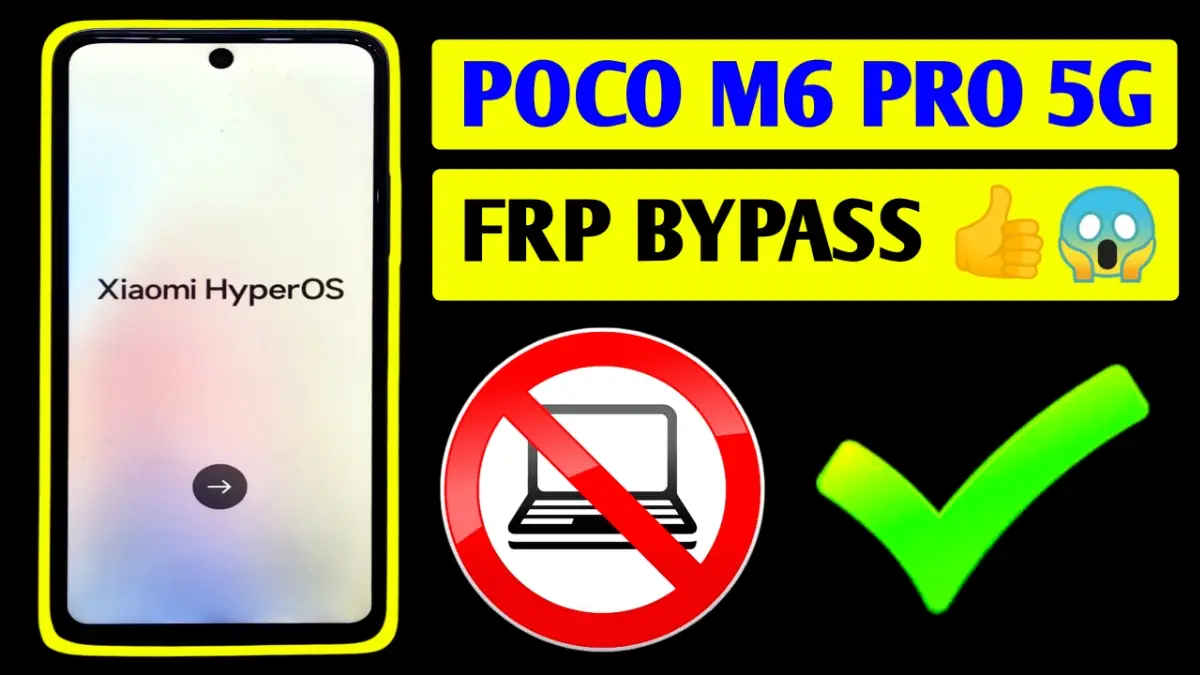
Locked out of your Poco M6 Pro 5G after a factory reset. Forgot the previously synced Google account? Don’t worry—this guide reveals a working 2026 method to bypass poco m6 pro 5g FRP without a PC, using only your device and a few smart tricks.
In this tutorial, we’ll use the TalkBack feature, EasyShare app, and Second Space method to unlock your phone in minutes.
Step-by-Step FRP Bypass poco m6 pro 5g
Step 1: Start Setup & Enable TalkBack
- Power on your Poco M6 Pro 5G.
- Connect to a Wi-Fi network.
- Return to the welcome screen.
- Tap on Vision Settings > Enable TalkBack.
- Draw an “L” gesture to open the TalkBack menu.
- Tap TalkBack Settings, then double-tap to select.
- Once in settings, disable TalkBack with Volume Up + Volume Down together.
Step 2: Access Help & Feedback
- In TalkBack settings, scroll to Help & Feedback.
- Select About Switch Access for Android.
- Play the YouTube video.
- Tap the 3 dots > Watch Later > Opens YouTube.
👉 3: Open Browser via YouTube ( Bypass m6 pro )
- Tap user icon > Terms & Privacy Policy.
- It will open Chrome browser.
- Accept and continue > No thanks.
Step 4: Download EasyShare & Activity Launcher from (subrataservicecenter.com)
- Search for “EasyShare APK” and download it.
- Do the same for Activity Launcher APK.
- Install both APKs (enable unknown sources if asked).
Read More: Xiaomi HyperOS frp bypass 2026
👉 5: Share Settings via EasyShare (frp poco m6 pro 5g)
- Open EasyShare.
- Tap Receive on this device.
- From another phone (with EasyShare), select and share Activity Launcher to the Poco.
- Open and received app.
Step 6: Launch Second Space (m6 pro frp)
- In Activity Launcher, search “Second Space”.
- Tap on Second Space Settings and create a new space.
- Complete the setup of Second Space (skip Google sign-in).
- Now go to Settings > Users > Delete First Space.
Step 7: Reboot and Set Up
- Restart the phone.
- Complete setup in Second Space—Google account screen will be gone.
- Now you can use the device freely or add a new account.
Final Words:
This method is one of the most effective ways to bypass FRP Poco M6 Pro 5G without a computer. It leverages system vulnerabilities using built-in accessibility and app-sharing tricks. Always use this method for ethical purposes or on devices you own.
FRP (Factory Reset Protection) is a Google security feature that activates when a device is reset without removing the Google account. After reset, the phone asks for the previously synced Google ID.
Yes, in some Android and MIUI/HyperOS versions, FRP can be bypassed without using a PC, depending on security patch level and system updates.
Poco M6 Pro 5G usually runs on Android 13/14/15 with MIUI or HyperOS, and FRP behavior may vary based on updates.
To avoid FRP lock:
• Remove Google account before factory reset
• Disable screen lock before resetting
• Always remember your Google ID and password
Yes. If you reset the phone again without removing the Google account, FRP lock will reappear.