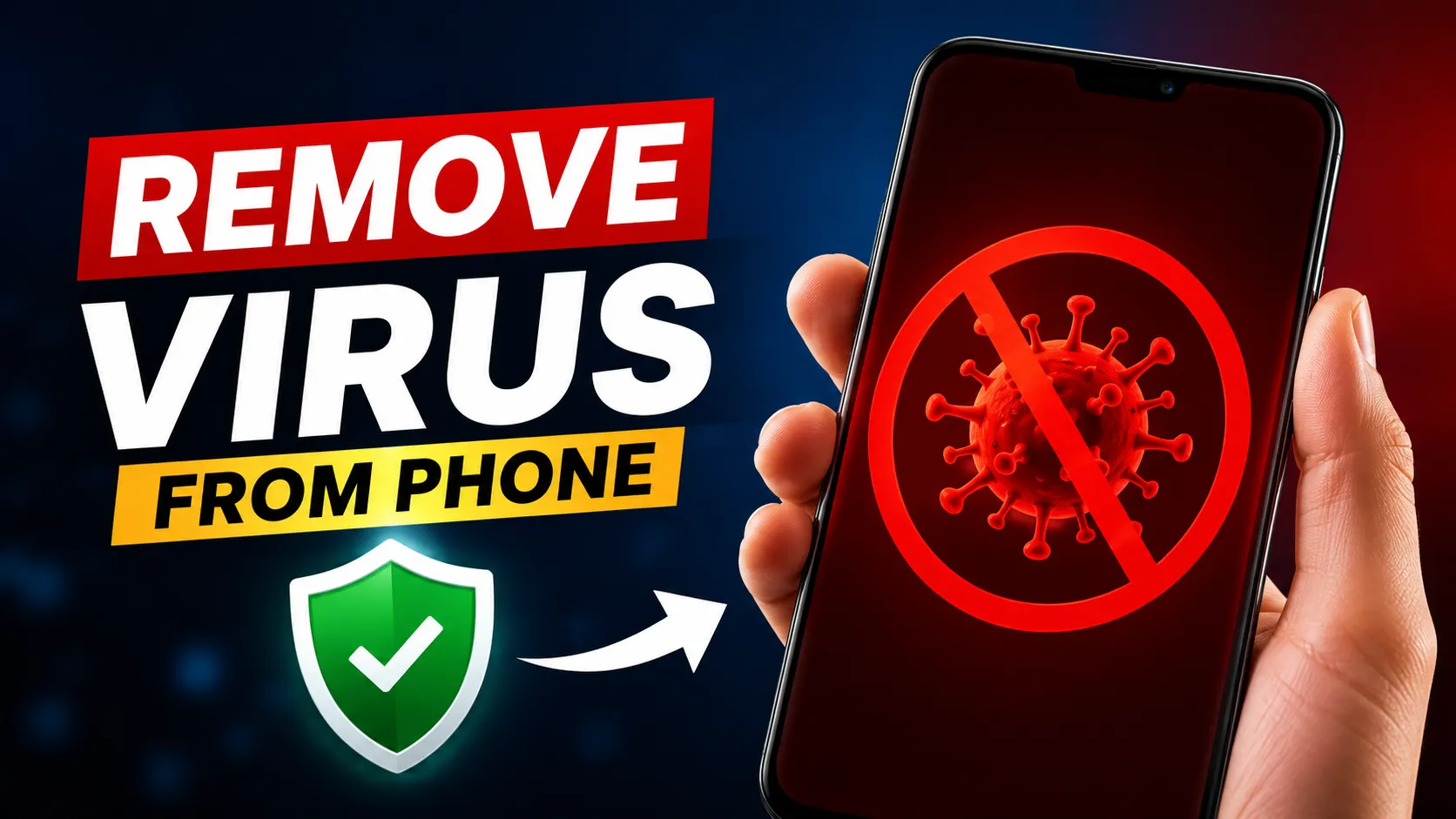
Smartphones are now part of our daily life. We use them to bank, shop, use social media, work, and store personal memories. Cybercriminals are increasingly targeting phones with malware, spyware, adware, and other malicious software because phones contain so much sensitive information. Is there a virus on my phone? If your device is suddenly slow or exhibiting strange pop-ups or battery loss, you may wonder.
The good news is that most phone infections can be removed without having to replace your device. Whether you’re running Android or another mobile operating system, knowing the warning signs and how to take the right steps can help you protect your data and restore your phone’s performance.
This guide will show you how to identify suspicious activity, safely remove malware, and keep your phone secure in the future.
Read More: Samsung A51 On Off Problem Solution
How to Remove Malware From Android
Malware is software that is meant to steal data, show you unwanted ads, spy on what you’re doing, or damage your device. Android phones, in particular, are vulnerable when users download apps from unofficial sources or click on suspicious links.
Boot into Safe Mode on your phone Safe Mode temporarily turns off third-party apps, so it’s easier to figure out which apps are causing problems. Check the recently installed apps if your phone is in Safe Mode. If you see an unknown app, or an app you installed just before the problems started, then uninstall it immediately.
After removing suspicious apps, clear your browsing history and browser cache. Some malware hangs around on bad websites or has tracking scripts that keep causing problems. Clearing cached data is a good way to remove these threats.
Then, update your Android operating system. Security updates often contain patches that fix vulnerabilities malware exploits. Go into your phone settings and see if there are updates. Upgrading to the latest version can enhance security and performance.
Scan your mobile phone with a good mobile security app. Antivirus tools are able to identify hidden malware files, malicious applications, and suspicious permissions that might otherwise be overlooked. Regular scans help keep your device protected and add another layer of protection.
How To Remove Virus From Your Android Phone
If you think your phone has a virus, don’t panic and don’t download any random “virus cleaner” apps from unknown websites. Many of the fake antivirus tools are scams that make the problem worse.
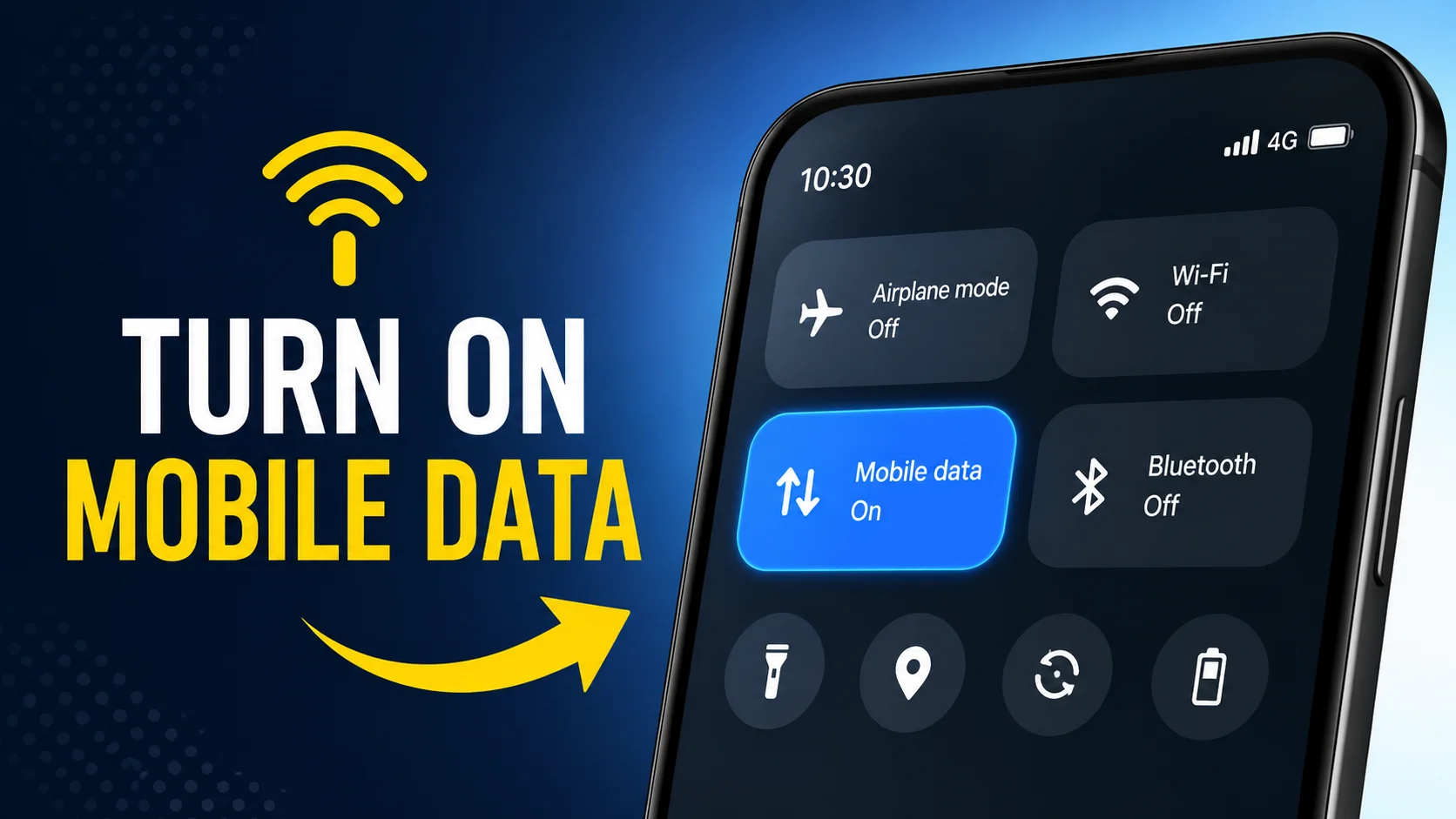
First, turn off Wi-Fi and mobile data on your device. It stops malware from communicating with remote servers or downloading additional malicious files. Restart the phone and check if the problem continues.
Review all installed applications thoroughly. Remove any app you don’t recognize or that requests too many permissions. Be extra cautious with apps that come from outside the official app stores, as these are a common source of infection.
Also, check your browser settings. If your homepage is changing by itself or you are constantly seeing ads, reset the browser to default settings. This deletes harmful extensions and clears data from potentially dangerous websites.
If the issue persists after these steps, do a factory reset. Be sure to back up your important files, such as photos, videos, and contacts, before doing this. A factory reset erases all apps and data to return the phone to its original condition. It is often the best way to get rid of persistent malware infections.
How to Know If Your Phone Has a Virus
Mobile malware can often act differently from computer viruses, and many users ask how to tell if your phone has a virus. Instead of deleting files, it might secretly collect information, or it might display annoying ads.
One of the common signs is poor performance. If your phone is suddenly very slow, even though you have plenty of storage space, malware could be eating up system resources in the background.
Unexpected pop-up ads are yet another warning sign. It’s normal to see ads while browsing, but if you’re seeing ads on your home screen or in apps that don’t normally have ads, you may have adware.
Battery drain is another important thing to watch. Malware often runs all the time and drains your battery much faster than it should. “If your battery life suddenly drops for no reason, investigate the issue.
Anomalous data usage can also be a sign of malicious activity. Malware can send information to outside servers or download other files without your knowledge. Check your mobile data usage for suspicious background activity.
Watch for overheating, finally. If a phone gets too hot while idle, it could be running hidden processes that use up too many resources.
How to Remove Virus from Phone for Free
Many people think they need to buy the expensive software to remove the malware, but there are lots of effective ways to clean your phone from viruses for free.
Start by manually removing suspicious apps. Open the application list and uninstall anything you don’t recognize or that was installed recently before the problems started. The answer is often to simply remove the source of the infection.
Clear your cached files and browser data often. Some malware saves scripts or malicious cookies to temporary files. Deleting these files improves security and frees up storage space.
Download free antivirus apps from trusted developers in official app stores. These tools can scan your device, detect suspicious behavior, and quarantine harmful files for free.
Updating Android is another free and very effective security measure. Software updates include security patches to prevent new threats. Not updating makes your device vulnerable to known exploits.
Finally, enable the built-in security features such as app scanning, screen lock protection, and automatic updates. These features do not increase the cost and considerably improve the safety of the device.
How to Tell If Your Phone Has a Virus
If you are wondering how to tell if your phone has a virus, keep an eye out for strange behavior that happens suddenly and repeatedly.
Repeated app crashes may be a sign of malware interference. While an occasional crash is expected behavior, repeated application failures across multiple applications warrant investigation.
Look out for strange apps popping up on your phone. Sometimes, malware installs companion apps that run in the background unassumingly. Delete apps you never downloaded right away.
Common warning signs include too much battery drain, overheating, and high mobile data usage. Most malware will run all the time, and that is fairly noticeable performance-wise.
Unusual activity in the account is another indicator. If you receive password reset emails, suspicious login alerts, or messages you didn’t send, malware may have compromised your credentials.
Catch ‘em early, and you can nip threats in the bud before serious damage is done.
How to Delete Virus from Android
How to remove a virus from Android? It’s a process that requires patience and a systematic approach. First, switch off your internet to stop any malicious communication. Reboot the phone to Safe Mode and uninstall suspicious apps.
Delete unwanted applications, clean browser data, and remove downloads you don’t recognize. Malware files can sometimes be hidden in the Downloads folder, especially if you download apps from unofficial websites.
- Perform a full virus scan using a trusted security application. Let the app delete or quarantine anything it detects as a threat. After the scan is finished, restart the device and see if the symptoms are gone.
If malware is still running, back up your important files and then factory reset your device. Reset the apps, reinstall apps from the official store only, and avoid restoring suspicious apps from backup.
Downloading apps carefully and practicing safe browsing habits will go a long way in reducing the risk of future infections.
Is my phone infected with a virus?
The question “Does my phone have a virus?” is a very common one, especially when a device is acting up. That’s a bunch of symptoms that happen together, which means you should check for malware, even if malware isn’t responsible for every performance problem.
Slow performance, random ads, quick battery drain, overheating, unknown apps, and strange data usage could be a sign of a virus or malware infection. But you may also face similar problems due to outdated software, low storage space, or buggy apps.
You should run a security scan, delete any questionable apps, and update your device. If it goes away after that, then it was probably malware.
Remember that prevention is always better than cure. Most threats can be avoided by downloading apps only from trusted sources, keeping Android updated, and not clicking on suspicious links.
By being vigilant and following security practices outlined in this guide, you can keep your phone running quickly, secure, and free of harmful viruses for years to come.
FAQ
Yes, smartphones can be infected with malware, spyware, adware, and other nasty software, particularly when apps are downloaded from unofficial sources.
First, remove any suspicious apps, clear browser data, update Android, run an antivirus scan, and reset to factory settings if all else fails.
Yes, in general. Most malware infections can be solved by doing a factory reset, which deletes installed apps and files.
Frequent pop-up ads can be a sign of adware or a malicious app on your device.
Yes. You can also uninstall suspicious apps, clear the cache, update Android, and use free antivirus apps from trusted developers.
“Only install apps from official stores, keep your phone updated, avoid suspicious links, and regularly scan your device with security software,” she said.
Yes. Some malware, if left unchecked, can steal passwords, banking details, contacts, and other sensitive information.
Some of the most common symptoms are fast battery drain, slow performance, too many ads, overheating, and weird data usage.